# Commands
Source: https://usemci.dev/documentation/commands
mcix commands reference
### `mci install`
Bootstrap a new MCI project with starter configuration.
```bash theme={null}
# Create JSON configuration (default)
uvx mcix install
# Create YAML configuration
uvx mcix install --yaml
```
Creates:
* `mci.json` (or `mci.yaml`) - Main configuration file
* `mci/` directory - Library of toolsets
* `mci/.gitignore` - Excludes generated files
### `mci list`
Display all available tools from your configuration.
```bash theme={null}
# List all tools (table format)
uvx mcix list
# List with verbose details
uvx mcix list --verbose
# Filter by tags
uvx mcix list --filter tags:api,database
# Export to JSON
uvx mcix list --format json
# Export to YAML
uvx mcix list --format yaml
```
**Filter types**:
* `tags:tag1,tag2` - Include tools with any of these tags
* `only:tool1,tool2` - Include only specific tools
* `except:tool1,tool2` - Exclude specific tools
* `toolsets:ts1,ts2` - Include tools from specific toolsets
* `without-tags:tag1,tag2` - Exclude tools with these tags
### `mci validate`
Validate your MCI schema for correctness.
```bash theme={null}
# Validate default configuration
uvx mcix validate
# Validate specific file
uvx mcix validate --file custom.mci.json
```
Checks for:
* Schema structure and syntax
* Required fields
* Data types
* Tool definitions
* Toolset references
* MCP command availability (warnings)
### `mci add`
Add toolset references to your schema.
```bash theme={null}
# Add a toolset
uvx mcix add weather-tools
# Add with filter
uvx mcix add analytics --filter=only:Tool1,Tool2
# Add with tag filter
uvx mcix add api-tools --filter=tags:api,database
# Add to custom file
uvx mcix add weather-tools --path=custom.mci.json
```
Automatically preserves your file format (JSON stays JSON, YAML stays YAML).
### `mci run`
Launch an MCP server that dynamically serves your tools.
```bash theme={null}
# Run with default configuration
uvx mcix run
# Run with specific file
uvx mcix run --file custom.mci.json
# Run with filtered tools
uvx mcix run --filter tags:production
# Run excluding tools
uvx mcix run --filter except:deprecated_tool
```
The server:
* Loads tools from your MCI schema
* Converts them to MCP format
* Listens on STDIO for MCP requests
* Delegates execution back to MCIClient
**Stop the server**: Press `Ctrl+C`
# Introduction
Source: https://usemci.dev/documentation/introduction
Understanding MCI - A lightweight, universal approach to AI tool development
# Introduction to MCI
The **Model Context Interface (MCI)** is an open-source, platform-agnostic system that revolutionizes how you create and share AI agent tools. By leveraging simple JSON schemas, MCI enables developers to define collections of tools that work universally across programming languages and platforms.
## What is MCI?
Define AI tools using standardized JSON schemas that work in **every programming language** - Python, Node.js, Go, PHP, and beyond.
Support for **HTTP**, **CLI**, **File**, **Text** & **MCP** operations,
allowing you to wrap REST APIs, command-line tools, file operations, and
templates.
Comprehensive authentication support including **API Keys**, **Bearer
Tokens**, **Basic Auth**, and **OAuth2** - all configured declaratively.
Powerful template engine with environment variables, conditional logic (`@if`), and iteration (`@foreach`) for dynamic tool execution.
MCI transforms complex AI tool development into simple JSON configuration.
Your entire toolset fits in a single file that's easy to review, share, and
maintain.
## Why Use MCI?
### 🚀 **Simplicity Over Complexity**
Unlike complex server-based solutions, MCI tools are **declarative JSON files** that live directly in your project repository. No servers to maintain, no complex deployments - just clean, readable schemas.
```json Simple Tool Definition theme={null}
{
"name": "greet_user",
"description": "Generate a personalized greeting",
"inputSchema": {
"type": "object",
"properties": {
"username": { "type": "string" }
}
},
"execution": {
"type": "text",
"text": "Hello, {{props.username}}! Welcome to MCI."
}
}
```
```python Programmatic Usage theme={null}
from mcipy import MCIClient
client = MCIClient(json_file_path="tools.mci.json")
result = client.execute("greet_user", {"username": "Alice"})
# Output: "Hello, Alice! Welcome to MCI."
```
```bash MCP usage theme={null}
# Runs whole toolset as local MCP server
uvx mcix run
# Run different toolsets per agent
uvx mcix run --file context-agent.mci.json
uvx mcix run --file support-agent.mci.yaml
# Run different variations of mcp
uvx mcix run --filter tags:readOnly
uvx mcix run --filter only:read_issue,list_issues
# Super Flexibility, Full control!
```
### 🔒 **Secure by Design**
Your entire toolset is **transparent and auditable**. Every tool is defined in plain JSON that humans and AI can easily review. No black-box servers, no mysterious third-party code accessing your data.
### 🌍 **Universal Compatibility**
Write once, run everywhere. MCI works with any programming language because it uses operations available in **every programming language** - HTTP requests, CLI commands, file operations, and text processing.
### 📦 **Maximum Flexibility**
One `.mci.json` file containing all tools for your entire project.
Separate files per AI agent, each with their specialized toolset.
One file per external API you want to wrap and use.
Combine tools from different authors - it's not 10 servers to initialize, just 10 files in your repo.
## How MCI Differs from MCP
MCI is designed as a **supplement to MCP**, not a replacement. Each serves
different use cases in the AI tooling ecosystem.
| Aspect | **MCI** | **MCP** |
| ------------------ | ------------------------------ | ---------------------------------- |
| **Complexity** | Simple JSON files | Full server implementations |
| **Use Case** | API/CLI wrappers, simple tools | Complex logic, stateful operations |
| **Languages** | Universal (JSON-based) | Language-specific servers |
| **Sharing** | A few files | Whole project |
| **Review** | Easy JSON audit | Full codebase review |
| **Infrastructure** | None required | Server infrastructure |
### When to Choose MCI
* **API Wrappers**: Wrapping REST APIs with authentication
* **CLI Tool Integration**: Executing command-line tools
* **Simple Workflows**: File operations and text templating
* **Rapid Prototyping**: Quick tool development and iteration
* **Easy Sharing**: Tools that need to be shared across teams
* **Security-Conscious**: Environments requiring full auditability
* **Complex Logic**: Tools requiring sophisticated business logic
* **Stateful Operations**: Tools that maintain state across calls
* **Real-time Features**: Streaming or real-time data processing
* **Custom Protocols**: Non-standard communication requirements
* **Performance Critical**: High-throughput, low-latency operations
**Pro Tip**: Many teams use both! Start with MCI for quick API wrappers and
simple tools, then add MCP server when you need complex server-side logic or
need to reuse existing MCP tools. Check [MCP
Servers](http://172.31.160.1:3001/documentation/mcp_servers) page
## Quick Start Example
See MCI in action with this complete example:
```json weather-tools.mci.json theme={null}
{
"tools": [
{
"name": "get_weather",
"description": "Get current weather for a city",
"inputSchema": {
"type": "object",
"properties": {
"city": { "type": "string" }
},
"required": ["city"]
},
"execution": {
"type": "http",
"method": "GET",
"url": "https://api.weather.com/current?q={{props.city}}",
"auth": {
"type": "apiKey",
"in": "header",
"name": "X-API-Key",
"value": "{{env.WEATHER_API_KEY}}"
}
}
}
]
}
```
```python theme={null}
from mcipy import MCIClient
client = MCIClient(
json_file_path="weather-tools.mci.json",
env_vars={"WEATHER_API_KEY": "your-key"}
)
weather = client.execute("get_weather", {"city": "London"})
print(weather)
```
Register `uvx mcix run` to any MCI client such as Cluade desktop, Cursor, etc.
Copy `weather-tools.mci.json` to any project, any language. It just works!
## What's Next: The MCI Ecosystem
MCI is rapidly evolving with an ambitious roadmap to make AI tool development
universally accessible.
### 🔄 **Language Adapters**
**Ready Now**
Full-featured adapter with 92%+ test coverage and comprehensive authentication support.
**In Development** TypeScript-first implementation with the same simple API.
Coming Q1 2024.
**Planned** High-performance Go implementation for system-level tools and
microservices.
**Planned** Bringing MCI to the PHP ecosystem for web applications and CMS
integrations.
**Planned** Ultra-fast Rust adapter for performance-critical applications.
**Planned**
Enterprise-ready Java implementation for large-scale applications.
### 📚 **MCI Library**
A centralized repository of community-contributed MCI tools:
* **Curated Collections**: Pre-built tools for popular APIs (GitHub, Slack, AWS)
* **Quality Assurance**: All tools tested and documented
* **Version Management**: Semantic versioning for tool schemas
* **Discovery**: Search and browse tools by category and functionality
### 📦 **MCI Package Manager**
Coming soon - a dedicated package manager for MCI tools:
```bash theme={null}
mci install github-tools slack-integration aws-s3
```
Install tools from the community library with a single command.
```json mci.config.json theme={null}
{
"dependencies": {
"github-tools": "^1.2.0",
"slack-integration": "^2.1.0"
}
}
```
Manage tool versions and dependencies like any other package.
`bash mci publish my-amazing-tools.mci.json ` Share your tools with the
global MCI community effortlessly.
```bash theme={null}
mci update
```
Keep your tool library up-to-date with the latest versions and security fixes.
### 🎯 **Planned Features**
**Jinja2 Integration**: Replace the current basic template engine with full Jinja2 support for more robust templating options.
**Include Directive**: Add `@include("path/to/file.md")` to simplify reusing prompt parts and templates.
**OAuth2 Flows**: Complete OAuth2 implementation with refresh tokens and PKCE support.
**Dynamic Credentials**: Runtime credential resolution and rotation.
**Pipeline Tools**: Chain multiple tools together in declarative workflows.
**Conditional Execution**: Execute tools based on runtime conditions and previous results.
**VS Code Extension**: Syntax highlighting, validation, and debugging for MCI schemas.
**IntelliSense**: Auto-completion and inline documentation for schema properties.
## Getting Started
Complete documentation of the MCI JSON schema with examples and best
practices.
Comprehensive Python adapter documentation with advanced usage patterns.
Connect with other developers, share tools, and get help from the community.
**Ready to revolutionize your AI development?** MCI makes building powerful AI
tools as simple as writing JSON. Start with the quickstart guide and join
thousands of developers already using MCI.
# MCP Servers
Source: https://usemci.dev/documentation/mcp_servers
Integrate external MCP servers with automatic caching, filtering, and 20x faster performance than direct connections
# MCI - MCP Servers
MCP (Model Context Protocol) servers provide external tools that can be integrated into your MCI projects. MCI's MCP integration offers automatic caching, filtering, and significantly better performance than direct MCP connections.
## What are MCP Servers?
**MCP Servers** are external services that expose tools via the Model Context Protocol. They can run:
* **Locally** via STDIO (command-line processes like `npx`, `uvx`)
* **Remotely** via HTTP/SSE (web-based endpoints)
Examples of MCP servers:
* Filesystem operations (read, write, list files)
* Memory/storage services
* GitHub integration
* Slack integration
* Database access
* Custom business logic
## Why Use MCI's MCP Integration?
### Direct MCP Connection (Traditional Approach)
```
Agent → npx @modelcontextprotocol/server-filesystem
↓
List tools (500ms)
↓
Execute tool #1 (200ms)
↓
Execute tool #2 (200ms)
↓
Execute tool #3 (200ms)
Total: ~1.1 seconds for startup + 3 tool calls
```
### MCI MCP Integration (Better Approach)
```
Agent → MCI → Cached Toolset (JSON file)
↓
List tools (25ms) ← 20x faster!
↓
Execute tool #1 → Connect to MCP (200ms)
↓
Execute tool #2 → Reuse connection (150ms)
↓
Execute tool #3 → Reuse connection (150ms)
Total: ~525ms for startup + 3 tool calls
```
### Key Benefits
1. **20x Faster Tool Discovery**: Reading from JSON cache vs. connecting to MCP server
2. **Connection Pooling**: Reuse connections during execution
3. **Filtering**: Only register needed tools, not all available tools
4. **Splitting & Combining**: Mix tools from different MCP servers in different MCI files
5. **No Runtime MCP Dependency**: Agent doesn't need MCP connection to discover tools
6. **Offline Discovery**: List and inspect tools without server access
## How It Works
### 1. Registration
Register MCP servers in your MCI schema:
```json theme={null}
{
"schemaVersion": "1.0",
"mcp_servers": {
"filesystem": {
"command": "npx",
"args": ["-y", "@modelcontextprotocol/server-filesystem", "/workspace"]
}
}
}
```
### 2. First Load (Auto-Caching)
When you first load the schema:
1. MCI connects to the MCP server (`npx @modelcontextprotocol/server-filesystem /workspace`)
2. Fetches all available tools from the server
3. Converts them to MCI tool definitions
4. Saves them to `./mci/mcp/filesystem.mci.json`
5. Adds expiration timestamp (default: 30 days)
**Generated Cache File** (`./mci/mcp/filesystem.mci.json` example):
```json theme={null}
{
"schemaVersion": "1.0",
"metadata": {
"name": "filesystem MCP Server",
"description": "Auto-generated toolset from MCP server"
},
"expiresAt": "2024-02-15",
"tools": [
{
"name": "read_file",
"description": "Read the complete contents of a file from the file system",
"inputSchema": {
"type": "object",
"properties": {
"path": {
"type": "string",
"description": "Path to the file to read"
}
},
"required": ["path"]
},
"execution": {
"type": "mcp",
"serverName": "filesystem",
"toolName": "read_file"
}
},
{
"name": "write_file",
"description": "Write content to a file",
"execution": {
"type": "mcp",
"serverName": "filesystem",
"toolName": "write_file"
}
},
{
"name": "list_directory",
"description": "List contents of a directory",
"execution": {
"type": "mcp",
"serverName": "filesystem",
"toolName": "list_directory"
}
}
]
}
```
### 3. Subsequent Loads (Fast!)
On subsequent loads:
1. MCI checks for cached file: `./mci/mcp/filesystem.mci.json`
2. Checks if expired (compares current date with `expiresAt`)
3. If valid, loads tools from cache (no MCP connection needed)
4. If expired, re-fetches from server and updates cache
**Performance Comparison:**
| Operation | Direct MCP | MCI Cached |
| -------------------- | ---------------- | ---------- |
| Tool Discovery | 500ms | 25ms |
| Tool Execution | 200ms | 200ms |
| **Total (1st time)** | 700ms | 525ms |
| **Total (cached)** | N/A (no caching) | 225ms |
> **Note:** Direct MCP does not cache tool definitions, so its performance is always 700ms. The "cached" value is not applicable for Direct MCP.
> **Note:** Examples here are average for NPX-based MCPs. HTTP-based performance hardly vary, but generally is slower than local servers.
### 4. Tool Execution
When you execute an MCP tool:
1. MCI reads the cached tool definition
2. Connects to the registered MCP server
3. Calls the tool via MCP protocol
4. Returns result in standard MCI format
The MCP server is **only contacted during execution**, not during tool discovery.
> **Note:** MCI currently supports only Tools from MCP, since it is the most requested (And useful TBH) feature. Resources & Prompts can be added using MCI's `text` and `file` execution types.
## Registering MCP Servers
### STDIO Server (Local)
**npx Example:**
```json theme={null}
{
"mcp_servers": {
"filesystem": {
"command": "npx",
"args": ["-y", "@modelcontextprotocol/server-filesystem", "/workspace"],
"env": {
"DEBUG": "1"
}
}
}
}
```
**uvx Example:**
```json theme={null}
{
"mcp_servers": {
"memory": {
"command": "uvx",
"args": ["mcp-server-memory"],
"env": {
"LOG_LEVEL": "info"
}
}
}
}
```
### HTTP Server (Remote)
```json theme={null}
{
"mcp_servers": {
"github": {
"type": "http",
"url": "https://api.githubcopilot.com/mcp/",
"headers": {
"Authorization": "Bearer {{env.GITHUB_MCP_PAT}}"
}
}
}
}
```
### Multiple Servers
```json theme={null}
{
"mcp_servers": {
"filesystem": {
"command": "npx",
"args": ["-y", "@modelcontextprotocol/server-filesystem", "/data"]
},
"memory": {
"command": "uvx",
"args": ["mcp-server-memory"]
},
"github": {
"type": "http",
"url": "https://api.githubcopilot.com/mcp/",
"headers": {
"Authorization": "Bearer {{env.GITHUB_TOKEN}}"
}
}
}
}
```
## Filtering MCP Tools
One of the most powerful features is the ability to filter which tools are loaded from MCP servers.
### Basic Filtering
**Include Only Specific Tools:**
```json theme={null}
{
"mcp_servers": {
"filesystem": {
"command": "npx",
"args": ["-y", "@modelcontextprotocol/server-filesystem", "/workspace"],
"config": {
"filter": "only",
"filterValue": "read_file,write_file,list_directory"
}
}
}
}
```
Result: Only `read_file`, `write_file`, and `list_directory` tools are registered.
**Exclude Dangerous Tools:**
```json theme={null}
{
"mcp_servers": {
"filesystem": {
"command": "npx",
"args": ["-y", "@modelcontextprotocol/server-filesystem", "/workspace"],
"config": {
"filter": "except",
"filterValue": "delete_file,move_file"
}
}
}
}
```
Result: All filesystem tools except `delete_file` and `move_file` are registered.
**Filter by Tags:**
```json theme={null}
{
"mcp_servers": {
"github": {
"type": "http",
"url": "https://api.githubcopilot.com/mcp/",
"headers": {
"Authorization": "Bearer {{env.GITHUB_TOKEN}}"
},
"config": {
"filter": "tags",
"filterValue": "read,search"
}
}
}
}
```
Result: Only tools tagged with `"read"` or `"search"` are registered.
## Splitting & Combining MCP Tools
You can split tools from a single MCP server across multiple MCI files, or combine tools from different MCP servers into one MCI file.
### Splitting: One MCP Server → Multiple MCI Files
**Production Tools (prod-tools.mci.json):**
```json theme={null}
{
"schemaVersion": "1.0",
"mcp_servers": {
"github": {
"type": "http",
"url": "https://api.githubcopilot.com/mcp/",
"headers": {
"Authorization": "Bearer {{env.GITHUB_TOKEN}}"
},
"config": {
"filter": "tags",
"filterValue": "isReadOnly"
}
}
}
}
```
**Development Tools (dev-tools.mci.json):**
```json theme={null}
{
"schemaVersion": "1.0",
"mcp_servers": {
"github": {
"type": "http",
"url": "https://api.githubcopilot.com/mcp/",
"headers": {
"Authorization": "Bearer {{env.GITHUB_TOKEN}}"
},
"config": {
"filter": "withoutTags",
"filterValue": "destructive"
}
}
}
}
```
Result: Different agents can access different subsets of GitHub tools.
### Combining: Multiple MCP Servers → One MCI File
```json theme={null}
{
"schemaVersion": "1.0",
"mcp_servers": {
"filesystem": {
"command": "npx",
"args": ["-y", "@modelcontextprotocol/server-filesystem", "/data"],
"config": {
"filter": "only",
"filterValue": "read_file,list_directory"
}
},
"memory": {
"command": "uvx",
"args": ["mcp-server-memory"]
},
"github": {
"type": "http",
"url": "https://api.githubcopilot.com/mcp/",
"headers": {
"Authorization": "Bearer {{env.GITHUB_TOKEN}}"
},
"config": {
"filter": "tags",
"filterValue": "read"
}
}
}
}
```
Result: A single agent has access to filesystem, memory, and GitHub tools, all filtered appropriately.
## Cache Management
### Cache Location
Default location: `./mci/mcp/{serverName}.mci.json`
```
project/
└── mci/
├── weather.mci.json # Regular toolset
└── mcp/ # MCP cache directory
├── filesystem.mci.json
├── memory.mci.json
└── github.mci.json
```
### Expiration Configuration
Set custom expiration in days:
```json theme={null}
{
"mcp_servers": {
"filesystem": {
"command": "npx",
"args": ["..."],
"config": {
"expDays": 7 // Refresh every 7 days
}
}
}
}
```
**Default**: 30 days
**Recommendations:**
* **Frequently changing APIs**: 1-7 days
* **Stable services**: 30-90 days
* **Development**: 1 day
### Manual Cache Refresh
**Delete specific cache:**
```bash theme={null}
rm ./mci/mcp/filesystem.mci.json
```
**Delete all MCP caches:**
```bash theme={null}
rm -rf ./mci/mcp/
```
Next load will re-fetch from servers.
### Git Ignore
Add to `.gitignore`:
```
# MCP cache files
mci/mcp/
```
**Rationale**: Cache files are auto-generated and can differ between environments.
## Performance Benefits
### 1. Faster Tool Discovery
**Scenario**: Agent wants to see all available tools
| Method | Time | Notes |
| ----------- | -------------- | ------------------------------ |
| Direct MCP | 500ms | Connect to server, fetch tools |
| MCI Cached | 25ms | Read from JSON file |
| **Speedup** | **20x faster** | |
### 2. Offline Tool Inspection
```bash theme={null}
# View available MCP tools without server access
cat ./mci/mcp/filesystem.mci.json
```
### 3. Reduced Server Load
* Tools are fetched once per cache period (e.g., 30 days)
* Thousands of agents can use the same cache
* Server is only contacted during tool execution
### 4. Faster Multi-Agent Systems
**Without MCI Caching:**
* 10 agents × 500ms discovery = 5 seconds total
**With MCI Caching:**
* 10 agents × 25ms discovery = 250ms total
* **20x faster startup**
## Best Practices
### 1. Set Appropriate Expiration
```json theme={null}
{
"config": {
"expDays": 7 // Balance between freshness and performance
}
}
```
### 2. Filter Aggressively
Only load tools you actually need:
```json theme={null}
{
"config": {
"filter": "only",
"filterValue": "read_file,write_file" // Just what you need
}
}
```
### 3. Use Environment Variables
```json theme={null}
{
"mcp_servers": {
"api": {
"type": "http",
"url": "{{env.MCP_URL}}",
"headers": {
"Authorization": "Bearer {{env.MCP_TOKEN}}"
}
}
}
}
```
> Note: MCIClient object supports env\_vars as well as when registering with `uvx mcix run` in any MCP client (For example, cursor or vscode) you can pass env variables, which will be resolved in whole "mci.json" file, as well as in "mcp\_servers" part
### 4. Add to .gitignore
```
mci/mcp/
```
### 5. Document Server Requirements
```json theme={null}
{
"metadata": {
"description": "Requires GITHUB_TOKEN environment variable for MCP server"
}
}
```
## Troubleshooting
### Cache is Stale
**Solution**: Delete and re-fetch
```bash theme={null}
rm ./mci/mcp/filesystem.mci.json
```
### Server Not Available
**Error**: `Failed to connect to MCP server: filesystem`
**Solutions**:
1. Check server command is correct
2. Verify `npx` or `uvx` is installed
3. Check network connectivity for HTTP servers
4. Verify credentials (API tokens)
### Tools Not Appearing
**Solutions**:
1. Check cache expiration
2. Verify filter configuration
3. Delete cache and reload
4. Check server is providing tools
## Summary
* **MCP Integration**: Connect to external MCP servers for additional tools
* **Automatic Caching**: Tools cached in `./mci/mcp/` for fast access
* **20x Faster Discovery**: Read from JSON vs. connecting to server
* **Filtering**: Control which tools are registered
* **Splitting & Combining**: Mix MCP tools across different MCI files
* **No Runtime Dependency**: Agents don't need MCP connection to discover tools
* **Performance**: Significantly faster than direct npx-based MCP
MCI's MCP integration provides the best of both worlds: the flexibility of MCP servers with the performance and control of static tool definitions.
# Quickstart
Source: https://usemci.dev/documentation/quickstart
Get started with MCI
No installation needed! Run MCI directly using `uvx`
`bash curl -LsSf https://astral.sh/uv/install.sh | sh `
1. **Initialize a new project**:
```bash theme={null}
uvx mcix install
```
This creates `mci.json` with example tools and `mci/` directory with example toolsets.
2. **List your tools**:
```bash theme={null}
uvx mcix list
uvx mcix list --file copilot.mci.json
```
Example output:
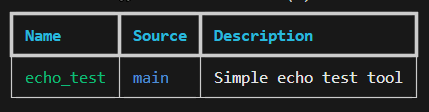 3. **Validate your configuration**:
```bash theme={null}
uvx mcix validate
```
4. **Run an MCP server**:
```bash theme={null}
uvx mcix run
```
Example from VS Code:
3. **Validate your configuration**:
```bash theme={null}
uvx mcix validate
```
4. **Run an MCP server**:
```bash theme={null}
uvx mcix run
```
Example from VS Code:
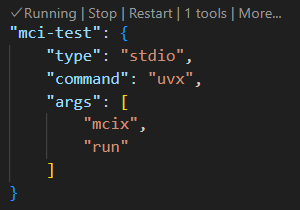 That's it! Your MCI tools are now available via the MCP protocol.
### Optional: Install MCI Globally
If you prefer to install MCI permanently:
```bash theme={null}
# Install globally with uv
uv tool install mcix
# Then use without uvx prefix
mcix install
mcix list
mcix run
```
Or install from source:
```bash theme={null}
git clone https://github.com/Model-Context-Interface/mci-uvx.git
cd mci-uvx
uv sync --all-extras
uv tool install --editable .
```
## Next Steps
Now that you have MCI set up, explore these core concepts:
Learn about all available MCI commands and their options.
Understand how to define and use tools in your MCI configuration.
Organize your tools into reusable toolsets.
Learn how MCI integrates with the Model Context Protocol.
# MCI Schema Reference
Source: https://usemci.dev/documentation/schema-reference
This document provides a complete reference for the Model Context Interface (MCI) JSON schema v1. It describes all fields, types, execution configurations, authentication options, and templating syntax supported by the MCI Python adapter
## Overview
MCI (Model Context Interface) uses a schema to define tools that AI agents can execute. The schema can be written in either **JSON** or **YAML** format - both are fully supported and produce identical results.
Each tool specifies:
* What it does (metadata and description)
* What inputs it accepts (JSON Schema)
* How to execute it (execution configuration)
The schema is designed to be platform-agnostic, secure (secrets via environment variables), and supports multiple execution types.
**Schema Version**: `1.0`
**Supported File Formats**:
* JSON (`.json`)
* YAML (`.yaml`, `.yml`)
***
## Top-Level Schema Structure
The root MCI context file has these main fields:
| Field | Type | Required | Description |
| -------------------- | ------- | ------------ | ------------------------------------------------------------------- |
| `schemaVersion` | string | **Required** | MCI schema version (e.g., `"1.0"`) |
| `metadata` | object | Optional | Descriptive metadata about the tool collection |
| `tools` | array | Optional\* | Array of tool definitions |
| `toolsets` | array | Optional\* | Array of toolset references to load from library |
| `mcp_servers` | object | Optional | MCP servers to register and cache (see [MCP Servers](#mcp-servers)) |
| `libraryDir` | string | Optional | Directory to find toolset files (default: `"./mci"`) |
| `enableAnyPaths` | boolean | Optional | Allow any file path (default: `false`) |
| `directoryAllowList` | array | Optional | Additional allowed directories (default: `[]`) |
**Note:** Either `tools`, `toolsets`, or `mcp_servers` (or any combination) must be provided.
### Toolsets
**`toolsets`** (array, optional)
* Array of toolset definitions that reference tool collections in the library directory
* Each toolset can optionally apply schema-level filtering to control which tools are loaded
* Allows organizing tools into reusable, modular collections
**`libraryDir`** (string, default: `"./mci"`)
* Directory path where toolset files are located, relative to the main schema file
* Can be customized to use a different directory structure
#### Toolset Object
Each toolset object supports these fields:
| Field | Type | Required | Description |
| ------------- | ------ | ------------ | --------------------------------------------------------------- |
| `name` | string | **Required** | Name of toolset file/directory in `libraryDir` |
| `filter` | string | Optional | Filter type: `"only"`, `"except"`, `"tags"`, or `"withoutTags"` |
| `filterValue` | string | Required\* | Comma-separated list of tool names or tags |
**\* Required when `filter` is specified**
**Toolset Name Resolution**:
* First checks for a directory: `{libraryDir}/{name}/`
* If found, loads all `.mci.json` files in the directory
* Then checks for direct file: `{libraryDir}/{name}`
* Then checks with extension: `{libraryDir}/{name}.mci.json`
* Also supports `.mci.yaml` and `.mci.yml` extensions
**Schema-Level Filters**:
* `only`: Include only tools with specified names
* `except`: Exclude tools with specified names
* `tags`: Include only tools with at least one matching tag
* `withoutTags`: Exclude tools with any matching tag
### Security Fields
**`enableAnyPaths`** (boolean, default: `false`)
* When `true`, disables all path validation for file and CLI execution
* When `false` (default), restricts access to schema directory and allowed directories
* Can be overridden per-tool
* **Use with caution** - enables access to any file on the system
**`directoryAllowList`** (array of strings, default: `[]`)
* List of additional directories to allow for file/CLI access
* Can be absolute paths (e.g., `/home/user/data`) or relative to schema directory (e.g., `./configs`)
* Schema directory is always allowed by default
* Can be overridden per-tool
### MCP Servers
The `mcp_servers` field enables integration with Model Context Protocol servers.
**`mcp_servers`** (object, optional)
* Object mapping server names to MCP server configurations
* Allows integration with Model Context Protocol (MCP) servers
* Tools from MCP servers are automatically cached in `{libraryDir}/mcp/` directory
* Each server configuration can include filtering and expiration settings
* Supports both STDIO (local command-based) and HTTP (web-based) servers
#### MCP Server Configuration
Each server in the `mcp_servers` object has a unique name as the key and a configuration object with these fields:
**STDIO Configuration:**
| Field | Type | Required | Default | Description |
| --------- | ---------------- | -------- | ------- | -------------------------------------------- |
| `command` | string | Yes | - | Command to execute (e.g., `"npx"`, `"uvx"`) |
| `args` | array of strings | No | `[]` | Arguments to pass to the command |
| `env` | object | No | `{}` | Environment variables for the server process |
| `config` | object | No | - | Optional caching and filtering configuration |
**HTTP Configuration:**
| Field | Type | Required | Default | Description |
| --------- | ------ | -------- | ------- | -------------------------------------------- |
| `type` | string | Yes | - | Must be `"http"` |
| `url` | string | Yes | - | Server URL endpoint |
| `headers` | object | No | `{}` | HTTP headers (e.g., for authentication) |
| `config` | object | No | - | Optional caching and filtering configuration |
**Config Object Fields:**
| Field | Type | Required | Default | Description |
| ------------- | ------- | -------- | ------- | --------------------------------------------------------------- |
| `expDays` | integer | No | `30` | Number of days until cached toolset expires |
| `filter` | string | No | - | Filter type: `"only"`, `"except"`, `"tags"`, `"withoutTags"` |
| `filterValue` | string | No | - | Comma-separated list of tool names or tags (required if filter) |
#### MCP Server Examples
**STDIO Server with Filtering:**
```json theme={null}
{
"mcp_servers": {
"filesystem": {
"command": "npx",
"args": ["-y", "@modelcontextprotocol/server-filesystem", "/workspace"],
"env": {
"DEBUG": "1"
},
"config": {
"expDays": 7,
"filter": "except",
"filterValue": "delete_file,format_disk"
}
}
}
}
```
**HTTP Server with Authentication:**
```json theme={null}
{
"mcp_servers": {
"api_server": {
"type": "http",
"url": "https://api.example.com/mcp/",
"headers": {
"Authorization": "Bearer {{env.API_TOKEN}}"
},
"config": {
"expDays": 30
}
}
}
}
```
**Multiple MCP Servers:**
```json theme={null}
{
"mcp_servers": {
"memory": {
"command": "uvx",
"args": ["mcp-server-memory"]
},
"github": {
"type": "http",
"url": "https://api.githubcopilot.com/mcp/",
"headers": {
"Authorization": "Bearer {{env.GITHUB_MCP_PAT}}"
},
"config": {
"expDays": 14,
"filter": "tags",
"filterValue": "read,search"
}
}
}
}
```
**How MCP Servers Work:**
1. **First Load**: When the schema is loaded, MCI connects to each MCP server and fetches all available tools
2. **Caching**: Tools are saved as standard MCI toolset files in `{libraryDir}/mcp/{serverName}.mci.json`
3. **Subsequent Loads**: Cached toolsets are used instead of connecting to the server (much faster)
4. **Expiration**: When cache expires (based on `expDays`), tools are re-fetched from the server
5. **Filtering**: Optional filters are applied when tools are registered
6. **Templating**: Server configurations support `{{env.VAR}}` templating for credentials
### Example (JSON)
```json theme={null}
{
"schemaVersion": "1.0",
"metadata": {
"name": "My API Tools",
"description": "Tools for interacting with my API",
"version": "1.0.0",
"license": "MIT",
"authors": ["John Doe"]
},
"enableAnyPaths": false,
"directoryAllowList": ["/home/user/data", "./configs"],
"tools": []
}
```
### Example with Toolsets (JSON)
```json theme={null}
{
"schemaVersion": "1.0",
"metadata": {
"name": "My Application",
"description": "Main application with multiple tool libraries"
},
"libraryDir": "./mci",
"tools": [
{
"name": "main_tool",
"description": "Main application tool",
"execution": {
"type": "text",
"text": "Main tool output"
}
}
],
"toolsets": [
{
"name": "weather",
"filter": "only",
"filterValue": "get_weather, get_forecast"
},
{
"name": "database",
"filter": "withoutTags",
"filterValue": "destructive"
},
{
"name": "github"
}
]
}
```
### Example (YAML)
```yaml theme={null}
schemaVersion: "1.0"
metadata:
name: My API Tools
description: Tools for interacting with my API
version: 1.0.0
license: MIT
authors:
- John Doe
enableAnyPaths: false
directoryAllowList:
- /home/user/data
- ./configs
tools: []
```
***
## Toolset Schema Files
Toolset files are MCI schema files stored in the library directory (default: `./mci`). They provide a way to organize and reuse tool collections across different main schemas.
### Toolset File Structure
Toolset files have a simplified structure compared to main schemas:
| Field | Type | Required | Description |
| --------------- | ------ | ------------ | ------------------------------------------- |
| `schemaVersion` | string | **Required** | MCI schema version (must match main schema) |
| `metadata` | object | Optional | Descriptive metadata about the toolset |
| `tools` | array | **Required** | Array of tool definitions |
**Important Differences from Main Schema**:
* `tools` field is **required** in toolset files (optional in main schema)
* Cannot contain `toolsets`, `libraryDir`, `enableAnyPaths`, or `directoryAllowList` fields
* These are purely tool definition files, not configuration files
### Example Toolset File (JSON)
**File**: `./mci/weather.mci.json`
```json theme={null}
{
"schemaVersion": "1.0",
"metadata": {
"name": "Weather Toolset",
"description": "Tools for weather information",
"version": "1.0.0"
},
"tools": [
{
"name": "get_weather",
"description": "Get current weather",
"tags": ["weather", "read"],
"inputSchema": {
"type": "object",
"properties": {
"location": {
"type": "string",
"description": "City name or location"
}
},
"required": ["location"]
},
"execution": {
"type": "http",
"method": "GET",
"url": "https://api.weather.com/current",
"params": {
"location": "{{props.location}}"
}
}
},
{
"name": "get_forecast",
"description": "Get weather forecast",
"tags": ["weather", "read"],
"execution": {
"type": "http",
"method": "GET",
"url": "https://api.weather.com/forecast",
"params": {
"location": "{{props.location}}",
"days": "{{props.days}}"
}
}
}
]
}
```
### Toolset Directory Structure
You can organize related toolsets in subdirectories:
```
project/
├── main.mci.json # Main schema
└── mci/ # Library directory
├── weather.mci.json # Single-file toolset
├── database.mci.json # Single-file toolset
└── github/ # Directory-based toolset
├── prs.mci.json # GitHub PR tools
└── issues.mci.json # GitHub issue tools
```
When referencing a directory-based toolset:
```json theme={null}
{
"toolsets": [
{ "name": "github" } // Loads all .mci.json files in mci/github/
]
}
```
**Important notes for directory-based toolsets:**
* Only tools are merged from toolset files; metadata is not merged
* All files in a directory must use the same schema version
* Schema version mismatch will raise an error to ensure compatibility
**Metadata in toolset files:**
* Metadata in toolset files is for demonstration and documentation purposes only
* It helps credit toolset authors and provides human-friendly descriptions
* Metadata is never merged into the main schema from toolset files
}
````
---
## Metadata
Optional metadata about the tool collection.
| Field | Type | Required | Description |
| ------------- | ------ | -------- | -------------------------------------------------- |
| `name` | string | Optional | Name of the tool collection |
| `description` | string | Optional | Description of the tool collection |
| `version` | string | Optional | Version of the tool collection (e.g., SemVer) |
| `license` | string | Optional | License identifier (e.g., `"MIT"`, `"Apache-2.0"`) |
| `authors` | array | Optional | Array of author names |
### Example (JSON)
```json
{
"name": "Weather API Tools",
"description": "Tools for fetching weather information",
"version": "1.2.0",
"license": "MIT",
"authors": ["Weather Team", "API Team"]
}
````
### Example (YAML)
```yaml theme={null}
name: Weather API Tools
description: Tools for fetching weather information
version: 1.2.0
license: MIT
authors:
- Weather Team
- API Team
```
***
## Tool Definition
Each tool in the `tools` array represents a single executable operation.
| Field | Type | Required | Description |
| -------------------- | ------- | ------------ | ----------------------------------------------------------------- |
| `name` | string | **Required** | Unique identifier for the tool |
| `disabled` | boolean | Optional | If true, the tool is ignored (default: `false`) |
| `annotations` | object | Optional | Metadata and behavioral hints (see [Annotations](#annotations)) |
| `description` | string | Optional | Description of what the tool does |
| `inputSchema` | object | Optional | JSON Schema describing expected inputs |
| `execution` | object | **Required** | Execution configuration (see [Execution Types](#execution-types)) |
| `enableAnyPaths` | boolean | Optional | Override schema-level path restriction (default: `false`) |
| `directoryAllowList` | array | Optional | Override schema-level allowed directories (default: `[]`) |
| `tags` | array | Optional | Array of string tags for filtering (default: `[]`) |
### Tags
**`tags`** (array of strings, default: `[]`)
* List of tags for categorizing and filtering tools
* Tags are case-sensitive and matched exactly as provided
* Used with `tags()` and `withoutTags()` filter methods in MCIClient and ToolManager
* Tools can have zero or more tags
* Common tag examples: `"api"`, `"database"`, `"internal"`, `"external"`, `"deprecated"`
### Disabled Tools
**`disabled`** (boolean, default: `false`)
* When `true`, the tool is excluded from all listing, filtering, and lookup operations
* Disabled tools cannot be executed and behave as if they do not exist
* Useful for temporarily deactivating tools without removing them from the schema
### Annotations
The `annotations` object provides optional metadata and behavioral hints about the tool. All fields are optional.
| Field | Type | Description |
| ----------------- | ------- | ---------------------------------------------------------------- |
| `title` | string | Human-readable title for the tool |
| `readOnlyHint` | boolean | If true, the tool does not modify its environment |
| `destructiveHint` | boolean | If true, the tool may perform destructive updates |
| `idempotentHint` | boolean | If true, repeated calls with same args have no additional effect |
| `openWorldHint` | boolean | If true, the tool interacts with external entities |
**Note:** These hints are advisory and do not enforce any behavior. They help AI agents understand the tool's characteristics for better decision-making.
### Security Fields (Per-Tool)
**`enableAnyPaths`** (boolean, default: `false`)
* Overrides schema-level setting for this specific tool
* When `true`, disables path validation for this tool
* Takes precedence over schema-level `enableAnyPaths`
**`directoryAllowList`** (array of strings, default: `[]`)
* Overrides schema-level setting for this specific tool
* List of additional directories allowed for this tool only
* Takes precedence over schema-level `directoryAllowList`
* Can be absolute or relative paths
### Example (JSON)
```json theme={null}
{
"name": "get_weather",
"annotations": {
"title": "Get Weather Information",
"readOnlyHint": true,
"openWorldHint": true
},
"description": "Fetch current weather for a location",
"tags": ["api", "external", "weather"],
"inputSchema": {
"type": "object",
"properties": {
"location": {
"type": "string",
"description": "City name or zip code"
},
"units": {
"type": "string",
"enum": ["metric", "imperial"],
"default": "metric"
}
},
"required": ["location"]
},
"execution": {
"type": "http",
"method": "GET",
"url": "https://api.weather.com/v1/current",
"params": {
"location": "{{props.location}}",
"units": "{{props.units}}"
}
}
}
```
### Example with Disabled Tool (JSON)
```json theme={null}
{
"name": "legacy_api",
"disabled": true,
"annotations": {
"title": "Legacy API Tool (Deprecated)"
},
"description": "This tool is disabled and will not be available",
"execution": {
"type": "http",
"url": "https://api.example.com/legacy"
}
}
```
### Example with Security Overrides (JSON)
```json theme={null}
{
"name": "read_system_file",
"description": "Read a file with unrestricted access",
"enableAnyPaths": true,
"execution": {
"type": "file",
"path": "{{props.file_path}}"
}
}
```
### Example with Directory Allow List (YAML)
```yaml theme={null}
name: read_config
description: Read configuration from allowed directories
annotations:
title: Read Config
readOnlyHint: true
directoryAllowList:
- /etc/myapp
- ./configs
execution:
type: file
path: "{{props.config_path}}"
```
### Example with All Annotation Hints (YAML)
```yaml theme={null}
name: delete_resource
annotations:
title: Delete Resource
readOnlyHint: false
destructiveHint: true
idempotentHint: false
openWorldHint: true
description: Delete a resource from the remote server
execution:
type: http
method: DELETE
url: "https://api.example.com/resources/{{props.id}}"
```
***
## Execution Types
MCI supports four execution types: `http`, `cli`, `file`, and `text`. The `type` field in the `execution` object determines which executor is used.
### HTTP Execution
Execute HTTP requests to external APIs.
**Type**: `"http"`
#### Fields
| Field | Type | Required | Default | Description |
| ------------ | ------- | ------------ | ------- | ----------------------------------------------------------------------- |
| `type` | string | **Required** | - | Must be `"http"` |
| `method` | string | Optional | `"GET"` | HTTP method: `GET`, `POST`, `PUT`, `PATCH`, `DELETE`, `HEAD`, `OPTIONS` |
| `url` | string | **Required** | - | Target URL (supports templating) |
| `headers` | object | Optional | - | HTTP headers as key-value pairs (supports templating) |
| `auth` | object | Optional | - | Authentication configuration (see [Authentication](#authentication)) |
| `params` | object | Optional | - | Query parameters as key-value pairs (supports templating) |
| `body` | object | Optional | - | Request body configuration |
| `timeout_ms` | integer | Optional | `30000` | Request timeout in milliseconds (must be ≥ 0) |
| `retries` | object | Optional | - | Retry configuration |
#### Body Configuration
The `body` field defines the request body:
| Field | Type | Required | Description |
| --------- | ------------- | ------------ | --------------------------------------------------- |
| `type` | string | **Required** | Body type: `"json"`, `"form"`, or `"raw"` |
| `content` | object/string | **Required** | Body content (object for json/form, string for raw) |
#### Retry Configuration
The `retries` field configures retry behavior:
| Field | Type | Required | Default | Description |
| ------------ | ------- | -------- | ------- | ------------------------------------------- |
| `attempts` | integer | Optional | `1` | Number of retry attempts (must be ≥ 1) |
| `backoff_ms` | integer | Optional | `500` | Backoff delay in milliseconds (must be ≥ 0) |
#### Examples
**GET Request with Query Parameters**
```json theme={null}
{
"type": "http",
"method": "GET",
"url": "https://api.example.com/weather",
"params": {
"location": "{{props.location}}",
"units": "metric"
},
"headers": {
"Accept": "application/json"
},
"timeout_ms": 5000
}
```
**POST Request with JSON Body**
```json theme={null}
{
"type": "http",
"method": "POST",
"url": "https://api.example.com/reports",
"headers": {
"Content-Type": "application/json",
"Accept": "application/json"
},
"body": {
"type": "json",
"content": {
"title": "{{props.title}}",
"content": "{{props.content}}",
"timestamp": "{{env.CURRENT_TIMESTAMP}}"
}
},
"timeout_ms": 10000
}
```
**POST Request with Form Data**
```json theme={null}
{
"type": "http",
"method": "POST",
"url": "https://api.example.com/upload",
"body": {
"type": "form",
"content": {
"filename": "{{props.filename}}",
"category": "documents"
}
}
}
```
**Request with Retry Logic**
```json theme={null}
{
"type": "http",
"method": "GET",
"url": "https://api.example.com/data",
"retries": {
"attempts": 3,
"backoff_ms": 1000
}
}
```
***
### CLI Execution
Execute command-line tools and scripts.
**Type**: `"cli"`
#### Fields
| Field | Type | Required | Default | Description |
| ------------ | ------- | ------------ | ------- | ----------------------------------------------- |
| `type` | string | **Required** | - | Must be `"cli"` |
| `command` | string | **Required** | - | Command to execute |
| `args` | array | Optional | - | Fixed positional arguments |
| `flags` | object | Optional | - | Dynamic flags mapped from properties |
| `cwd` | string | Optional | - | Working directory (supports templating) |
| `timeout_ms` | integer | Optional | `30000` | Execution timeout in milliseconds (must be ≥ 0) |
#### Flag Configuration
Each flag in the `flags` object has:
| Field | Type | Required | Description |
| ------ | ------ | ------------ | ------------------------------------------- |
| `from` | string | **Required** | Property path (e.g., `"props.ignore_case"`) |
| `type` | string | **Required** | Flag type: `"boolean"` or `"value"` |
* **`boolean`**: Flag is included only if the property is truthy (e.g., `-i`)
* **`value`**: Flag is included with the property value (e.g., `--file=myfile.txt`)
#### Examples
**Basic CLI Command**
```json theme={null}
{
"type": "cli",
"command": "grep",
"args": ["-r", "-n"],
"flags": {
"-i": {
"from": "props.ignore_case",
"type": "boolean"
}
},
"cwd": "{{props.directory}}",
"timeout_ms": 8000
}
```
**CLI with Value Flags**
```json theme={null}
{
"type": "cli",
"command": "convert",
"args": ["input.png"],
"flags": {
"--resize": {
"from": "props.size",
"type": "value"
},
"--quality": {
"from": "props.quality",
"type": "value"
}
},
"cwd": "/tmp"
}
```
***
### File Execution
Read and parse file contents with optional templating.
**Type**: `"file"`
#### Fields
| Field | Type | Required | Default | Description |
| ------------------ | ------- | ------------ | ------- | -------------------------------------------- |
| `type` | string | **Required** | - | Must be `"file"` |
| `path` | string | **Required** | - | File path (supports templating) |
| `enableTemplating` | boolean | Optional | `true` | Whether to process templates in file content |
When `enableTemplating` is `true`, the file contents are processed with the full templating engine (basic placeholders, loops, and conditionals).
#### Examples
**Load Template File**
```json theme={null}
{
"type": "file",
"path": "./templates/report-{{props.report_id}}.txt",
"enableTemplating": true
}
```
**Load Raw File**
```json theme={null}
{
"type": "file",
"path": "/etc/config/settings.json",
"enableTemplating": false
}
```
***
### Text Execution
Return templated text directly.
**Type**: `"text"`
#### Fields
| Field | Type | Required | Description |
| ------ | ------ | ------------ | ----------------------------------- |
| `type` | string | **Required** | Must be `"text"` |
| `text` | string | **Required** | Text template (supports templating) |
The text is processed with the full templating engine (basic placeholders, loops, and conditionals).
#### Examples
**Simple Message**
```json theme={null}
{
"type": "text",
"text": "Hello {{props.username}}! This message was generated on {{env.CURRENT_DATE}}."
}
```
**Report with Conditionals**
```json theme={null}
{
"type": "text",
"text": "Report for {{props.username}}\n@if(props.premium)Premium features enabled@else Standard features available @endif"
}
```
***
## Authentication
HTTP execution supports four authentication types: API Key, Bearer Token, Basic Auth, and OAuth2.
### API Key Authentication
Pass an API key in headers or query parameters.
**Type**: `"apiKey"`
#### Fields
| Field | Type | Required | Description |
| ------- | ------ | ------------ | ---------------------------------------------------------------- |
| `type` | string | **Required** | Must be `"apiKey"` |
| `in` | string | **Required** | Where to send the key: `"header"` or `"query"` |
| `name` | string | **Required** | Header/query parameter name |
| `value` | string | **Required** | API key value (supports templating, typically `{{env.API_KEY}}`) |
#### Examples
**API Key in Header**
```json theme={null}
{
"type": "http",
"method": "GET",
"url": "https://api.example.com/data",
"auth": {
"type": "apiKey",
"in": "header",
"name": "X-API-Key",
"value": "{{env.API_KEY}}"
}
}
```
**API Key in Query Parameter**
```json theme={null}
{
"type": "http",
"method": "GET",
"url": "https://api.example.com/data",
"auth": {
"type": "apiKey",
"in": "query",
"name": "api_key",
"value": "{{env.API_KEY}}"
}
}
```
***
### Bearer Token Authentication
Pass a bearer token in the `Authorization` header.
**Type**: `"bearer"`
#### Fields
| Field | Type | Required | Description |
| ------- | ------ | ------------ | -------------------------------------------------------------------- |
| `type` | string | **Required** | Must be `"bearer"` |
| `token` | string | **Required** | Bearer token (supports templating, typically `{{env.BEARER_TOKEN}}`) |
#### Example
```json theme={null}
{
"type": "http",
"method": "POST",
"url": "https://api.example.com/reports",
"auth": {
"type": "bearer",
"token": "{{env.BEARER_TOKEN}}"
},
"body": {
"type": "json",
"content": {
"title": "{{props.title}}"
}
}
}
```
***
### Basic Authentication
Use HTTP Basic Authentication with username and password.
**Type**: `"basic"`
#### Fields
| Field | Type | Required | Description |
| ---------- | ------ | ------------ | ------------------------------------------------------------ |
| `type` | string | **Required** | Must be `"basic"` |
| `username` | string | **Required** | Username (supports templating, typically `{{env.USERNAME}}`) |
| `password` | string | **Required** | Password (supports templating, typically `{{env.PASSWORD}}`) |
#### Example
```json theme={null}
{
"type": "http",
"method": "GET",
"url": "https://api.example.com/private-data",
"auth": {
"type": "basic",
"username": "{{env.USERNAME}}",
"password": "{{env.PASSWORD}}"
}
}
```
***
### OAuth2 Authentication
Authenticate using OAuth2 client credentials flow.
**Type**: `"oauth2"`
#### Fields
| Field | Type | Required | Description |
| -------------- | ------ | ------------ | ---------------------------------------------- |
| `type` | string | **Required** | Must be `"oauth2"` |
| `flow` | string | **Required** | OAuth2 flow type (e.g., `"clientCredentials"`) |
| `tokenUrl` | string | **Required** | Token endpoint URL |
| `clientId` | string | **Required** | OAuth2 client ID (supports templating) |
| `clientSecret` | string | **Required** | OAuth2 client secret (supports templating) |
| `scopes` | array | Optional | Array of scope strings |
#### Example
```json theme={null}
{
"type": "http",
"method": "GET",
"url": "https://api.example.com/weather",
"auth": {
"type": "oauth2",
"flow": "clientCredentials",
"tokenUrl": "https://auth.example.com/token",
"clientId": "{{env.CLIENT_ID}}",
"clientSecret": "{{env.CLIENT_SECRET}}",
"scopes": ["read:weather", "read:forecast"]
}
}
```
***
## Templating Syntax
The MCI templating engine supports placeholder substitution, loops, and conditional blocks. Templating is available in:
* Execution configurations (URLs, headers, params, body, etc.)
* File contents (when `enableTemplating: true`)
* Text execution
### Context Structure
The templating engine has access to three contexts:
* **`props`**: Properties passed to `execute()` method
* **`env`**: Environment variables passed to the adapter
* **`input`**: Alias for `props` (for backward compatibility)
### Basic Placeholders
Replace placeholders with values from the context.
**Syntax**: `{{path.to.value}}`
#### Examples
```
{{props.location}}
{{env.API_KEY}}
{{input.username}}
{{props.user.name}}
{{env.DATABASE_URL}}
```
**In JSON**:
```json theme={null}
{
"url": "https://api.example.com/users/{{props.user_id}}",
"headers": {
"Authorization": "Bearer {{env.ACCESS_TOKEN}}",
"X-Request-ID": "{{props.request_id}}"
}
}
```
***
### For Loops
Iterate a fixed number of times using a range.
**Syntax**: `@for(variable in range(start, end))...@endfor`
* `variable`: Loop variable name
* `start`: Starting value (inclusive)
* `end`: Ending value (exclusive)
#### Example
**Template**:
```
@for(i in range(0, 3))
Item {{i}}
@endfor
```
**Output**:
```
Item 0
Item 1
Item 2
```
***
### Foreach Loops
Iterate over arrays or objects from the context.
**Syntax**: `@foreach(variable in path.to.collection)...@endforeach`
* `variable`: Loop variable name
* `path.to.collection`: Path to an array or object in the context
#### Array Example
**Context**:
```json theme={null}
{
"props": {
"items": ["Apple", "Banana", "Cherry"]
}
}
```
**Template**:
```
@foreach(item in props.items)
- {{item}}
@endforeach
```
**Output**:
```
- Apple
- Banana
- Cherry
```
#### Object Example
**Context**:
```json theme={null}
{
"props": {
"users": [
{ "name": "Alice", "age": 30 },
{ "name": "Bob", "age": 25 }
]
}
}
```
**Template**:
```
@foreach(user in props.users)
Name: {{user.name}}, Age: {{user.age}}
@endforeach
```
**Output**:
```
Name: Alice, Age: 30
Name: Bob, Age: 25
```
***
### Conditional Blocks
Execute code conditionally based on values in the context.
**Syntax**:
```
@if(condition)
...
@elseif(condition)
...
@else
...
@endif
```
#### Supported Conditions
* **Truthy check**: `@if(path.to.value)`
* **Equality**: `@if(path.to.value == "expected")`
* **Inequality**: `@if(path.to.value != "unexpected")`
* **Greater than**: `@if(path.to.value > 10)`
* **Less than**: `@if(path.to.value < 100)`
#### Examples
**Simple Conditional**:
```
@if(props.premium)
You have premium access!
@else
Upgrade to premium for more features.
@endif
```
**Multiple Conditions**:
```
@if(props.status == "active")
Status: Active
@elseif(props.status == "pending")
Status: Pending approval
@else
Status: Inactive
@endif
```
**Numeric Comparison**:
```
@if(props.age > 18)
Adult content available
@else
Restricted content
@endif
```
***
## Execution Result Format
All tool executions return a consistent result format.
| Field | Type | Description |
| ---------- | ------- | --------------------------------------------------------- |
| `isError` | boolean | Whether an error occurred during execution |
| `content` | any | Result content (if successful) |
| `error` | string | Error message (if `isError: true`) |
| `metadata` | object | Optional metadata (e.g., HTTP status code, CLI exit code) |
### Metadata Fields by Execution Type
Different execution types include specific metadata:
**HTTP Execution Metadata:**
* `status_code` (integer): HTTP status code
* `response_time_ms` (integer): Response time in milliseconds
**CLI Execution Metadata:**
* `exit_code` (integer): Command exit code (0 for success, non-zero for failure)
* `stdout_bytes` (integer): Size of stdout in bytes
* `stderr_bytes` (integer): Size of stderr in bytes
* `stderr` (string): Standard error output (if any)
* `stdout` (string): Standard output (only included in error results)
### Successful Result
```json theme={null}
{
"isError": false,
"content": [
{
"type": "text",
"text": "Current weather in New York:\nTemperature: 72°F\nConditions: Partly cloudy"
}
],
"metadata": {
"status_code": 200,
"response_time_ms": 245
}
}
```
### CLI Successful Result
```json theme={null}
{
"isError": false,
"content": [
{
"type": "text",
"text": "Hello, World!\n"
}
],
"metadata": {
"exit_code": 0,
"stdout_bytes": 14,
"stderr_bytes": 0,
"stderr": ""
}
}
```
### Error Result
```json theme={null}
{
"isError": true,
"error": "HTTP request failed: 404 Not Found",
"metadata": {
"status_code": 404
}
}
```
### CLI Error Result
```json theme={null}
{
"isError": true,
"error": "Command exited with code 1: permission denied",
"metadata": {
"exit_code": 1,
"stdout_bytes": 0,
"stderr_bytes": 18,
"stderr": "permission denied",
"stdout": ""
}
}
```
***
## Complete Example
Here's a complete MCI context file demonstrating all features:
```json theme={null}
{
"schemaVersion": "1.0",
"metadata": {
"name": "Example API Tools",
"description": "Comprehensive example of MCI features",
"version": "1.0.0",
"license": "MIT",
"authors": ["MCI Team"]
},
"tools": [
{
"name": "get_weather",
"title": "Get Weather",
"description": "Fetch weather with API key auth",
"inputSchema": {
"type": "object",
"properties": {
"location": { "type": "string" }
},
"required": ["location"]
},
"execution": {
"type": "http",
"method": "GET",
"url": "https://api.weather.com/v1/current",
"auth": {
"type": "apiKey",
"in": "header",
"name": "X-API-Key",
"value": "{{env.WEATHER_API_KEY}}"
},
"params": {
"location": "{{props.location}}"
}
}
},
{
"name": "search_logs",
"title": "Search Logs",
"description": "Search log files with grep",
"inputSchema": {
"type": "object",
"properties": {
"pattern": { "type": "string" },
"directory": { "type": "string" }
},
"required": ["pattern", "directory"]
},
"execution": {
"type": "cli",
"command": "grep",
"args": ["-r", "{{props.pattern}}"],
"cwd": "{{props.directory}}"
}
},
{
"name": "load_report",
"title": "Load Report",
"description": "Load report template",
"execution": {
"type": "file",
"path": "./templates/report.txt",
"enableTemplating": true
}
},
{
"name": "generate_greeting",
"title": "Generate Greeting",
"description": "Generate personalized greeting",
"inputSchema": {
"type": "object",
"properties": {
"name": { "type": "string" }
},
"required": ["name"]
},
"execution": {
"type": "text",
"text": "Hello {{props.name}}! Welcome to MCI."
}
}
]
}
```
# Structure
Source: https://usemci.dev/documentation/structure
Learn how to organize MCI projects with entry files, toolsets, MCP server caching, and basic templating patterns
# MCI Structure
This document explains the structural organization of MCI projects, including entry files, toolsets, MCP server caching, and basic templating patterns.
## Entry Files
MCI projects start with one or more **entry files** located in the root of your project directory. These are the main schema files that define your tool collections.
### Single Entry File
The simplest structure uses a single entry file:
```
my-project/
├── mci.json # Main entry file
├── mci/ # Toolsets directory (optional)
│ └── weather.mci.json
└── src/ # Your application code
```
**Example: `mci.json`**
```json theme={null}
{
"schemaVersion": "1.0",
"metadata": {
"name": "My Application Tools"
},
"tools": [
{
"name": "main_tool",
"description": "Primary tool for the application",
"execution": {
"type": "text",
"text": "Main application output"
}
}
]
}
```
### Multiple Entry Files
You can have multiple entry files, each creating a specific set of tools for different purposes:
```
my-project/
├── api-tools.mci.json # API-related tools
├── dev-tools.mci.json # Development tools
├── production-tools.mci.json # Production-only tools
├── mci/
│ ├── database.mci.json
│ ├── logging.mci.json
│ └── monitoring.mci.json
└── src/
```
**Example: Multiple contexts for different environments**
**api-tools.mci.json:**
```json theme={null}
{
"schemaVersion": "1.0",
"metadata": {
"name": "API Tools"
},
"toolsets": [{ "name": "database" }, { "name": "logging" }],
"tools": [
{
"name": "api_health_check",
"execution": {
"type": "http",
"url": "https://api.example.com/health"
}
}
]
}
```
**dev-tools.mci.json:**
```json theme={null}
{
"schemaVersion": "1.0",
"metadata": {
"name": "Development Tools"
},
"toolsets": [
{ "name": "database" },
{ "name": "logging" },
{ "name": "monitoring" }
],
"tools": [
{
"name": "run_tests",
"execution": {
"type": "cli",
"command": "pytest",
"args": ["--verbose"]
}
}
]
}
```
**Key Points:**
* Each entry file is independent and creates its own set of tools
* Entry files can share toolsets from the `./mci` directory
* Use multiple entry files to organize tools by environment, team, or purpose
* No limit on the number of entry files (1, 3, 10, or more)
* Each entry file must be loaded separately by the client; multiple entry files are not automatically merged and each requires its own MCIClient instance.
## Toolsets Directory
Toolsets are stored in the `./mci` directory by default. This can be customized using the `libraryDir` field.
### Default Structure
```
my-project/
├── main.mci.json # Entry file
└── mci/ # Default toolsets directory
├── weather.mci.json
├── database.mci.json
├── github.mci.json
└── monitoring.mci.json
```
### Custom Library Directory
You can use a different directory name:
```json theme={null}
{
"schemaVersion": "1.0",
"libraryDir": "./toolsets", // Custom directory
"toolsets": [{ "name": "weather" }]
}
```
```
my-project/
├── main.mci.json
└── toolsets/ # Custom toolsets directory
└── weather.mci.json
```
### Nested Toolset Organization
Organize toolsets in subdirectories:
```
my-project/
└── mci/
├── external/
│ ├── github.mci.json
│ ├── slack.mci.json
│ └── weather.mci.json
├── internal/
│ ├── database.mci.json
│ ├── logging.mci.json
│ └── monitoring.mci.json
└── mcp/ # MCP cache (auto-generated)
├── filesystem.mci.json
└── memory.mci.json
```
**Loading nested toolsets:**
```json theme={null}
{
"toolsets": [
{ "name": "external/github" },
{ "name": "external/weather" },
{ "name": "internal/database" }
]
}
```
## MCP Tools Cache
When you register MCP servers in your schema, MCI automatically caches the tools in a special `mcp` subdirectory within your toolsets directory.
### Cache Location
```
my-project/
├── main.mci.json
└── mci/
├── weather.mci.json # Regular toolset
├── database.mci.json # Regular toolset
└── mcp/ # MCP cache directory
├── filesystem.mci.json
├── github.mci.json
└── memory.mci.json
```
### How It Works
1. **Register MCP Server** in your entry file:
```json theme={null}
{
"schemaVersion": "1.0",
"mcp_servers": {
"filesystem": {
"command": "npx",
"args": ["-y", "@modelcontextprotocol/server-filesystem", "/workspace"]
}
}
}
```
2. **First Load**: MCI connects to the MCP server, fetches all tools, and saves them to `./mci/mcp/filesystem.mci.json`
3. **Subsequent Loads**: MCI uses the cached file instead of connecting to the server (much faster)
4. **Cache File Example** (`./mci/mcp/filesystem.mci.json`):
```json theme={null}
{
"schemaVersion": "1.0",
"metadata": {
"name": "filesystem MCP Server",
"description": "Auto-generated toolset from MCP server"
},
"expiresAt": "2024-02-15T10:30:00Z",
"tools": [
{
"name": "read_file",
"description": "Read contents of a file",
"execution": {
"type": "mcp",
"serverName": "filesystem",
"toolName": "read_file"
}
},
{
"name": "write_file",
"description": "Write content to a file",
"execution": {
"type": "mcp",
"serverName": "filesystem",
"toolName": "write_file"
}
}
]
}
```
### Cache Management
**Expiration**: Caches expire after a configurable number of days (default: 30):
```json theme={null}
{
"mcp_servers": {
"filesystem": {
"command": "npx",
"args": ["..."],
"config": {
"expDays": 7 // Refresh every 7 days
}
}
}
}
```
**Manual Refresh**: Delete cache files to force re-fetch:
```bash theme={null}
rm -rf ./mci/mcp/
```
**Git Ignore**: Add MCP cache to `.gitignore`:
```
mci/mcp/
```
## Basic Templating
MCI supports templating in all schema files using the `{{}}` syntax. This allows dynamic values from environment variables and provides default fallbacks.
### Environment Variable Templating
**Syntax**: `{{env.VARIABLE_NAME}}`
```json theme={null}
{
"tools": [
{
"name": "api_call",
"execution": {
"type": "http",
"url": "{{env.API_BASE_URL}}/users",
"auth": {
"type": "apiKey",
"in": "header",
"name": "X-API-Key",
"value": "{{env.API_KEY}}"
}
}
}
]
}
```
### Default Values with Pipe Operator
**Syntax**: `{{env.VARIABLE_NAME|'default_value'}}`
The pipe operator (`|`) allows you to specify a default value if the environment variable is not set:
```json theme={null}
{
"tools": [
{
"name": "connect_db",
"execution": {
"type": "cli",
"command": "psql",
"args": [
"-h",
"{{env.DB_HOST|'localhost'}}",
"-p",
"{{env.DB_PORT|'5432'}}",
"-U",
"{{env.DB_USER|'postgres'}}",
"-d",
"{{env.DB_NAME|'myapp'}}"
]
}
}
]
}
```
**Without environment variables:**
* `{{env.DB_HOST|'localhost'}}` → `"localhost"`
* `{{env.DB_PORT|'5432'}}` → `"5432"`
* `{{env.DB_USER|'postgres'}}` → `"postgres"`
**With environment variables set:**
* `{{env.DB_HOST|'localhost'}}` → `"production.db.example.com"`
* `{{env.DB_PORT|'5432'}}` → `"3306"`
> Note: This allows any amount of vars (but keep it under 5, please): `{{env.DB_HOST|env.EXTERNAL_DB_HOST|'localhost'}}`
### MCI File Templating Examples
#### Example 1: API Configuration with Defaults
```json theme={null}
{
"schemaVersion": "1.0",
"tools": [
{
"name": "fetch_users",
"execution": {
"type": "http",
"method": "GET",
"url": "{{env.API_URL|'https://api.example.com}}/users'",
"headers": {
"Authorization": "Bearer {{env.API_TOKEN}}",
"Accept": "application/json"
},
"timeout_ms": "{{env.REQUEST_TIMEOUT|'5000'}}"
}
}
]
}
```
#### Example 2: CLI Tools with Environment Defaults
```json theme={null}
{
"schemaVersion": "1.0",
"tools": [
{
"name": "deploy_app",
"execution": {
"type": "cli",
"command": "{{env.DEPLOY_TOOL|'kubectl'}}",
"args": [
"apply",
"-f",
"{{env.CONFIG_PATH|'./k8s/deployment.yaml'}}",
"--namespace",
"{{env.NAMESPACE|'default'}}"
],
"cwd": "{{env.PROJECT_ROOT|'.'}}"
}
}
]
}
```
#### Example 3: MCP Server with Template Defaults
```json theme={null}
{
"schemaVersion": "1.0",
"mcp_servers": {
"filesystem": {
"command": "{{env.MCP_RUNNER|'npx'}}",
"args": [
"-y",
"@modelcontextprotocol/server-filesystem",
"{{env.WORKSPACE_PATH|'/tmp'}}"
],
"env": {
"LOG_LEVEL": "{{env.LOG_LEVEL|'info'}}",
"MAX_FILE_SIZE": "{{env.MAX_FILE_SIZE|'10485760'}}"
}
}
}
}
```
#### Example 4: Toolset Reference with Filtering
```json theme={null}
{
"schemaVersion": "1.0",
"libraryDir": "{{env.TOOLSETS_DIR|'./mci'}}",
"toolsets": [
{
"name": "weather",
"filter": "only",
"filterValue": "get_weather,get_forecast"
},
{
"name": "database",
"filter": "withoutTags",
"filterValue": "destructive"
}
]
}
```
### Template Usage in Different Contexts
**1. Entry Files** - Use templates in the main schema:
```json theme={null}
{
"libraryDir": "{{env.MCI_LIB|'./mci'}}",
"directoryAllowList": [
"{{env.DATA_DIR|'./data'}}",
"{{env.CONFIG_DIR|'./config'}}"
]
}
```
**2. Toolset Files** - Cannot use `libraryDir` or top-level config, but can use templates in tool definitions:
```json theme={null}
{
"schemaVersion": "1.0",
"tools": [
{
"name": "process_data",
"execution": {
"type": "file",
"path": "{{env.TEMPLATE_PATH|'./templates'}}/report.txt"
}
}
]
}
```
**3. MCP Servers** - Use templates for credentials and paths:
```json theme={null}
{
"mcp_servers": {
"api_service": {
"type": "http",
"url": "{{env.MCP_URL|'http://localhost:8000/mcp}}'",
"headers": {
"Authorization": "Bearer {{env.MCP_TOKEN}}"
}
}
}
}
```
## Best Practices
### 1. Use Descriptive Entry File Names
```
✓ Good:
- api-tools.mci.json
- dev-environment.mci.json
- production-monitoring.mci.json
✗ Avoid:
- tools.json
- config.json
- my-stuff.json
```
### 2. Organize Toolsets by Domain
```
mci/
├── apis/
│ ├── github.mci.json
│ ├── weather.mci.json
│ └── slack.mci.json
├── databases/
│ ├── postgres.mci.json
│ └── redis.mci.json
└── utilities/
├── logging.mci.json
└── monitoring.mci.json
```
### 3. Use Environment Variables for Secrets
```json theme={null}
{
"tools": [
{
"execution": {
"type": "http",
"auth": {
"type": "apiKey",
"value": "{{env.API_KEY}}" // ✓ Good
// "value": "sk-1234567890" // ✗ Never hardcode secrets
}
}
}
]
}
```
### 4. Provide Sensible Defaults
```json theme={null}
{
"execution": {
"type": "cli",
"command": "{{env.PYTHON_BIN|'python3'}}", // ✓ Default to python3
"timeout_ms": "{{env.TIMEOUT|'30000'}}" // ✓ Default timeout
}
}
```
### 5. Document Your Entry Files
```json theme={null}
{
"schemaVersion": "1.0",
"metadata": {
"name": "Production API Tools",
"description": "Tools for production API operations. Requires API_KEY and DB_URL env vars.",
"version": "2.1.0",
"authors": ["Platform Team"]
}
}
```
## Summary
* **Entry Files**: Main schema files in your project root that define tool collections
* **Multiple Entry Files**: Use as many as needed for different environments or purposes
* **Toolsets Directory**: Default is `./mci`, customizable via `libraryDir`
* **MCP Cache**: Auto-generated in `./mci/mcp/` when MCP servers are registered
* **Templating**: Use `{{env.VAR}}` for environment variables, `{{env.VAR|default}}` for defaults
* **Organization**: Group toolsets by domain, use descriptive names, and document your schemas
# Templates
Source: https://usemci.dev/documentation/templates
Master MCI's powerful templating system with variables, conditionals, loops, and cross-adapter compatibility
# MCI Templates
MCI includes a powerful templating system that works consistently across all adapters (Python, JavaScript, Go, etc.). This document covers the standard templating features available in every MCI adapter.
## Overview
The MCI templating system allows you to inject dynamic values into your tool definitions, file content, and text output. It supports:
* **Variable substitution** with `{{}}` syntax
* **Default values** with pipe operator `|`
* **Conditional blocks** with `@if`, `@elseif`, `@else`, `@endif`
* **For loops** with `@for` and `range()`
* **Foreach loops** with `@foreach` for arrays and objects
**Important**: All features described here are part of the MCI standard and are supported by every adapter. Some adapters may provide additional language-specific templating (e.g., Jinja2 in Python), but check adapter documentation for those extensions.
## Where Templates are Used
Templates work in:
1. **MCI Schema Files** (`.mci.json`, `.mci.yaml`)
2. **File Execution** content (when `enableTemplating: true`)
3. **Text Execution** content
## Basic Variable Substitution
### Syntax
Use double curly braces to reference variables:
```
{{context.variable}}
```
### Available Contexts
| Context | Access | Description |
| ------- | ----------------------- | --------------------------------------- |
| `props` | `{{props.fieldName}}` | Input properties passed to the tool |
| `env` | `{{env.VARIABLE_NAME}}` | Environment variables |
| `input` | `{{input.fieldName}}` | Alias for `props` (legacy, use `props`) |
### Examples in JSON
**Tool Definition:**
```json theme={null}
{
"name": "create_user",
"inputSchema": {
"type": "object",
"properties": {
"username": { "type": "string" },
"email": { "type": "string" }
}
},
"execution": {
"type": "http",
"method": "POST",
"url": "{{env.API_BASE_URL}}/users",
"headers": {
"Authorization": "Bearer {{env.API_TOKEN}}",
"X-Request-ID": "{{props.request_id}}"
},
"body": {
"type": "json",
"content": {
"username": "{{props.username}}",
"email": "{{props.email}}",
"created_at": "{{env.TIMESTAMP}}"
}
}
}
}
```
**File Execution:**
```json theme={null}
{
"name": "load_template",
"execution": {
"type": "file",
"path": "./templates/{{props.template_name}}.txt",
"enableTemplating": true
}
}
```
**Text Execution:**
```json theme={null}
{
"name": "greeting",
"execution": {
"type": "text",
"text": "Hello {{props.username}}! Welcome to {{env.APP_NAME}}."
}
}
```
### Nested Properties
Access nested object properties with dot notation:
```json theme={null}
{
"execution": {
"type": "http",
"url": "https://api.example.com/users/{{props.user.id}}/posts/{{props.post.id}}"
}
}
```
## Default Values
Use the pipe operator `|` to provide default values when variables are not set:
### Syntax
```
{{context.variable|'default_value'}}
```
### Examples in JSON
**With Environment Variables:**
```json theme={null}
{
"execution": {
"type": "http",
"url": "{{env.API_URL|'https://api.example.com'}}/data",
"timeout_ms": "{{env.TIMEOUT|'5000'}}"
}
}
```
**With Properties:**
```json theme={null}
{
"execution": {
"type": "cli",
"command": "{{env.PYTHON_BIN|'python3'}}",
"args": [
"--host",
"{{props.host|'localhost'}}",
"--port",
"{{props.port|'8080'}}",
"--verbose",
"{{props.verbose|'false'}}"
]
}
}
```
**In File Paths:**
```json theme={null}
{
"execution": {
"type": "file",
"path": "{{env.CONFIG_DIR|'./config'}}/{{props.env|'development'}}.json"
}
}
```
### Multiple Levels
```json theme={null}
{
"url": "{{env.API_URL|env.FALLBACK_URL|'https://api.example.com'}}"
}
```
## Conditional Blocks
Conditionals allow you to include or exclude content based on conditions.
### Syntax
```
@if(condition)
content when true
@endif
```
```
@if(condition)
content when true
@else
content when false
@endif
```
```
@if(condition1)
content when condition1 is true
@elseif(condition2)
content when condition2 is true
@else
content when all conditions are false
@endif
```
### Supported Conditions
| Type | Syntax | Example |
| ------------ | ---------------------- | ------------------------------- |
| Truthy | `@if(path.to.value)` | `@if(props.enabled)` |
| Equality | `@if(path == "value")` | `@if(props.status == "active")` |
| Inequality | `@if(path != "value")` | `@if(props.role != "admin")` |
| Greater than | `@if(path > value)` | `@if(props.age > 18)` |
| Less than | `@if(path < value)` | `@if(props.count < 100)` |
### Examples in File Templates
**Simple Conditional (template.txt):**
```
Welcome to the application!
@if(props.premium)
You have access to premium features.
@else
Upgrade to premium for more features.
@endif
```
**Multiple Conditions (report.txt):**
```
Report for: {{props.username}}
@if(props.status == "active")
Status: Active - All systems operational
@elseif(props.status == "pending")
Status: Pending - Awaiting approval
@elseif(props.status == "suspended")
Status: Suspended - Contact support
@else
Status: Unknown
@endif
```
**Numeric Comparison (access.txt):**
```
User: {{props.username}}
@if(props.age >= 18)
✓ Access granted to adult content
@else
✗ Access restricted - Must be 18 or older
@endif
@if(props.credits > 0)
Available credits: {{props.credits}}
@else
No credits remaining - Please purchase more
@endif
```
### Examples in Text Execution
```json theme={null}
{
"name": "status_check",
"execution": {
"type": "text",
"text": "@if(props.online)Server is online and responding@else Server is offline or not responding@endif"
}
}
```
### XML-Style Conditionals
Some file types (like XML) benefit from explicit conditional syntax:
**config.xml:**
```xml theme={null}
{{env.DB_HOST|'localhost'}}
{{env.DB_PORT|'5432'}}
@if(props.enable_cache)
true
{{props.cache_ttl|'3600'}}
@endif
@if(props.environment == "production")
error
@else
debug
@endif
```
## For Loops
For loops iterate a fixed number of times using a range.
### Syntax
```
@for(variable in range(start, end))
content with {{variable}}
@endfor
```
* `start`: Starting value (inclusive)
* `end`: Ending value (exclusive)
* Standard programming range: \[start, end)
### Examples in File Templates
**Simple Loop (list.txt):**
```
Items:
@for(i in range(0, 5))
{{i}}. Item number {{i}}
@endfor
```
**Output:**
```
Items:
0. Item number 0
1. Item number 1
2. Item number 2
3. Item number 3
4. Item number 4
```
**Loop with Variables (report.txt):**
```
Report Summary:
@for(i in range(1, 11))
Week {{i}}: {{props.weekly_data[i - 1]}}
@endfor
```
**Loop in JSON-like Format:**
```json theme={null}
{
"name": "generate_numbers",
"execution": {
"type": "text",
"text": "Numbers: @for(i in range(0, 10)){{i}} @endfor"
}
}
```
**Output:**
```
Numbers: 0 1 2 3 4 5 6 7 8 9
```
## Foreach Loops
Foreach loops iterate over arrays or object properties from your data.
### Syntax
```
@foreach(variable in path.to.array)
content with {{variable}}
@endforeach
```
### Examples with Arrays
**Array Iteration (list.txt):**
```
Available Items:
@foreach(item in props.items)
- {{item}}
@endforeach
```
**Input:**
```json theme={null}
{
"items": ["Apple", "Banana", "Cherry", "Date"]
}
```
**Output:**
```
Available Items:
- Apple
- Banana
- Cherry
- Date
```
### Examples with Object Arrays
**Complex Objects (users.txt):**
```
User List:
@foreach(user in props.users)
Name: {{user.name}}
Email: {{user.email}}
Role: {{user.role}}
---
@endforeach
```
**Input:**
```json theme={null}
{
"users": [
{ "name": "Alice", "email": "alice@example.com", "role": "admin" },
{ "name": "Bob", "email": "bob@example.com", "role": "user" },
{ "name": "Charlie", "email": "charlie@example.com", "role": "user" }
]
}
```
**Output:**
```
User List:
Name: Alice
Email: alice@example.com
Role: admin
---
Name: Bob
Email: bob@example.com
Role: user
---
Name: Charlie
Email: charlie@example.com
Role: user
---
```
### Nested Foreach
```
@foreach(category in props.categories)
Category: {{category.name}}
@foreach(item in category.items)
- {{item.name}}: ${{item.price}}
@endforeach
@endforeach
```
### XML Example
**data.xml:**
```xml theme={null}
{{env.TIMESTAMP}}
@foreach(user in props.users)
{{user.id}}
{{user.name}}
{{user.email}}
@if(user.active)
active
@else
inactive
@endif
@endforeach
```
## Combining Features
You can combine variables, defaults, conditionals, and loops:
### Example 1: Complex Template
**prompt.txt:**
```
Task: {{props.task_type}}
User: {{props.username|'Guest'}}
Environment: {{env.ENVIRONMENT|'development'}}
@if(props.priority == "high")
⚠️ HIGH PRIORITY TASK
@endif
Instructions:
@for(i in range(1, props.step_count + 1))
Step {{i}}:
@if(props.steps[i - 1])
{{props.steps[i - 1]}}
@else
(Step not defined)
@endif
@endfor
Resources:
@foreach(resource in props.resources)
- {{resource.name}} ({{resource.type}}): {{resource.url}}
@endforeach
@if(props.include_notes)
Additional Notes:
{{props.notes|'No additional notes provided'}}
@endif
```
### Example 2: JSON Configuration Template
**config-template.json (loaded via file execution):**
```json theme={null}
{
"appName": "{{env.APP_NAME|'MyApp'}}",
"version": "{{props.version|'1.0.0'}}",
"environment": "{{env.ENVIRONMENT|'development'}}",
@if(props.enable_database)
"database": {
"host": "{{env.DB_HOST|'localhost'}}",
"port": {{env.DB_PORT|'5432'}},
"name": "{{env.DB_NAME|'myapp'}}"
},
@endif
"features": {
@foreach(feature in props.features)
"{{feature.name}}": {{feature.enabled}}
@endforeach
}
}
```
### Example 3: XML Report
**report.xml:**
```xml theme={null}
{{env.TIMESTAMP}}
{{props.username}}
{{props.report_type}}
@if(props.summary)
{{props.summary.total}}
{{props.summary.successful}}
{{props.summary.failed}}
@endif
@foreach(item in props.items)
That's it! Your MCI tools are now available via the MCP protocol.
### Optional: Install MCI Globally
If you prefer to install MCI permanently:
```bash theme={null}
# Install globally with uv
uv tool install mcix
# Then use without uvx prefix
mcix install
mcix list
mcix run
```
Or install from source:
```bash theme={null}
git clone https://github.com/Model-Context-Interface/mci-uvx.git
cd mci-uvx
uv sync --all-extras
uv tool install --editable .
```
## Next Steps
Now that you have MCI set up, explore these core concepts:
Learn about all available MCI commands and their options.
Understand how to define and use tools in your MCI configuration.
Organize your tools into reusable toolsets.
Learn how MCI integrates with the Model Context Protocol.
# MCI Schema Reference
Source: https://usemci.dev/documentation/schema-reference
This document provides a complete reference for the Model Context Interface (MCI) JSON schema v1. It describes all fields, types, execution configurations, authentication options, and templating syntax supported by the MCI Python adapter
## Overview
MCI (Model Context Interface) uses a schema to define tools that AI agents can execute. The schema can be written in either **JSON** or **YAML** format - both are fully supported and produce identical results.
Each tool specifies:
* What it does (metadata and description)
* What inputs it accepts (JSON Schema)
* How to execute it (execution configuration)
The schema is designed to be platform-agnostic, secure (secrets via environment variables), and supports multiple execution types.
**Schema Version**: `1.0`
**Supported File Formats**:
* JSON (`.json`)
* YAML (`.yaml`, `.yml`)
***
## Top-Level Schema Structure
The root MCI context file has these main fields:
| Field | Type | Required | Description |
| -------------------- | ------- | ------------ | ------------------------------------------------------------------- |
| `schemaVersion` | string | **Required** | MCI schema version (e.g., `"1.0"`) |
| `metadata` | object | Optional | Descriptive metadata about the tool collection |
| `tools` | array | Optional\* | Array of tool definitions |
| `toolsets` | array | Optional\* | Array of toolset references to load from library |
| `mcp_servers` | object | Optional | MCP servers to register and cache (see [MCP Servers](#mcp-servers)) |
| `libraryDir` | string | Optional | Directory to find toolset files (default: `"./mci"`) |
| `enableAnyPaths` | boolean | Optional | Allow any file path (default: `false`) |
| `directoryAllowList` | array | Optional | Additional allowed directories (default: `[]`) |
**Note:** Either `tools`, `toolsets`, or `mcp_servers` (or any combination) must be provided.
### Toolsets
**`toolsets`** (array, optional)
* Array of toolset definitions that reference tool collections in the library directory
* Each toolset can optionally apply schema-level filtering to control which tools are loaded
* Allows organizing tools into reusable, modular collections
**`libraryDir`** (string, default: `"./mci"`)
* Directory path where toolset files are located, relative to the main schema file
* Can be customized to use a different directory structure
#### Toolset Object
Each toolset object supports these fields:
| Field | Type | Required | Description |
| ------------- | ------ | ------------ | --------------------------------------------------------------- |
| `name` | string | **Required** | Name of toolset file/directory in `libraryDir` |
| `filter` | string | Optional | Filter type: `"only"`, `"except"`, `"tags"`, or `"withoutTags"` |
| `filterValue` | string | Required\* | Comma-separated list of tool names or tags |
**\* Required when `filter` is specified**
**Toolset Name Resolution**:
* First checks for a directory: `{libraryDir}/{name}/`
* If found, loads all `.mci.json` files in the directory
* Then checks for direct file: `{libraryDir}/{name}`
* Then checks with extension: `{libraryDir}/{name}.mci.json`
* Also supports `.mci.yaml` and `.mci.yml` extensions
**Schema-Level Filters**:
* `only`: Include only tools with specified names
* `except`: Exclude tools with specified names
* `tags`: Include only tools with at least one matching tag
* `withoutTags`: Exclude tools with any matching tag
### Security Fields
**`enableAnyPaths`** (boolean, default: `false`)
* When `true`, disables all path validation for file and CLI execution
* When `false` (default), restricts access to schema directory and allowed directories
* Can be overridden per-tool
* **Use with caution** - enables access to any file on the system
**`directoryAllowList`** (array of strings, default: `[]`)
* List of additional directories to allow for file/CLI access
* Can be absolute paths (e.g., `/home/user/data`) or relative to schema directory (e.g., `./configs`)
* Schema directory is always allowed by default
* Can be overridden per-tool
### MCP Servers
The `mcp_servers` field enables integration with Model Context Protocol servers.
**`mcp_servers`** (object, optional)
* Object mapping server names to MCP server configurations
* Allows integration with Model Context Protocol (MCP) servers
* Tools from MCP servers are automatically cached in `{libraryDir}/mcp/` directory
* Each server configuration can include filtering and expiration settings
* Supports both STDIO (local command-based) and HTTP (web-based) servers
#### MCP Server Configuration
Each server in the `mcp_servers` object has a unique name as the key and a configuration object with these fields:
**STDIO Configuration:**
| Field | Type | Required | Default | Description |
| --------- | ---------------- | -------- | ------- | -------------------------------------------- |
| `command` | string | Yes | - | Command to execute (e.g., `"npx"`, `"uvx"`) |
| `args` | array of strings | No | `[]` | Arguments to pass to the command |
| `env` | object | No | `{}` | Environment variables for the server process |
| `config` | object | No | - | Optional caching and filtering configuration |
**HTTP Configuration:**
| Field | Type | Required | Default | Description |
| --------- | ------ | -------- | ------- | -------------------------------------------- |
| `type` | string | Yes | - | Must be `"http"` |
| `url` | string | Yes | - | Server URL endpoint |
| `headers` | object | No | `{}` | HTTP headers (e.g., for authentication) |
| `config` | object | No | - | Optional caching and filtering configuration |
**Config Object Fields:**
| Field | Type | Required | Default | Description |
| ------------- | ------- | -------- | ------- | --------------------------------------------------------------- |
| `expDays` | integer | No | `30` | Number of days until cached toolset expires |
| `filter` | string | No | - | Filter type: `"only"`, `"except"`, `"tags"`, `"withoutTags"` |
| `filterValue` | string | No | - | Comma-separated list of tool names or tags (required if filter) |
#### MCP Server Examples
**STDIO Server with Filtering:**
```json theme={null}
{
"mcp_servers": {
"filesystem": {
"command": "npx",
"args": ["-y", "@modelcontextprotocol/server-filesystem", "/workspace"],
"env": {
"DEBUG": "1"
},
"config": {
"expDays": 7,
"filter": "except",
"filterValue": "delete_file,format_disk"
}
}
}
}
```
**HTTP Server with Authentication:**
```json theme={null}
{
"mcp_servers": {
"api_server": {
"type": "http",
"url": "https://api.example.com/mcp/",
"headers": {
"Authorization": "Bearer {{env.API_TOKEN}}"
},
"config": {
"expDays": 30
}
}
}
}
```
**Multiple MCP Servers:**
```json theme={null}
{
"mcp_servers": {
"memory": {
"command": "uvx",
"args": ["mcp-server-memory"]
},
"github": {
"type": "http",
"url": "https://api.githubcopilot.com/mcp/",
"headers": {
"Authorization": "Bearer {{env.GITHUB_MCP_PAT}}"
},
"config": {
"expDays": 14,
"filter": "tags",
"filterValue": "read,search"
}
}
}
}
```
**How MCP Servers Work:**
1. **First Load**: When the schema is loaded, MCI connects to each MCP server and fetches all available tools
2. **Caching**: Tools are saved as standard MCI toolset files in `{libraryDir}/mcp/{serverName}.mci.json`
3. **Subsequent Loads**: Cached toolsets are used instead of connecting to the server (much faster)
4. **Expiration**: When cache expires (based on `expDays`), tools are re-fetched from the server
5. **Filtering**: Optional filters are applied when tools are registered
6. **Templating**: Server configurations support `{{env.VAR}}` templating for credentials
### Example (JSON)
```json theme={null}
{
"schemaVersion": "1.0",
"metadata": {
"name": "My API Tools",
"description": "Tools for interacting with my API",
"version": "1.0.0",
"license": "MIT",
"authors": ["John Doe"]
},
"enableAnyPaths": false,
"directoryAllowList": ["/home/user/data", "./configs"],
"tools": []
}
```
### Example with Toolsets (JSON)
```json theme={null}
{
"schemaVersion": "1.0",
"metadata": {
"name": "My Application",
"description": "Main application with multiple tool libraries"
},
"libraryDir": "./mci",
"tools": [
{
"name": "main_tool",
"description": "Main application tool",
"execution": {
"type": "text",
"text": "Main tool output"
}
}
],
"toolsets": [
{
"name": "weather",
"filter": "only",
"filterValue": "get_weather, get_forecast"
},
{
"name": "database",
"filter": "withoutTags",
"filterValue": "destructive"
},
{
"name": "github"
}
]
}
```
### Example (YAML)
```yaml theme={null}
schemaVersion: "1.0"
metadata:
name: My API Tools
description: Tools for interacting with my API
version: 1.0.0
license: MIT
authors:
- John Doe
enableAnyPaths: false
directoryAllowList:
- /home/user/data
- ./configs
tools: []
```
***
## Toolset Schema Files
Toolset files are MCI schema files stored in the library directory (default: `./mci`). They provide a way to organize and reuse tool collections across different main schemas.
### Toolset File Structure
Toolset files have a simplified structure compared to main schemas:
| Field | Type | Required | Description |
| --------------- | ------ | ------------ | ------------------------------------------- |
| `schemaVersion` | string | **Required** | MCI schema version (must match main schema) |
| `metadata` | object | Optional | Descriptive metadata about the toolset |
| `tools` | array | **Required** | Array of tool definitions |
**Important Differences from Main Schema**:
* `tools` field is **required** in toolset files (optional in main schema)
* Cannot contain `toolsets`, `libraryDir`, `enableAnyPaths`, or `directoryAllowList` fields
* These are purely tool definition files, not configuration files
### Example Toolset File (JSON)
**File**: `./mci/weather.mci.json`
```json theme={null}
{
"schemaVersion": "1.0",
"metadata": {
"name": "Weather Toolset",
"description": "Tools for weather information",
"version": "1.0.0"
},
"tools": [
{
"name": "get_weather",
"description": "Get current weather",
"tags": ["weather", "read"],
"inputSchema": {
"type": "object",
"properties": {
"location": {
"type": "string",
"description": "City name or location"
}
},
"required": ["location"]
},
"execution": {
"type": "http",
"method": "GET",
"url": "https://api.weather.com/current",
"params": {
"location": "{{props.location}}"
}
}
},
{
"name": "get_forecast",
"description": "Get weather forecast",
"tags": ["weather", "read"],
"execution": {
"type": "http",
"method": "GET",
"url": "https://api.weather.com/forecast",
"params": {
"location": "{{props.location}}",
"days": "{{props.days}}"
}
}
}
]
}
```
### Toolset Directory Structure
You can organize related toolsets in subdirectories:
```
project/
├── main.mci.json # Main schema
└── mci/ # Library directory
├── weather.mci.json # Single-file toolset
├── database.mci.json # Single-file toolset
└── github/ # Directory-based toolset
├── prs.mci.json # GitHub PR tools
└── issues.mci.json # GitHub issue tools
```
When referencing a directory-based toolset:
```json theme={null}
{
"toolsets": [
{ "name": "github" } // Loads all .mci.json files in mci/github/
]
}
```
**Important notes for directory-based toolsets:**
* Only tools are merged from toolset files; metadata is not merged
* All files in a directory must use the same schema version
* Schema version mismatch will raise an error to ensure compatibility
**Metadata in toolset files:**
* Metadata in toolset files is for demonstration and documentation purposes only
* It helps credit toolset authors and provides human-friendly descriptions
* Metadata is never merged into the main schema from toolset files
}
````
---
## Metadata
Optional metadata about the tool collection.
| Field | Type | Required | Description |
| ------------- | ------ | -------- | -------------------------------------------------- |
| `name` | string | Optional | Name of the tool collection |
| `description` | string | Optional | Description of the tool collection |
| `version` | string | Optional | Version of the tool collection (e.g., SemVer) |
| `license` | string | Optional | License identifier (e.g., `"MIT"`, `"Apache-2.0"`) |
| `authors` | array | Optional | Array of author names |
### Example (JSON)
```json
{
"name": "Weather API Tools",
"description": "Tools for fetching weather information",
"version": "1.2.0",
"license": "MIT",
"authors": ["Weather Team", "API Team"]
}
````
### Example (YAML)
```yaml theme={null}
name: Weather API Tools
description: Tools for fetching weather information
version: 1.2.0
license: MIT
authors:
- Weather Team
- API Team
```
***
## Tool Definition
Each tool in the `tools` array represents a single executable operation.
| Field | Type | Required | Description |
| -------------------- | ------- | ------------ | ----------------------------------------------------------------- |
| `name` | string | **Required** | Unique identifier for the tool |
| `disabled` | boolean | Optional | If true, the tool is ignored (default: `false`) |
| `annotations` | object | Optional | Metadata and behavioral hints (see [Annotations](#annotations)) |
| `description` | string | Optional | Description of what the tool does |
| `inputSchema` | object | Optional | JSON Schema describing expected inputs |
| `execution` | object | **Required** | Execution configuration (see [Execution Types](#execution-types)) |
| `enableAnyPaths` | boolean | Optional | Override schema-level path restriction (default: `false`) |
| `directoryAllowList` | array | Optional | Override schema-level allowed directories (default: `[]`) |
| `tags` | array | Optional | Array of string tags for filtering (default: `[]`) |
### Tags
**`tags`** (array of strings, default: `[]`)
* List of tags for categorizing and filtering tools
* Tags are case-sensitive and matched exactly as provided
* Used with `tags()` and `withoutTags()` filter methods in MCIClient and ToolManager
* Tools can have zero or more tags
* Common tag examples: `"api"`, `"database"`, `"internal"`, `"external"`, `"deprecated"`
### Disabled Tools
**`disabled`** (boolean, default: `false`)
* When `true`, the tool is excluded from all listing, filtering, and lookup operations
* Disabled tools cannot be executed and behave as if they do not exist
* Useful for temporarily deactivating tools without removing them from the schema
### Annotations
The `annotations` object provides optional metadata and behavioral hints about the tool. All fields are optional.
| Field | Type | Description |
| ----------------- | ------- | ---------------------------------------------------------------- |
| `title` | string | Human-readable title for the tool |
| `readOnlyHint` | boolean | If true, the tool does not modify its environment |
| `destructiveHint` | boolean | If true, the tool may perform destructive updates |
| `idempotentHint` | boolean | If true, repeated calls with same args have no additional effect |
| `openWorldHint` | boolean | If true, the tool interacts with external entities |
**Note:** These hints are advisory and do not enforce any behavior. They help AI agents understand the tool's characteristics for better decision-making.
### Security Fields (Per-Tool)
**`enableAnyPaths`** (boolean, default: `false`)
* Overrides schema-level setting for this specific tool
* When `true`, disables path validation for this tool
* Takes precedence over schema-level `enableAnyPaths`
**`directoryAllowList`** (array of strings, default: `[]`)
* Overrides schema-level setting for this specific tool
* List of additional directories allowed for this tool only
* Takes precedence over schema-level `directoryAllowList`
* Can be absolute or relative paths
### Example (JSON)
```json theme={null}
{
"name": "get_weather",
"annotations": {
"title": "Get Weather Information",
"readOnlyHint": true,
"openWorldHint": true
},
"description": "Fetch current weather for a location",
"tags": ["api", "external", "weather"],
"inputSchema": {
"type": "object",
"properties": {
"location": {
"type": "string",
"description": "City name or zip code"
},
"units": {
"type": "string",
"enum": ["metric", "imperial"],
"default": "metric"
}
},
"required": ["location"]
},
"execution": {
"type": "http",
"method": "GET",
"url": "https://api.weather.com/v1/current",
"params": {
"location": "{{props.location}}",
"units": "{{props.units}}"
}
}
}
```
### Example with Disabled Tool (JSON)
```json theme={null}
{
"name": "legacy_api",
"disabled": true,
"annotations": {
"title": "Legacy API Tool (Deprecated)"
},
"description": "This tool is disabled and will not be available",
"execution": {
"type": "http",
"url": "https://api.example.com/legacy"
}
}
```
### Example with Security Overrides (JSON)
```json theme={null}
{
"name": "read_system_file",
"description": "Read a file with unrestricted access",
"enableAnyPaths": true,
"execution": {
"type": "file",
"path": "{{props.file_path}}"
}
}
```
### Example with Directory Allow List (YAML)
```yaml theme={null}
name: read_config
description: Read configuration from allowed directories
annotations:
title: Read Config
readOnlyHint: true
directoryAllowList:
- /etc/myapp
- ./configs
execution:
type: file
path: "{{props.config_path}}"
```
### Example with All Annotation Hints (YAML)
```yaml theme={null}
name: delete_resource
annotations:
title: Delete Resource
readOnlyHint: false
destructiveHint: true
idempotentHint: false
openWorldHint: true
description: Delete a resource from the remote server
execution:
type: http
method: DELETE
url: "https://api.example.com/resources/{{props.id}}"
```
***
## Execution Types
MCI supports four execution types: `http`, `cli`, `file`, and `text`. The `type` field in the `execution` object determines which executor is used.
### HTTP Execution
Execute HTTP requests to external APIs.
**Type**: `"http"`
#### Fields
| Field | Type | Required | Default | Description |
| ------------ | ------- | ------------ | ------- | ----------------------------------------------------------------------- |
| `type` | string | **Required** | - | Must be `"http"` |
| `method` | string | Optional | `"GET"` | HTTP method: `GET`, `POST`, `PUT`, `PATCH`, `DELETE`, `HEAD`, `OPTIONS` |
| `url` | string | **Required** | - | Target URL (supports templating) |
| `headers` | object | Optional | - | HTTP headers as key-value pairs (supports templating) |
| `auth` | object | Optional | - | Authentication configuration (see [Authentication](#authentication)) |
| `params` | object | Optional | - | Query parameters as key-value pairs (supports templating) |
| `body` | object | Optional | - | Request body configuration |
| `timeout_ms` | integer | Optional | `30000` | Request timeout in milliseconds (must be ≥ 0) |
| `retries` | object | Optional | - | Retry configuration |
#### Body Configuration
The `body` field defines the request body:
| Field | Type | Required | Description |
| --------- | ------------- | ------------ | --------------------------------------------------- |
| `type` | string | **Required** | Body type: `"json"`, `"form"`, or `"raw"` |
| `content` | object/string | **Required** | Body content (object for json/form, string for raw) |
#### Retry Configuration
The `retries` field configures retry behavior:
| Field | Type | Required | Default | Description |
| ------------ | ------- | -------- | ------- | ------------------------------------------- |
| `attempts` | integer | Optional | `1` | Number of retry attempts (must be ≥ 1) |
| `backoff_ms` | integer | Optional | `500` | Backoff delay in milliseconds (must be ≥ 0) |
#### Examples
**GET Request with Query Parameters**
```json theme={null}
{
"type": "http",
"method": "GET",
"url": "https://api.example.com/weather",
"params": {
"location": "{{props.location}}",
"units": "metric"
},
"headers": {
"Accept": "application/json"
},
"timeout_ms": 5000
}
```
**POST Request with JSON Body**
```json theme={null}
{
"type": "http",
"method": "POST",
"url": "https://api.example.com/reports",
"headers": {
"Content-Type": "application/json",
"Accept": "application/json"
},
"body": {
"type": "json",
"content": {
"title": "{{props.title}}",
"content": "{{props.content}}",
"timestamp": "{{env.CURRENT_TIMESTAMP}}"
}
},
"timeout_ms": 10000
}
```
**POST Request with Form Data**
```json theme={null}
{
"type": "http",
"method": "POST",
"url": "https://api.example.com/upload",
"body": {
"type": "form",
"content": {
"filename": "{{props.filename}}",
"category": "documents"
}
}
}
```
**Request with Retry Logic**
```json theme={null}
{
"type": "http",
"method": "GET",
"url": "https://api.example.com/data",
"retries": {
"attempts": 3,
"backoff_ms": 1000
}
}
```
***
### CLI Execution
Execute command-line tools and scripts.
**Type**: `"cli"`
#### Fields
| Field | Type | Required | Default | Description |
| ------------ | ------- | ------------ | ------- | ----------------------------------------------- |
| `type` | string | **Required** | - | Must be `"cli"` |
| `command` | string | **Required** | - | Command to execute |
| `args` | array | Optional | - | Fixed positional arguments |
| `flags` | object | Optional | - | Dynamic flags mapped from properties |
| `cwd` | string | Optional | - | Working directory (supports templating) |
| `timeout_ms` | integer | Optional | `30000` | Execution timeout in milliseconds (must be ≥ 0) |
#### Flag Configuration
Each flag in the `flags` object has:
| Field | Type | Required | Description |
| ------ | ------ | ------------ | ------------------------------------------- |
| `from` | string | **Required** | Property path (e.g., `"props.ignore_case"`) |
| `type` | string | **Required** | Flag type: `"boolean"` or `"value"` |
* **`boolean`**: Flag is included only if the property is truthy (e.g., `-i`)
* **`value`**: Flag is included with the property value (e.g., `--file=myfile.txt`)
#### Examples
**Basic CLI Command**
```json theme={null}
{
"type": "cli",
"command": "grep",
"args": ["-r", "-n"],
"flags": {
"-i": {
"from": "props.ignore_case",
"type": "boolean"
}
},
"cwd": "{{props.directory}}",
"timeout_ms": 8000
}
```
**CLI with Value Flags**
```json theme={null}
{
"type": "cli",
"command": "convert",
"args": ["input.png"],
"flags": {
"--resize": {
"from": "props.size",
"type": "value"
},
"--quality": {
"from": "props.quality",
"type": "value"
}
},
"cwd": "/tmp"
}
```
***
### File Execution
Read and parse file contents with optional templating.
**Type**: `"file"`
#### Fields
| Field | Type | Required | Default | Description |
| ------------------ | ------- | ------------ | ------- | -------------------------------------------- |
| `type` | string | **Required** | - | Must be `"file"` |
| `path` | string | **Required** | - | File path (supports templating) |
| `enableTemplating` | boolean | Optional | `true` | Whether to process templates in file content |
When `enableTemplating` is `true`, the file contents are processed with the full templating engine (basic placeholders, loops, and conditionals).
#### Examples
**Load Template File**
```json theme={null}
{
"type": "file",
"path": "./templates/report-{{props.report_id}}.txt",
"enableTemplating": true
}
```
**Load Raw File**
```json theme={null}
{
"type": "file",
"path": "/etc/config/settings.json",
"enableTemplating": false
}
```
***
### Text Execution
Return templated text directly.
**Type**: `"text"`
#### Fields
| Field | Type | Required | Description |
| ------ | ------ | ------------ | ----------------------------------- |
| `type` | string | **Required** | Must be `"text"` |
| `text` | string | **Required** | Text template (supports templating) |
The text is processed with the full templating engine (basic placeholders, loops, and conditionals).
#### Examples
**Simple Message**
```json theme={null}
{
"type": "text",
"text": "Hello {{props.username}}! This message was generated on {{env.CURRENT_DATE}}."
}
```
**Report with Conditionals**
```json theme={null}
{
"type": "text",
"text": "Report for {{props.username}}\n@if(props.premium)Premium features enabled@else Standard features available @endif"
}
```
***
## Authentication
HTTP execution supports four authentication types: API Key, Bearer Token, Basic Auth, and OAuth2.
### API Key Authentication
Pass an API key in headers or query parameters.
**Type**: `"apiKey"`
#### Fields
| Field | Type | Required | Description |
| ------- | ------ | ------------ | ---------------------------------------------------------------- |
| `type` | string | **Required** | Must be `"apiKey"` |
| `in` | string | **Required** | Where to send the key: `"header"` or `"query"` |
| `name` | string | **Required** | Header/query parameter name |
| `value` | string | **Required** | API key value (supports templating, typically `{{env.API_KEY}}`) |
#### Examples
**API Key in Header**
```json theme={null}
{
"type": "http",
"method": "GET",
"url": "https://api.example.com/data",
"auth": {
"type": "apiKey",
"in": "header",
"name": "X-API-Key",
"value": "{{env.API_KEY}}"
}
}
```
**API Key in Query Parameter**
```json theme={null}
{
"type": "http",
"method": "GET",
"url": "https://api.example.com/data",
"auth": {
"type": "apiKey",
"in": "query",
"name": "api_key",
"value": "{{env.API_KEY}}"
}
}
```
***
### Bearer Token Authentication
Pass a bearer token in the `Authorization` header.
**Type**: `"bearer"`
#### Fields
| Field | Type | Required | Description |
| ------- | ------ | ------------ | -------------------------------------------------------------------- |
| `type` | string | **Required** | Must be `"bearer"` |
| `token` | string | **Required** | Bearer token (supports templating, typically `{{env.BEARER_TOKEN}}`) |
#### Example
```json theme={null}
{
"type": "http",
"method": "POST",
"url": "https://api.example.com/reports",
"auth": {
"type": "bearer",
"token": "{{env.BEARER_TOKEN}}"
},
"body": {
"type": "json",
"content": {
"title": "{{props.title}}"
}
}
}
```
***
### Basic Authentication
Use HTTP Basic Authentication with username and password.
**Type**: `"basic"`
#### Fields
| Field | Type | Required | Description |
| ---------- | ------ | ------------ | ------------------------------------------------------------ |
| `type` | string | **Required** | Must be `"basic"` |
| `username` | string | **Required** | Username (supports templating, typically `{{env.USERNAME}}`) |
| `password` | string | **Required** | Password (supports templating, typically `{{env.PASSWORD}}`) |
#### Example
```json theme={null}
{
"type": "http",
"method": "GET",
"url": "https://api.example.com/private-data",
"auth": {
"type": "basic",
"username": "{{env.USERNAME}}",
"password": "{{env.PASSWORD}}"
}
}
```
***
### OAuth2 Authentication
Authenticate using OAuth2 client credentials flow.
**Type**: `"oauth2"`
#### Fields
| Field | Type | Required | Description |
| -------------- | ------ | ------------ | ---------------------------------------------- |
| `type` | string | **Required** | Must be `"oauth2"` |
| `flow` | string | **Required** | OAuth2 flow type (e.g., `"clientCredentials"`) |
| `tokenUrl` | string | **Required** | Token endpoint URL |
| `clientId` | string | **Required** | OAuth2 client ID (supports templating) |
| `clientSecret` | string | **Required** | OAuth2 client secret (supports templating) |
| `scopes` | array | Optional | Array of scope strings |
#### Example
```json theme={null}
{
"type": "http",
"method": "GET",
"url": "https://api.example.com/weather",
"auth": {
"type": "oauth2",
"flow": "clientCredentials",
"tokenUrl": "https://auth.example.com/token",
"clientId": "{{env.CLIENT_ID}}",
"clientSecret": "{{env.CLIENT_SECRET}}",
"scopes": ["read:weather", "read:forecast"]
}
}
```
***
## Templating Syntax
The MCI templating engine supports placeholder substitution, loops, and conditional blocks. Templating is available in:
* Execution configurations (URLs, headers, params, body, etc.)
* File contents (when `enableTemplating: true`)
* Text execution
### Context Structure
The templating engine has access to three contexts:
* **`props`**: Properties passed to `execute()` method
* **`env`**: Environment variables passed to the adapter
* **`input`**: Alias for `props` (for backward compatibility)
### Basic Placeholders
Replace placeholders with values from the context.
**Syntax**: `{{path.to.value}}`
#### Examples
```
{{props.location}}
{{env.API_KEY}}
{{input.username}}
{{props.user.name}}
{{env.DATABASE_URL}}
```
**In JSON**:
```json theme={null}
{
"url": "https://api.example.com/users/{{props.user_id}}",
"headers": {
"Authorization": "Bearer {{env.ACCESS_TOKEN}}",
"X-Request-ID": "{{props.request_id}}"
}
}
```
***
### For Loops
Iterate a fixed number of times using a range.
**Syntax**: `@for(variable in range(start, end))...@endfor`
* `variable`: Loop variable name
* `start`: Starting value (inclusive)
* `end`: Ending value (exclusive)
#### Example
**Template**:
```
@for(i in range(0, 3))
Item {{i}}
@endfor
```
**Output**:
```
Item 0
Item 1
Item 2
```
***
### Foreach Loops
Iterate over arrays or objects from the context.
**Syntax**: `@foreach(variable in path.to.collection)...@endforeach`
* `variable`: Loop variable name
* `path.to.collection`: Path to an array or object in the context
#### Array Example
**Context**:
```json theme={null}
{
"props": {
"items": ["Apple", "Banana", "Cherry"]
}
}
```
**Template**:
```
@foreach(item in props.items)
- {{item}}
@endforeach
```
**Output**:
```
- Apple
- Banana
- Cherry
```
#### Object Example
**Context**:
```json theme={null}
{
"props": {
"users": [
{ "name": "Alice", "age": 30 },
{ "name": "Bob", "age": 25 }
]
}
}
```
**Template**:
```
@foreach(user in props.users)
Name: {{user.name}}, Age: {{user.age}}
@endforeach
```
**Output**:
```
Name: Alice, Age: 30
Name: Bob, Age: 25
```
***
### Conditional Blocks
Execute code conditionally based on values in the context.
**Syntax**:
```
@if(condition)
...
@elseif(condition)
...
@else
...
@endif
```
#### Supported Conditions
* **Truthy check**: `@if(path.to.value)`
* **Equality**: `@if(path.to.value == "expected")`
* **Inequality**: `@if(path.to.value != "unexpected")`
* **Greater than**: `@if(path.to.value > 10)`
* **Less than**: `@if(path.to.value < 100)`
#### Examples
**Simple Conditional**:
```
@if(props.premium)
You have premium access!
@else
Upgrade to premium for more features.
@endif
```
**Multiple Conditions**:
```
@if(props.status == "active")
Status: Active
@elseif(props.status == "pending")
Status: Pending approval
@else
Status: Inactive
@endif
```
**Numeric Comparison**:
```
@if(props.age > 18)
Adult content available
@else
Restricted content
@endif
```
***
## Execution Result Format
All tool executions return a consistent result format.
| Field | Type | Description |
| ---------- | ------- | --------------------------------------------------------- |
| `isError` | boolean | Whether an error occurred during execution |
| `content` | any | Result content (if successful) |
| `error` | string | Error message (if `isError: true`) |
| `metadata` | object | Optional metadata (e.g., HTTP status code, CLI exit code) |
### Metadata Fields by Execution Type
Different execution types include specific metadata:
**HTTP Execution Metadata:**
* `status_code` (integer): HTTP status code
* `response_time_ms` (integer): Response time in milliseconds
**CLI Execution Metadata:**
* `exit_code` (integer): Command exit code (0 for success, non-zero for failure)
* `stdout_bytes` (integer): Size of stdout in bytes
* `stderr_bytes` (integer): Size of stderr in bytes
* `stderr` (string): Standard error output (if any)
* `stdout` (string): Standard output (only included in error results)
### Successful Result
```json theme={null}
{
"isError": false,
"content": [
{
"type": "text",
"text": "Current weather in New York:\nTemperature: 72°F\nConditions: Partly cloudy"
}
],
"metadata": {
"status_code": 200,
"response_time_ms": 245
}
}
```
### CLI Successful Result
```json theme={null}
{
"isError": false,
"content": [
{
"type": "text",
"text": "Hello, World!\n"
}
],
"metadata": {
"exit_code": 0,
"stdout_bytes": 14,
"stderr_bytes": 0,
"stderr": ""
}
}
```
### Error Result
```json theme={null}
{
"isError": true,
"error": "HTTP request failed: 404 Not Found",
"metadata": {
"status_code": 404
}
}
```
### CLI Error Result
```json theme={null}
{
"isError": true,
"error": "Command exited with code 1: permission denied",
"metadata": {
"exit_code": 1,
"stdout_bytes": 0,
"stderr_bytes": 18,
"stderr": "permission denied",
"stdout": ""
}
}
```
***
## Complete Example
Here's a complete MCI context file demonstrating all features:
```json theme={null}
{
"schemaVersion": "1.0",
"metadata": {
"name": "Example API Tools",
"description": "Comprehensive example of MCI features",
"version": "1.0.0",
"license": "MIT",
"authors": ["MCI Team"]
},
"tools": [
{
"name": "get_weather",
"title": "Get Weather",
"description": "Fetch weather with API key auth",
"inputSchema": {
"type": "object",
"properties": {
"location": { "type": "string" }
},
"required": ["location"]
},
"execution": {
"type": "http",
"method": "GET",
"url": "https://api.weather.com/v1/current",
"auth": {
"type": "apiKey",
"in": "header",
"name": "X-API-Key",
"value": "{{env.WEATHER_API_KEY}}"
},
"params": {
"location": "{{props.location}}"
}
}
},
{
"name": "search_logs",
"title": "Search Logs",
"description": "Search log files with grep",
"inputSchema": {
"type": "object",
"properties": {
"pattern": { "type": "string" },
"directory": { "type": "string" }
},
"required": ["pattern", "directory"]
},
"execution": {
"type": "cli",
"command": "grep",
"args": ["-r", "{{props.pattern}}"],
"cwd": "{{props.directory}}"
}
},
{
"name": "load_report",
"title": "Load Report",
"description": "Load report template",
"execution": {
"type": "file",
"path": "./templates/report.txt",
"enableTemplating": true
}
},
{
"name": "generate_greeting",
"title": "Generate Greeting",
"description": "Generate personalized greeting",
"inputSchema": {
"type": "object",
"properties": {
"name": { "type": "string" }
},
"required": ["name"]
},
"execution": {
"type": "text",
"text": "Hello {{props.name}}! Welcome to MCI."
}
}
]
}
```
# Structure
Source: https://usemci.dev/documentation/structure
Learn how to organize MCI projects with entry files, toolsets, MCP server caching, and basic templating patterns
# MCI Structure
This document explains the structural organization of MCI projects, including entry files, toolsets, MCP server caching, and basic templating patterns.
## Entry Files
MCI projects start with one or more **entry files** located in the root of your project directory. These are the main schema files that define your tool collections.
### Single Entry File
The simplest structure uses a single entry file:
```
my-project/
├── mci.json # Main entry file
├── mci/ # Toolsets directory (optional)
│ └── weather.mci.json
└── src/ # Your application code
```
**Example: `mci.json`**
```json theme={null}
{
"schemaVersion": "1.0",
"metadata": {
"name": "My Application Tools"
},
"tools": [
{
"name": "main_tool",
"description": "Primary tool for the application",
"execution": {
"type": "text",
"text": "Main application output"
}
}
]
}
```
### Multiple Entry Files
You can have multiple entry files, each creating a specific set of tools for different purposes:
```
my-project/
├── api-tools.mci.json # API-related tools
├── dev-tools.mci.json # Development tools
├── production-tools.mci.json # Production-only tools
├── mci/
│ ├── database.mci.json
│ ├── logging.mci.json
│ └── monitoring.mci.json
└── src/
```
**Example: Multiple contexts for different environments**
**api-tools.mci.json:**
```json theme={null}
{
"schemaVersion": "1.0",
"metadata": {
"name": "API Tools"
},
"toolsets": [{ "name": "database" }, { "name": "logging" }],
"tools": [
{
"name": "api_health_check",
"execution": {
"type": "http",
"url": "https://api.example.com/health"
}
}
]
}
```
**dev-tools.mci.json:**
```json theme={null}
{
"schemaVersion": "1.0",
"metadata": {
"name": "Development Tools"
},
"toolsets": [
{ "name": "database" },
{ "name": "logging" },
{ "name": "monitoring" }
],
"tools": [
{
"name": "run_tests",
"execution": {
"type": "cli",
"command": "pytest",
"args": ["--verbose"]
}
}
]
}
```
**Key Points:**
* Each entry file is independent and creates its own set of tools
* Entry files can share toolsets from the `./mci` directory
* Use multiple entry files to organize tools by environment, team, or purpose
* No limit on the number of entry files (1, 3, 10, or more)
* Each entry file must be loaded separately by the client; multiple entry files are not automatically merged and each requires its own MCIClient instance.
## Toolsets Directory
Toolsets are stored in the `./mci` directory by default. This can be customized using the `libraryDir` field.
### Default Structure
```
my-project/
├── main.mci.json # Entry file
└── mci/ # Default toolsets directory
├── weather.mci.json
├── database.mci.json
├── github.mci.json
└── monitoring.mci.json
```
### Custom Library Directory
You can use a different directory name:
```json theme={null}
{
"schemaVersion": "1.0",
"libraryDir": "./toolsets", // Custom directory
"toolsets": [{ "name": "weather" }]
}
```
```
my-project/
├── main.mci.json
└── toolsets/ # Custom toolsets directory
└── weather.mci.json
```
### Nested Toolset Organization
Organize toolsets in subdirectories:
```
my-project/
└── mci/
├── external/
│ ├── github.mci.json
│ ├── slack.mci.json
│ └── weather.mci.json
├── internal/
│ ├── database.mci.json
│ ├── logging.mci.json
│ └── monitoring.mci.json
└── mcp/ # MCP cache (auto-generated)
├── filesystem.mci.json
└── memory.mci.json
```
**Loading nested toolsets:**
```json theme={null}
{
"toolsets": [
{ "name": "external/github" },
{ "name": "external/weather" },
{ "name": "internal/database" }
]
}
```
## MCP Tools Cache
When you register MCP servers in your schema, MCI automatically caches the tools in a special `mcp` subdirectory within your toolsets directory.
### Cache Location
```
my-project/
├── main.mci.json
└── mci/
├── weather.mci.json # Regular toolset
├── database.mci.json # Regular toolset
└── mcp/ # MCP cache directory
├── filesystem.mci.json
├── github.mci.json
└── memory.mci.json
```
### How It Works
1. **Register MCP Server** in your entry file:
```json theme={null}
{
"schemaVersion": "1.0",
"mcp_servers": {
"filesystem": {
"command": "npx",
"args": ["-y", "@modelcontextprotocol/server-filesystem", "/workspace"]
}
}
}
```
2. **First Load**: MCI connects to the MCP server, fetches all tools, and saves them to `./mci/mcp/filesystem.mci.json`
3. **Subsequent Loads**: MCI uses the cached file instead of connecting to the server (much faster)
4. **Cache File Example** (`./mci/mcp/filesystem.mci.json`):
```json theme={null}
{
"schemaVersion": "1.0",
"metadata": {
"name": "filesystem MCP Server",
"description": "Auto-generated toolset from MCP server"
},
"expiresAt": "2024-02-15T10:30:00Z",
"tools": [
{
"name": "read_file",
"description": "Read contents of a file",
"execution": {
"type": "mcp",
"serverName": "filesystem",
"toolName": "read_file"
}
},
{
"name": "write_file",
"description": "Write content to a file",
"execution": {
"type": "mcp",
"serverName": "filesystem",
"toolName": "write_file"
}
}
]
}
```
### Cache Management
**Expiration**: Caches expire after a configurable number of days (default: 30):
```json theme={null}
{
"mcp_servers": {
"filesystem": {
"command": "npx",
"args": ["..."],
"config": {
"expDays": 7 // Refresh every 7 days
}
}
}
}
```
**Manual Refresh**: Delete cache files to force re-fetch:
```bash theme={null}
rm -rf ./mci/mcp/
```
**Git Ignore**: Add MCP cache to `.gitignore`:
```
mci/mcp/
```
## Basic Templating
MCI supports templating in all schema files using the `{{}}` syntax. This allows dynamic values from environment variables and provides default fallbacks.
### Environment Variable Templating
**Syntax**: `{{env.VARIABLE_NAME}}`
```json theme={null}
{
"tools": [
{
"name": "api_call",
"execution": {
"type": "http",
"url": "{{env.API_BASE_URL}}/users",
"auth": {
"type": "apiKey",
"in": "header",
"name": "X-API-Key",
"value": "{{env.API_KEY}}"
}
}
}
]
}
```
### Default Values with Pipe Operator
**Syntax**: `{{env.VARIABLE_NAME|'default_value'}}`
The pipe operator (`|`) allows you to specify a default value if the environment variable is not set:
```json theme={null}
{
"tools": [
{
"name": "connect_db",
"execution": {
"type": "cli",
"command": "psql",
"args": [
"-h",
"{{env.DB_HOST|'localhost'}}",
"-p",
"{{env.DB_PORT|'5432'}}",
"-U",
"{{env.DB_USER|'postgres'}}",
"-d",
"{{env.DB_NAME|'myapp'}}"
]
}
}
]
}
```
**Without environment variables:**
* `{{env.DB_HOST|'localhost'}}` → `"localhost"`
* `{{env.DB_PORT|'5432'}}` → `"5432"`
* `{{env.DB_USER|'postgres'}}` → `"postgres"`
**With environment variables set:**
* `{{env.DB_HOST|'localhost'}}` → `"production.db.example.com"`
* `{{env.DB_PORT|'5432'}}` → `"3306"`
> Note: This allows any amount of vars (but keep it under 5, please): `{{env.DB_HOST|env.EXTERNAL_DB_HOST|'localhost'}}`
### MCI File Templating Examples
#### Example 1: API Configuration with Defaults
```json theme={null}
{
"schemaVersion": "1.0",
"tools": [
{
"name": "fetch_users",
"execution": {
"type": "http",
"method": "GET",
"url": "{{env.API_URL|'https://api.example.com}}/users'",
"headers": {
"Authorization": "Bearer {{env.API_TOKEN}}",
"Accept": "application/json"
},
"timeout_ms": "{{env.REQUEST_TIMEOUT|'5000'}}"
}
}
]
}
```
#### Example 2: CLI Tools with Environment Defaults
```json theme={null}
{
"schemaVersion": "1.0",
"tools": [
{
"name": "deploy_app",
"execution": {
"type": "cli",
"command": "{{env.DEPLOY_TOOL|'kubectl'}}",
"args": [
"apply",
"-f",
"{{env.CONFIG_PATH|'./k8s/deployment.yaml'}}",
"--namespace",
"{{env.NAMESPACE|'default'}}"
],
"cwd": "{{env.PROJECT_ROOT|'.'}}"
}
}
]
}
```
#### Example 3: MCP Server with Template Defaults
```json theme={null}
{
"schemaVersion": "1.0",
"mcp_servers": {
"filesystem": {
"command": "{{env.MCP_RUNNER|'npx'}}",
"args": [
"-y",
"@modelcontextprotocol/server-filesystem",
"{{env.WORKSPACE_PATH|'/tmp'}}"
],
"env": {
"LOG_LEVEL": "{{env.LOG_LEVEL|'info'}}",
"MAX_FILE_SIZE": "{{env.MAX_FILE_SIZE|'10485760'}}"
}
}
}
}
```
#### Example 4: Toolset Reference with Filtering
```json theme={null}
{
"schemaVersion": "1.0",
"libraryDir": "{{env.TOOLSETS_DIR|'./mci'}}",
"toolsets": [
{
"name": "weather",
"filter": "only",
"filterValue": "get_weather,get_forecast"
},
{
"name": "database",
"filter": "withoutTags",
"filterValue": "destructive"
}
]
}
```
### Template Usage in Different Contexts
**1. Entry Files** - Use templates in the main schema:
```json theme={null}
{
"libraryDir": "{{env.MCI_LIB|'./mci'}}",
"directoryAllowList": [
"{{env.DATA_DIR|'./data'}}",
"{{env.CONFIG_DIR|'./config'}}"
]
}
```
**2. Toolset Files** - Cannot use `libraryDir` or top-level config, but can use templates in tool definitions:
```json theme={null}
{
"schemaVersion": "1.0",
"tools": [
{
"name": "process_data",
"execution": {
"type": "file",
"path": "{{env.TEMPLATE_PATH|'./templates'}}/report.txt"
}
}
]
}
```
**3. MCP Servers** - Use templates for credentials and paths:
```json theme={null}
{
"mcp_servers": {
"api_service": {
"type": "http",
"url": "{{env.MCP_URL|'http://localhost:8000/mcp}}'",
"headers": {
"Authorization": "Bearer {{env.MCP_TOKEN}}"
}
}
}
}
```
## Best Practices
### 1. Use Descriptive Entry File Names
```
✓ Good:
- api-tools.mci.json
- dev-environment.mci.json
- production-monitoring.mci.json
✗ Avoid:
- tools.json
- config.json
- my-stuff.json
```
### 2. Organize Toolsets by Domain
```
mci/
├── apis/
│ ├── github.mci.json
│ ├── weather.mci.json
│ └── slack.mci.json
├── databases/
│ ├── postgres.mci.json
│ └── redis.mci.json
└── utilities/
├── logging.mci.json
└── monitoring.mci.json
```
### 3. Use Environment Variables for Secrets
```json theme={null}
{
"tools": [
{
"execution": {
"type": "http",
"auth": {
"type": "apiKey",
"value": "{{env.API_KEY}}" // ✓ Good
// "value": "sk-1234567890" // ✗ Never hardcode secrets
}
}
}
]
}
```
### 4. Provide Sensible Defaults
```json theme={null}
{
"execution": {
"type": "cli",
"command": "{{env.PYTHON_BIN|'python3'}}", // ✓ Default to python3
"timeout_ms": "{{env.TIMEOUT|'30000'}}" // ✓ Default timeout
}
}
```
### 5. Document Your Entry Files
```json theme={null}
{
"schemaVersion": "1.0",
"metadata": {
"name": "Production API Tools",
"description": "Tools for production API operations. Requires API_KEY and DB_URL env vars.",
"version": "2.1.0",
"authors": ["Platform Team"]
}
}
```
## Summary
* **Entry Files**: Main schema files in your project root that define tool collections
* **Multiple Entry Files**: Use as many as needed for different environments or purposes
* **Toolsets Directory**: Default is `./mci`, customizable via `libraryDir`
* **MCP Cache**: Auto-generated in `./mci/mcp/` when MCP servers are registered
* **Templating**: Use `{{env.VAR}}` for environment variables, `{{env.VAR|default}}` for defaults
* **Organization**: Group toolsets by domain, use descriptive names, and document your schemas
# Templates
Source: https://usemci.dev/documentation/templates
Master MCI's powerful templating system with variables, conditionals, loops, and cross-adapter compatibility
# MCI Templates
MCI includes a powerful templating system that works consistently across all adapters (Python, JavaScript, Go, etc.). This document covers the standard templating features available in every MCI adapter.
## Overview
The MCI templating system allows you to inject dynamic values into your tool definitions, file content, and text output. It supports:
* **Variable substitution** with `{{}}` syntax
* **Default values** with pipe operator `|`
* **Conditional blocks** with `@if`, `@elseif`, `@else`, `@endif`
* **For loops** with `@for` and `range()`
* **Foreach loops** with `@foreach` for arrays and objects
**Important**: All features described here are part of the MCI standard and are supported by every adapter. Some adapters may provide additional language-specific templating (e.g., Jinja2 in Python), but check adapter documentation for those extensions.
## Where Templates are Used
Templates work in:
1. **MCI Schema Files** (`.mci.json`, `.mci.yaml`)
2. **File Execution** content (when `enableTemplating: true`)
3. **Text Execution** content
## Basic Variable Substitution
### Syntax
Use double curly braces to reference variables:
```
{{context.variable}}
```
### Available Contexts
| Context | Access | Description |
| ------- | ----------------------- | --------------------------------------- |
| `props` | `{{props.fieldName}}` | Input properties passed to the tool |
| `env` | `{{env.VARIABLE_NAME}}` | Environment variables |
| `input` | `{{input.fieldName}}` | Alias for `props` (legacy, use `props`) |
### Examples in JSON
**Tool Definition:**
```json theme={null}
{
"name": "create_user",
"inputSchema": {
"type": "object",
"properties": {
"username": { "type": "string" },
"email": { "type": "string" }
}
},
"execution": {
"type": "http",
"method": "POST",
"url": "{{env.API_BASE_URL}}/users",
"headers": {
"Authorization": "Bearer {{env.API_TOKEN}}",
"X-Request-ID": "{{props.request_id}}"
},
"body": {
"type": "json",
"content": {
"username": "{{props.username}}",
"email": "{{props.email}}",
"created_at": "{{env.TIMESTAMP}}"
}
}
}
}
```
**File Execution:**
```json theme={null}
{
"name": "load_template",
"execution": {
"type": "file",
"path": "./templates/{{props.template_name}}.txt",
"enableTemplating": true
}
}
```
**Text Execution:**
```json theme={null}
{
"name": "greeting",
"execution": {
"type": "text",
"text": "Hello {{props.username}}! Welcome to {{env.APP_NAME}}."
}
}
```
### Nested Properties
Access nested object properties with dot notation:
```json theme={null}
{
"execution": {
"type": "http",
"url": "https://api.example.com/users/{{props.user.id}}/posts/{{props.post.id}}"
}
}
```
## Default Values
Use the pipe operator `|` to provide default values when variables are not set:
### Syntax
```
{{context.variable|'default_value'}}
```
### Examples in JSON
**With Environment Variables:**
```json theme={null}
{
"execution": {
"type": "http",
"url": "{{env.API_URL|'https://api.example.com'}}/data",
"timeout_ms": "{{env.TIMEOUT|'5000'}}"
}
}
```
**With Properties:**
```json theme={null}
{
"execution": {
"type": "cli",
"command": "{{env.PYTHON_BIN|'python3'}}",
"args": [
"--host",
"{{props.host|'localhost'}}",
"--port",
"{{props.port|'8080'}}",
"--verbose",
"{{props.verbose|'false'}}"
]
}
}
```
**In File Paths:**
```json theme={null}
{
"execution": {
"type": "file",
"path": "{{env.CONFIG_DIR|'./config'}}/{{props.env|'development'}}.json"
}
}
```
### Multiple Levels
```json theme={null}
{
"url": "{{env.API_URL|env.FALLBACK_URL|'https://api.example.com'}}"
}
```
## Conditional Blocks
Conditionals allow you to include or exclude content based on conditions.
### Syntax
```
@if(condition)
content when true
@endif
```
```
@if(condition)
content when true
@else
content when false
@endif
```
```
@if(condition1)
content when condition1 is true
@elseif(condition2)
content when condition2 is true
@else
content when all conditions are false
@endif
```
### Supported Conditions
| Type | Syntax | Example |
| ------------ | ---------------------- | ------------------------------- |
| Truthy | `@if(path.to.value)` | `@if(props.enabled)` |
| Equality | `@if(path == "value")` | `@if(props.status == "active")` |
| Inequality | `@if(path != "value")` | `@if(props.role != "admin")` |
| Greater than | `@if(path > value)` | `@if(props.age > 18)` |
| Less than | `@if(path < value)` | `@if(props.count < 100)` |
### Examples in File Templates
**Simple Conditional (template.txt):**
```
Welcome to the application!
@if(props.premium)
You have access to premium features.
@else
Upgrade to premium for more features.
@endif
```
**Multiple Conditions (report.txt):**
```
Report for: {{props.username}}
@if(props.status == "active")
Status: Active - All systems operational
@elseif(props.status == "pending")
Status: Pending - Awaiting approval
@elseif(props.status == "suspended")
Status: Suspended - Contact support
@else
Status: Unknown
@endif
```
**Numeric Comparison (access.txt):**
```
User: {{props.username}}
@if(props.age >= 18)
✓ Access granted to adult content
@else
✗ Access restricted - Must be 18 or older
@endif
@if(props.credits > 0)
Available credits: {{props.credits}}
@else
No credits remaining - Please purchase more
@endif
```
### Examples in Text Execution
```json theme={null}
{
"name": "status_check",
"execution": {
"type": "text",
"text": "@if(props.online)Server is online and responding@else Server is offline or not responding@endif"
}
}
```
### XML-Style Conditionals
Some file types (like XML) benefit from explicit conditional syntax:
**config.xml:**
```xml theme={null}
{{env.DB_HOST|'localhost'}}
{{env.DB_PORT|'5432'}}
@if(props.enable_cache)
true
{{props.cache_ttl|'3600'}}
@endif
@if(props.environment == "production")
error
@else
debug
@endif
```
## For Loops
For loops iterate a fixed number of times using a range.
### Syntax
```
@for(variable in range(start, end))
content with {{variable}}
@endfor
```
* `start`: Starting value (inclusive)
* `end`: Ending value (exclusive)
* Standard programming range: \[start, end)
### Examples in File Templates
**Simple Loop (list.txt):**
```
Items:
@for(i in range(0, 5))
{{i}}. Item number {{i}}
@endfor
```
**Output:**
```
Items:
0. Item number 0
1. Item number 1
2. Item number 2
3. Item number 3
4. Item number 4
```
**Loop with Variables (report.txt):**
```
Report Summary:
@for(i in range(1, 11))
Week {{i}}: {{props.weekly_data[i - 1]}}
@endfor
```
**Loop in JSON-like Format:**
```json theme={null}
{
"name": "generate_numbers",
"execution": {
"type": "text",
"text": "Numbers: @for(i in range(0, 10)){{i}} @endfor"
}
}
```
**Output:**
```
Numbers: 0 1 2 3 4 5 6 7 8 9
```
## Foreach Loops
Foreach loops iterate over arrays or object properties from your data.
### Syntax
```
@foreach(variable in path.to.array)
content with {{variable}}
@endforeach
```
### Examples with Arrays
**Array Iteration (list.txt):**
```
Available Items:
@foreach(item in props.items)
- {{item}}
@endforeach
```
**Input:**
```json theme={null}
{
"items": ["Apple", "Banana", "Cherry", "Date"]
}
```
**Output:**
```
Available Items:
- Apple
- Banana
- Cherry
- Date
```
### Examples with Object Arrays
**Complex Objects (users.txt):**
```
User List:
@foreach(user in props.users)
Name: {{user.name}}
Email: {{user.email}}
Role: {{user.role}}
---
@endforeach
```
**Input:**
```json theme={null}
{
"users": [
{ "name": "Alice", "email": "alice@example.com", "role": "admin" },
{ "name": "Bob", "email": "bob@example.com", "role": "user" },
{ "name": "Charlie", "email": "charlie@example.com", "role": "user" }
]
}
```
**Output:**
```
User List:
Name: Alice
Email: alice@example.com
Role: admin
---
Name: Bob
Email: bob@example.com
Role: user
---
Name: Charlie
Email: charlie@example.com
Role: user
---
```
### Nested Foreach
```
@foreach(category in props.categories)
Category: {{category.name}}
@foreach(item in category.items)
- {{item.name}}: ${{item.price}}
@endforeach
@endforeach
```
### XML Example
**data.xml:**
```xml theme={null}
{{env.TIMESTAMP}}
@foreach(user in props.users)
{{user.id}}
{{user.name}}
{{user.email}}
@if(user.active)
active
@else
inactive
@endif
@endforeach
```
## Combining Features
You can combine variables, defaults, conditionals, and loops:
### Example 1: Complex Template
**prompt.txt:**
```
Task: {{props.task_type}}
User: {{props.username|'Guest'}}
Environment: {{env.ENVIRONMENT|'development'}}
@if(props.priority == "high")
⚠️ HIGH PRIORITY TASK
@endif
Instructions:
@for(i in range(1, props.step_count + 1))
Step {{i}}:
@if(props.steps[i - 1])
{{props.steps[i - 1]}}
@else
(Step not defined)
@endif
@endfor
Resources:
@foreach(resource in props.resources)
- {{resource.name}} ({{resource.type}}): {{resource.url}}
@endforeach
@if(props.include_notes)
Additional Notes:
{{props.notes|'No additional notes provided'}}
@endif
```
### Example 2: JSON Configuration Template
**config-template.json (loaded via file execution):**
```json theme={null}
{
"appName": "{{env.APP_NAME|'MyApp'}}",
"version": "{{props.version|'1.0.0'}}",
"environment": "{{env.ENVIRONMENT|'development'}}",
@if(props.enable_database)
"database": {
"host": "{{env.DB_HOST|'localhost'}}",
"port": {{env.DB_PORT|'5432'}},
"name": "{{env.DB_NAME|'myapp'}}"
},
@endif
"features": {
@foreach(feature in props.features)
"{{feature.name}}": {{feature.enabled}}
@endforeach
}
}
```
### Example 3: XML Report
**report.xml:**
```xml theme={null}
{{env.TIMESTAMP}}
{{props.username}}
{{props.report_type}}
@if(props.summary)
{{props.summary.total}}
{{props.summary.successful}}
{{props.summary.failed}}
@endif
@foreach(item in props.items)
-
{{item.name}}
{{item.status}}
@if(item.status == "error")
{{item.error_message}}
{{item.error_code}}
@endif
@if(item.metrics)
@foreach(metric in item.metrics)
{{metric.value}}
@endforeach
@endif
@endforeach
```
## Best Practices
### 1. Use Defaults for Configuration
```json theme={null}
{
"execution": {
"type": "http",
"url": "{{env.API_URL|'https://api.example.com'}}",
"timeout_ms": "{{env.TIMEOUT|'5000'}}"
}
}
```
### 2. Keep File Templates for Complex Logic
**Instead of:**
```json theme={null}
{
"execution": {
"type": "text",
"text": "Very long template with @if and @foreach..."
}
}
```
**Use:**
```json theme={null}
{
"execution": {
"type": "file",
"path": "./templates/complex.txt",
"enableTemplating": true
}
}
```
### 3. Use Descriptive Variable Names
✓ Good:
```
{{props.user_email}}
{{env.DATABASE_URL}}
{{props.report_type}}
```
✗ Avoid:
```
{{props.e}}
{{env.URL}}
{{props.t}}
```
### 4. Validate Required Variables
Use `inputSchema` to require necessary properties:
```json theme={null}
{
"inputSchema": {
"type": "object",
"properties": {
"username": { "type": "string" },
"email": { "type": "string" }
},
"required": ["username", "email"]
}
}
```
## Adapter-Specific Extensions
While the features described here work in all MCI adapters, some adapters may provide additional templating capabilities.
**Always rely on standard MCI templating for cross-adapter compatibility.**
## Summary
* **Variable Substitution**: `{{props.field}}`, `{{env.VAR}}`
* **Defaults**: `{{env.VAR|'default'}}`
* **Conditionals**: `@if`, `@elseif`, `@else`, `@endif`
* **For Loops**: `@for(i in range(start, end))`
* **Foreach Loops**: `@foreach(item in props.items)`
* **Standard Across Adapters**: All features should work in any adapter.
* **File Templates**: Best for complex logic
* **JSON & XML**: Templates work in any text format
The MCI templating system provides powerful, consistent templating across all adapters, making your tools portable and maintainable.
# Tools
Source: https://usemci.dev/documentation/tools
Understand MCI tools - the core building blocks for API requests, CLI commands, file operations, and text generation
# MCI Tools
Tools are the core building blocks of MCI. They define individual actions that can be executed, such as API requests, CLI commands, file operations, and text generation. This document explains each tool execution type and how to use them effectively.
## What are Tools?
A **tool** in MCI is a reusable definition that specifies:
* **What** it does (description)
* **What inputs** it accepts (inputSchema)
* **How** to execute it (execution configuration)
Tools are the easiest way to define actions for AI agents and applications. They abstract away complexity and provide a consistent interface for different types of operations.
## Tool Execution Types
MCI supports four execution types:
1. **HTTP** - API requests to web services
2. **CLI** - Command-line programs and scripts
3. **File** - Reading files with template processing
4. **Text** - Simple text generation with templates
***
## HTTP Execution (API Tools)
HTTP execution allows you to define API requests as tools. This is perfect for integrating with REST APIs, webhooks, and web services.
### Basic API Request
```json theme={null}
{
"name": "get_weather",
"description": "Fetch current weather for a city",
"inputSchema": {
"type": "object",
"properties": {
"city": {
"type": "string",
"description": "City name"
}
},
"required": ["city"]
},
"execution": {
"type": "http",
"method": "GET",
"url": "https://api.weather.com/v1/current",
"params": {
"city": "{{props.city}}",
"units": "metric"
},
"headers": {
"Accept": "application/json"
}
}
}
```
### POST Request with JSON Body
```json theme={null}
{
"name": "create_user",
"description": "Create a new user account",
"inputSchema": {
"type": "object",
"properties": {
"username": { "type": "string" },
"email": { "type": "string" },
"role": { "type": "string" }
},
"required": ["username", "email"]
},
"execution": {
"type": "http",
"method": "POST",
"url": "https://api.example.com/users",
"headers": {
"Content-Type": "application/json",
"Authorization": "Bearer {{env.API_TOKEN}}"
},
"body": {
"type": "json",
"content": {
"username": "{{props.username}}",
"email": "{{props.email}}",
"role": "{{props.role}}",
"created_at": "{{env.TIMESTAMP}}"
}
}
}
}
```
### Workflow Integration (n8n, Zapier, Make)
One of the powerful features of HTTP tools is the ability to integrate workflow automation platforms like n8n, Zapier, or Make.com as agent tools:
**n8n Webhook Example:**
```json theme={null}
{
"name": "trigger_n8n_workflow",
"description": "Trigger an n8n workflow to process data",
"inputSchema": {
"type": "object",
"properties": {
"data": { "type": "object" },
"workflow_id": { "type": "string" }
}
},
"execution": {
"type": "http",
"method": "POST",
"url": "{{env.N8N_WEBHOOK_URL}}",
"headers": {
"Content-Type": "application/json"
},
"body": {
"type": "json",
"content": {
"workflowId": "{{props.workflow_id}}",
"data": "{{props.data}}"
}
}
}
}
```
**Zapier Webhook Example:**
```json theme={null}
{
"name": "zapier_task",
"description": "Send data to Zapier for processing",
"execution": {
"type": "http",
"method": "POST",
"url": "{{env.ZAPIER_WEBHOOK_URL}}",
"body": {
"type": "json",
"content": {
"task": "{{props.task}}",
"priority": "{{props.priority}}",
"assignee": "{{props.assignee}}"
}
}
}
}
```
This allows agents to leverage complex workflows built in visual automation tools, combining MCI's simplicity with powerful workflow capabilities.
### Authentication Options
**API Key in Header:**
```json theme={null}
{
"execution": {
"type": "http",
"url": "https://api.example.com/data",
"auth": {
"type": "apiKey",
"in": "header",
"name": "X-API-Key",
"value": "{{env.API_KEY}}"
}
}
}
```
**Bearer Token:**
```json theme={null}
{
"execution": {
"type": "http",
"url": "https://api.example.com/data",
"auth": {
"type": "bearer",
"token": "{{env.BEARER_TOKEN}}"
}
}
}
```
**OAuth2:**
```json theme={null}
{
"execution": {
"type": "http",
"url": "https://api.example.com/data",
"auth": {
"type": "oauth2",
"flow": "clientCredentials",
"tokenUrl": "https://auth.example.com/token",
"clientId": "{{env.CLIENT_ID}}",
"clientSecret": "{{env.CLIENT_SECRET}}",
"scopes": ["read:data", "write:data"]
}
}
}
```
***
## CLI Execution (Command-Line Tools)
CLI execution allows you to run command-line programs, scripts, and system commands. This is useful for DevOps tasks, data processing, and integrating with existing command-line tools.
### Basic Command
```json theme={null}
{
"name": "list_files",
"description": "List files in a directory",
"inputSchema": {
"type": "object",
"properties": {
"directory": { "type": "string" }
}
},
"execution": {
"type": "cli",
"command": "ls",
"args": ["-la", "{{props.directory}}"]
}
}
```
### Running Script Files
One of the most powerful features of CLI execution is the ability to run script files directly. This works with any scripting language:
**Python Script:**
```json theme={null}
{
"name": "process_data",
"description": "Run Python data processing script",
"inputSchema": {
"type": "object",
"properties": {
"input_file": { "type": "string" },
"output_file": { "type": "string" }
}
},
"execution": {
"type": "cli",
"command": "python",
"args": [
"./scripts/process.py",
"--input",
"{{props.input_file}}",
"--output",
"{{props.output_file}}"
]
}
}
```
**Node.js Script:**
```json theme={null}
{
"name": "build_project",
"description": "Run Node.js build script",
"execution": {
"type": "cli",
"command": "node",
"args": ["./scripts/build.js", "{{props.environment}}"]
}
}
```
**PHP Script:**
```json theme={null}
{
"name": "generate_report",
"description": "Generate report using PHP script",
"inputSchema": {
"type": "object",
"properties": {
"report_type": { "type": "string" },
"date_range": { "type": "string" }
}
},
"execution": {
"type": "cli",
"command": "php",
"args": [
"./scripts/report-generator.php",
"{{props.report_type}}",
"{{props.date_range}}"
]
}
}
```
**Compiled Binary:**
```json theme={null}
{
"name": "image_processor",
"description": "Process images using custom binary",
"execution": {
"type": "cli",
"command": "./bin/image-processor",
"args": [
"--input",
"{{props.input_path}}",
"--output",
"{{props.output_path}}",
"--format",
"{{props.format}}"
]
}
}
```
### Dynamic Flags
CLI tools support dynamic flags based on input properties (bool, if true = flag added):
```json theme={null}
{
"name": "search_code",
"description": "Search code using grep",
"inputSchema": {
"type": "object",
"properties": {
"pattern": { "type": "string" },
"case_insensitive": { "type": "boolean" },
"line_numbers": { "type": "boolean" }
}
},
"execution": {
"type": "cli",
"command": "grep",
"args": ["-r", "{{props.pattern}}"],
"flags": {
"-i": {
"from": "props.case_insensitive",
"type": "boolean"
},
"-n": {
"from": "props.line_numbers",
"type": "boolean"
}
}
}
}
```
### Working Directory
Set a working directory for command execution:
```json theme={null}
{
"name": "run_tests",
"description": "Run tests in project directory",
"execution": {
"type": "cli",
"command": "npm",
"args": ["test"],
"cwd": "{{props.project_path}}"
}
}
```
***
## File Execution (Template Files)
File execution reads file contents and processes them with MCI's templating system. This is **the best way to manage prompts** because of advanced templating features that all MCI adapters support.
### Why File Execution is Best for Prompts
1. **Advanced Templating**: Full support for variables, conditionals, and loops
2. **Separation of Concerns**: Keep prompts separate from code
3. **Easy Maintenance**: Edit prompts without changing code
4. **Version Control**: Track prompt changes in your repository
5. **Reusability**: Same prompt templates across multiple tools
### Basic File Reading
```json theme={null}
{
"name": "load_prompt",
"description": "Load a prompt template",
"inputSchema": {
"type": "object",
"properties": {
"template_name": { "type": "string" }
}
},
"execution": {
"type": "file",
"path": "./prompts/{{props.template_name}}.txt",
"enableTemplating": true
}
}
```
### Prompt Template Examples
**Simple Prompt (prompts/greeting.txt):**
```
Hello {{props.username}}!
You are an AI assistant helping with {{props.task}}.
Current date: {{env.CURRENT_DATE}}
```
**Conditional Prompt (prompts/code-review\.txt):**
```
You are a code reviewer analyzing {{props.language}} code.
@if(props.strict_mode)
Use strict standards and flag all potential issues, including style violations.
@else
Focus on critical bugs and major issues only.
@endif
@if(props.include_suggestions)
Provide improvement suggestions along with your review.
@endif
Code to review:
{{props.code}}
```
**Loop-based Prompt (prompts/batch-analysis.txt):**
```
Analyze the following items:
@foreach(item in props.items)
Item {{item.id}}: {{item.name}}
- Category: {{item.category}}
- Status: {{item.status}}
@endforeach
Provide a summary for all {{props.items.length}} items.
```
> Note: `.lenght` supported with Python adapter, since `dict` already has the needed key.
### Advanced Template File
**prompts/complex-task.txt:**
```text theme={null}
You are assisting with: {{props.task_type}}
@if(props.priority == "high")
⚠️ HIGH PRIORITY - This task requires immediate attention.
@endif
Parameters:
@foreach(param in props.parameters)
- {{param.name}}: {{param.value}}
@endforeach
Context Information:
@if(props.include_context)
Environment: {{env.ENVIRONMENT|'production'}}
User Role: {{env.USER_ROLE|'standard'}}
@endif
Instructions:
@for(i in range(0, props.steps.length))
Step {{i + 1}}: {{props.steps[i]}}
@endfor
Please proceed with the task.
```
### File Execution Without Templates
You can also read files without template processing:
```json theme={null}
{
"name": "read_config",
"description": "Read configuration file as-is",
"execution": {
"type": "file",
"path": "./config/settings.json",
"enableTemplating": false
}
}
```
***
## Text Execution (Simple Templates)
Text execution returns templated text directly from the schema. This is perfect for simple messages, quick responses, or computed strings.
### Basic Text
```json theme={null}
{
"name": "welcome_message",
"description": "Generate a welcome message",
"inputSchema": {
"type": "object",
"properties": {
"name": { "type": "string" }
}
},
"execution": {
"type": "text",
"text": "Welcome, {{props.name}}! Thank you for joining us."
}
}
```
### Text with Conditionals
```json theme={null}
{
"name": "status_message",
"description": "Generate status message based on condition",
"inputSchema": {
"type": "object",
"properties": {
"is_active": { "type": "boolean" },
"username": { "type": "string" }
}
},
"execution": {
"type": "text",
"text": "User {{props.username}} is @if(props.is_active)currently active@else currently inactive@endif."
}
}
```
### Computed Strings
```json theme={null}
{
"name": "build_url",
"description": "Build a full API URL",
"inputSchema": {
"type": "object",
"properties": {
"endpoint": { "type": "string" },
"version": { "type": "string" }
}
},
"execution": {
"type": "text",
"text": "{{env.API_BASE_URL|'https://api.example.com'}}/{{props.version|'v1'}}/{{props.endpoint}}"
}
}
```
***
## Comparison Table
| Feature | HTTP | CLI | File | Text |
| ----------------- | -------------------- | ----------------------- | ----------------- | --------------- |
| **Best For** | API calls, webhooks | Scripts, commands | Prompts, configs | Simple messages |
| **Complexity** | Medium-High | Medium | Low | Low |
| **Templating** | ✓ | ✓ | ✓ (Advanced) | ✓ (Advanced) |
| **External Deps** | API endpoints | System commands | File system | None |
| **Use Case** | REST APIs, workflows | DevOps, data processing | Prompt management | Quick responses |
***
## Best Practices
### 1. Choose the Right Type
* **HTTP**: When integrating with web APIs or workflow platforms
* **CLI**: When running existing scripts or system commands
* **File**: When managing complex prompts or templates
* **Text**: When generating simple, inline text
### 2. Use File Execution for Prompts
```json theme={null}
{
"name": "ai_prompt",
"execution": {
"type": "file", // ✓ Best for prompts
"path": "./prompts/task.txt",
"enableTemplating": true
}
}
```
Not:
```json theme={null}
{
"execution": {
"type": "text", // ✗ Limited for complex prompts
"text": "Very long prompt text here..."
}
}
```
### 3. Leverage Script Execution
Instead of inline commands, use script files:
```json theme={null}
{
"execution": {
"type": "cli",
"command": "python", // ✓ Run script files
"args": ["./scripts/process.py", "{{props.input}}"]
}
}
```
### 4. Keep Secrets in Environment Variables
```json theme={null}
{
"execution": {
"type": "http",
"auth": {
"type": "apiKey",
"value": "{{env.API_KEY}}" // ✓ Use env vars
}
}
}
```
### 5. Add Descriptive Metadata
```json theme={null}
{
"name": "process_payment",
"annotations": {
"title": "Process Payment",
"destructiveHint": true,
"openWorldHint": true
},
"description": "Process a payment transaction via Stripe API",
"inputSchema": {
/* ... */
}
}
```
### 6. Use text for static assets
```json theme={null}
{
"execution": {
"type": "text",
"text": "https://example.com/img/logo.svg"
}
}
```
## Summary
* **HTTP Tools**: Perfect for API integration and workflow automation (n8n, Zapier, Make)
* **CLI Tools**: Run scripts (.py, .js, .php) and binaries for DevOps and data processing
* **File Tools**: The best way to manage prompts with advanced templating
* **Text Tools**: Quick and simple text generation
Each execution type serves a specific purpose. Choose based on your needs, and don't hesitate to mix different types in the same project.
# Toolsets
Source: https://usemci.dev/documentation/toolsets
Learn how to organize, share, and filter tool collections using MCI toolsets for better project structure
# MCI Toolsets
Toolsets are collections of tools organized into reusable, shareable files. They provide a way to structure tools by domain, share them across projects, and apply filtering to control which tools are loaded in main `mci.json` file.
## What are Toolsets?
A **toolset** is a separate MCI schema file that contains a collection of related tools. Unlike main entry files, toolsets:
* Are stored in a library directory (default: `./mci`)
* Contain only tool definitions (no top-level configuration)
* Can be shared across multiple projects
* Support schema-level filtering when loaded
## Toolsets vs Main Schema Files
### Main Entry File (mci.json)
```json theme={null}
{
"schemaVersion": "1.0",
"metadata": {
"name": "My Application"
},
"libraryDir": "./mci",
"directoryAllowList": ["/data"],
"enableAnyPaths": false,
"toolsets": [{ "name": "weather" }, { "name": "database" }],
"tools": [
{
"name": "main_tool",
"execution": {
"type": "text",
"text": "Main tool output"
}
}
]
}
```
**Can contain:**
* `schemaVersion` (required)
* `metadata` (optional)
* `tools` (optional)
* `toolsets` (optional)
* `mcp_servers` (optional)
* `libraryDir` (optional)
* `directoryAllowList` (optional)
* `enableAnyPaths` (optional)
### Toolset File (./mci/weather.mci.json)
```json theme={null}
{
"schemaVersion": "1.0",
"metadata": {
"name": "Weather Toolset",
"description": "Tools for weather information",
"version": "1.0.0"
},
"tools": [
{
"name": "get_weather",
"description": "Get current weather",
"tags": ["weather", "read"],
"execution": {
"type": "http",
"method": "GET",
"url": "https://api.weather.com/current",
"params": {
"location": "{{props.location}}"
}
}
},
{
"name": "get_forecast",
"description": "Get weather forecast",
"tags": ["weather", "read"],
"execution": {
"type": "http",
"method": "GET",
"url": "https://api.weather.com/forecast",
"params": {
"location": "{{props.location}}"
}
}
}
]
}
```
**Can contain:**
* `schemaVersion` (required)
* `metadata` (optional - for documentation only)
* `tools` (required)
**Cannot contain:**
* `toolsets`
* `mcp_servers`
* `libraryDir`
* `directoryAllowList`
* `enableAnyPaths`
**Key Differences:**
| Feature | Main Entry File | Toolset File |
| ------------------------ | --------------------- | ---------------------- |
| Location | Project root | `./mci` directory |
| Purpose | Configure application | Define tool collection |
| Can Define tools | ✓ Yes | ✗ Yes |
| Can reference toolsets | ✓ Yes | ✗ No |
| Can register MCP servers | ✓ Yes | ✗ No |
| Can set security configs | ✓ Yes | ✗ No |
| "tools" required | ✗ No | ✓ Yes |
## Creating Toolsets
### Basic Toolset
Create a file in your toolsets directory:
**./mci/github.mci.json:**
```json theme={null}
{
"schemaVersion": "1.0",
"metadata": {
"name": "GitHub Tools",
"description": "Tools for GitHub API integration",
"version": "1.0.0",
"authors": ["DevOps Team"]
},
"tools": [
{
"name": "create_issue",
"description": "Create a GitHub issue",
"tags": ["github", "write"],
"inputSchema": {
"type": "object",
"properties": {
"title": { "type": "string" },
"body": { "type": "string" },
"repo": { "type": "string" }
},
"required": ["title", "repo"]
},
"execution": {
"type": "http",
"method": "POST",
"url": "https://api.github.com/repos/{{props.repo}}/issues",
"auth": {
"type": "bearer",
"token": "{{env.GITHUB_TOKEN}}"
},
"headers": {
"Accept": "application/vnd.github+json"
},
"body": {
"type": "json",
"content": {
"title": "{{props.title}}",
"body": "{{props.body}}"
}
}
}
},
{
"name": "list_repos",
"description": "List user repositories",
"tags": ["github", "read"],
"execution": {
"type": "http",
"method": "GET",
"url": "https://api.github.com/user/repos",
"auth": {
"type": "bearer",
"token": "{{env.GITHUB_TOKEN}}"
}
}
}
]
}
```
### Domain-Organized Toolsets
Organize toolsets by domain or purpose:
**./mci/database.mci.json:**
```json theme={null}
{
"schemaVersion": "1.0",
"metadata": {
"name": "Database Tools"
},
"tools": [
{
"name": "query_users",
"tags": ["database", "read"],
// ...
"execution": {
"type": "cli",
"command": "psql",
"args": ["-c", "SELECT * FROM users;"]
}
},
{
"name": "backup_database",
"tags": ["database", "write", "admin"],
// ...
"execution": {
"type": "cli",
"command": "pg_dump",
"args": ["-f", "{{props.backup_file}}"]
}
}
]
}
```
## Loading Toolsets
Toolsets are loaded in the main schema file using the `toolsets` field.
### Basic Loading
```json theme={null}
{
"schemaVersion": "1.0",
"toolsets": ["weather", "github", { "name": "database" }]
}
```
### With Custom Library Directory
```json theme={null}
{
"schemaVersion": "1.0",
"libraryDir": "./toolsets",
"toolsets": ["weather"]
}
```
## Toolset Resolving
MCI resolves toolset names using a flexible system that supports both files and directories.
### Resolution Order
When you reference a toolset by name (e.g., `"weather"`), MCI looks for it in this order:
1. **Directory**: `{libraryDir}/weather/` - If found, loads all `.mci.json` files in the directory
2. **Direct File**: `{libraryDir}/weather`
3. **With Extension**: `{libraryDir}/weather.mci.json`
4. **YAML Files**: Also checks `.mci.yaml` and `.mci.yml`, when extension not specified
### File-Based Toolset
```
mci/
└── weather.mci.json
```
Reference:
```json theme={null}
{ "toolsets": [{ "name": "weather" }] }
```
Resolves to: `./mci/weather.mci.json`
### Directory-Based Toolset
```
mci/
└── github/
├── issues.mci.json
├── prs.mci.json
└── repos.mci.json
```
You can Reference:
```json theme={null}
{ "toolsets": [{ "name": "github" }] }
```
Resolves to: All `.mci.json` files in `./mci/github/`
And in some main files, reference only issues:
```json theme={null}
{ "toolsets": [{ "name": "github/issues.mci.json" }] }
```
### Nested Directories
```
mci/
└── apis/
├── github/
│ ├── issues.mci.json
│ └── prs.mci.json
└── weather.mci.json
```
Reference:
```json theme={null}
{
"toolsets": [{ "name": "apis/github" }, { "name": "apis/weather" }]
}
```
### Multiple Files in Directory
When loading from a directory, all `.mci.json` files are loaded:
**./mci/monitoring/status.mci.json:**
```json theme={null}
{
"schemaVersion": "1.0",
"tools": [
{"name": "check_health", "execution": {...}}
]
}
```
**./mci/monitoring/metrics.mci.json:**
```json theme={null}
{
"schemaVersion": "1.0",
"tools": [
{"name": "get_metrics", "execution": {...}}
]
}
```
**Loading:**
```json theme={null}
{ "toolsets": [{ "name": "monitoring" }] }
```
**Result**: Both `check_health` and `get_metrics` tools are loaded.
**Important Notes:**
* Only tools are merged from directory toolsets
* Metadata is NOT merged (used for documentation only)
* All files must use the same `schemaVersion`
* Schema version mismatch will raise an error
## Schema-Level Filtering
Apply filters when loading toolsets to control which tools are registered.
### Filter Types
| Filter Type | Description | Example |
| ------------- | ------------------------------------- | ----------------------------- |
| `only` | Include only specified tool names | `"get_weather, get_forecast"` |
| `except` | Exclude specified tool names | `"delete_user, drop_table"` |
| `tags` | Include only tools with matching tags | `"read, search"` |
| `withoutTags` | Exclude tools with matching tags | `"write, delete"` |
### Examples
**Include Only Specific Tools:**
```json theme={null}
{
"toolsets": [
{
"name": "weather",
"filter": "only",
"filterValue": "get_weather, get_forecast"
}
]
}
```
Result: Only `get_weather` and `get_forecast` tools are loaded from the weather toolset.
**Exclude Dangerous Tools:**
```json theme={null}
{
"toolsets": [
{
"name": "database",
"filter": "except",
"filterValue": "drop_table, delete_all, truncate_table"
}
]
}
```
Result: All database tools except the excluded ones are loaded.
**Filter by Tags (Include):**
```json theme={null}
{
"toolsets": [
{
"name": "github",
"filter": "tags",
"filterValue": "read, search"
}
]
}
```
Result: Only tools tagged with `"read"` or `"search"` are loaded.
**Filter by Tags (Exclude):**
```json theme={null}
{
"toolsets": [
{
"name": "github",
"filter": "withoutTags",
"filterValue": "write, delete, admin"
}
]
}
```
Result: All tools except those tagged with `"write"`, `"delete"`, or `"admin"` are loaded.
### Combining Multiple Toolsets with Different Filters
```json theme={null}
{
"schemaVersion": "1.0",
"toolsets": [
{
"name": "weather",
"filter": "only",
"filterValue": "get_weather"
},
{
"name": "github",
"filter": "withoutTags",
"filterValue": "admin"
},
{
"name": "database",
"filter": "tags",
"filterValue": "read"
},
{
"name": "utilities"
}
]
}
```
## Sharing Toolsets
Toolsets are designed to be shared across projects and teams.
### Sharing Within Organization
**Project Structure:**
```
organization/
├── shared-toolsets/
│ ├── github.mci.json
│ ├── slack.mci.json
│ └── monitoring.mci.json
├── project-a/
│ ├── mci.json
│ └── mci/ -> ../shared-toolsets/
└── project-b/
├── mci.json
└── mci/ -> ../shared-toolsets/
```
**Using Symlinks:**
```bash theme={null}
# In project-a
ln -s ../shared-toolsets ./mci
# In project-b
ln -s ../shared-toolsets ./mci
```
### Sharing via Git Submodules
```bash theme={null}
# Add shared toolsets as submodule
git submodule add https://github.com/org/mci-toolsets.git ./mci
# Update toolsets
git submodule update --remote
```
### Sharing via Package Manager
**npm Example:**
```bash theme={null}
# Publish toolsets as npm package
npm publish @company/mci-toolsets
# Install in project
npm install @company/mci-toolsets
```
**In your schema:**
```json theme={null}
{
"libraryDir": "./node_modules/@company/mci-toolsets",
"toolsets": [{ "name": "github" }, { "name": "slack" }]
}
```
## Best Practices
### 1. Organize by Domain
```
mci/
├── apis/
│ ├── github.mci.json
│ ├── slack.mci.json
│ └── weather.mci.json
├── databases/
│ ├── postgres.mci.json
│ └── redis.mci.json
└── utilities/
├── logging.mci.json
└── monitoring.mci.json
```
### 2. Use Tags for Categorization
```json theme={null}
{
"tools": [
{
"name": "read_data",
// ...
"tags": ["database", "read", "safe"]
},
{
"name": "delete_data",
// ...
"tags": ["database", "write", "destructive"]
}
]
}
```
Then filter by tags:
```json theme={null}
{
"toolsets": [
{
"name": "database",
"filter": "tags",
"filterValue": "read, safe"
}
]
}
```
### 3. Document Toolsets
```json theme={null}
{
"metadata": {
"name": "GitHub API Tools",
"description": "Complete GitHub API integration toolset. Requires GITHUB_TOKEN environment variable.",
"version": "2.1.0",
"authors": ["DevOps Team", "Platform Team"],
"license": "MIT"
}
}
```
### 4. Version Toolsets
Use semantic versioning in metadata:
```json theme={null}
{
"metadata": {
"version": "2.1.0"
}
}
```
### 5. Keep Toolsets Focused
Each toolset should focus on a single domain:
✓ Good:
* `github.mci.json` - GitHub API tools
* `slack.mci.json` - Slack API tools
* `monitoring.mci.json` - Monitoring tools
✗ Avoid:
* `misc.mci.json` - Mixed unrelated tools
* `everything.mci.json` - Too broad
## Summary
* **Toolsets** organize tools into reusable collections
* **Main Schema Files** configure applications and reference toolsets
* **Toolset Files** contain only tool definitions
* **Resolving** supports both files and directories
* **Filtering** controls which tools are loaded from toolsets
* **Sharing** enables reuse across projects and teams
Toolsets make it easy to organize, maintain, and share tools across your organization.
# Model Context Interface
Source: https://usemci.dev/index
# Build MCP Servers On Demand — No Code Required
**Model Context Interface (MCI)** is the fastest way to create and manage AI tools and MCP servers.
Define tools in simple JSON or YAML files, use them programmatically in your code, or run them as MCP servers on the fly.
MCP is now a part of MCI — enhanced with tagging, filtering, caching, and toolset management.
Launch your first MCI-powered MCP server in under 5 minutes. Connect it to
Claude, VSCode, Cursor, or any MCP-compatible tool.
Are you writing AI Agents? Use MCI programmatically in your Python code.
Integrate tools with LangChain, CrewAI, or any AI framework.
## What's New in MCI?
**MCI is the next step.** MCP is now integrated into MCI with enhanced
features like tagging, filtering, caching, and toolset management. Use it
programmatically via adapters or run as MCP servers via the mcix CLI.
Use the **mcix CLI tool** to run MCI as an MCP server. Connect to Claude
Desktop, VSCode, Cursor, or any STDIO-based MCP client. Your tools become
instantly available in AI applications.
Use **MCI adapters** (Python available now) to integrate tools directly into
your applications. Acts like an MCP client — discovers tools and executes them
from `mci.json` files programmatically.
Works like npm for AI tools. Your main `mci.json` links to Toolsets and MCP
servers stored in `./mci` directory. Organize, share, and reuse tool
collections effortlessly.
Add any MCP server (HTTP or STDIO) to your config. Tools are cached locally
for configurable periods. Mix and match tools from multiple servers with
filtering and tagging.
MCP tools register statically from cached files. The actual MCP server is only
called during execution or when cache expires. Lightning-fast tool discovery
with minimal overhead.
Write your schemas in JSON or YAML — whichever you prefer. Full YAML support
is now integrated for more readable, human-friendly configurations.
Run different MCI setups on demand with `uvx mcix run --file
./mci/toolset-name.json`. Create specialized servers for different use cases
or agents.
**mci-py** adapter powers everything — MCP server mode, caching, toolsets,
and programmatic usage. More language adapters (Node.js, Go) coming soon.
## Why Choose MCI?
**MCP Server or Programmatic** Run as an MCP server via **mcix CLI**, or use
**mci-py adapter** programmatically in your Python code. Same features,
different deployment options.
**Build MCP servers on demand** Create custom MCP servers in seconds by
combining tools from multiple sources — other MCP servers, your own APIs, CLI
tools, and shared community toolsets.
**JSON or YAML — your choice** Define tools declaratively in simple schema
files. No complex server setup, no coding required. Just clean, readable
configurations that anyone can understand and review.
**Works everywhere MCP works** Connect to Claude Desktop, VSCode, Cursor, or
any MCP-compatible application. Or integrate directly into your Python apps
using the adapter.
**Best of both worlds** Use existing MCP servers with added benefits —
tagging, filtering, caching, and smart tool registration. Only call upstream
servers when needed.
**HTTP • CLI • File • Text** Build your own tools that wrap REST APIs,
command-line utilities, file operations, and text templates. Perfect for
custom integrations.
**API Key • Bearer Token • Basic Auth • OAuth2** Comprehensive authentication
support for your custom HTTP tools. Securely connect to any service without
writing custom code.
**Dynamic Values • Conditionals • Loops** Powerful built-in template engine
with environment variables, conditional logic, and iteration for complex,
dynamic tool execution.
**Lightning-fast tool discovery** Tools from MCP servers are cached locally.
Configure cache duration per server. Instant startup with on-demand
execution.
MCI makes MCP server creation and tool integration accessible to everyone. No
programming required — just simple JSON or YAML schemas.
## The Vision: Simplifying MCP Server Creation
Creating MCP servers traditionally requires significant development effort — setting up servers, handling protocols, managing connections, and maintaining infrastructure.
**MCI changes everything** by offering two powerful approaches:
1. **MCP Server Mode (mcix CLI)**: Create and run MCP servers on demand using simple configuration files
2. **Programmatic Mode (mci-py adapter)**: Integrate tools directly into your Python applications with MCP-like capabilities
Both modes share the same powerful core features — toolsets, MCP server integration, caching, and more.
### The Problem with Traditional MCP Servers
Many MCP servers are essentially wrappers around APIs or CLI tools. While MCP is powerful for complex logic, sometimes you just need:
* A simple API wrapper
* Access to a command-line tool
* File reading with templating
* A combination of tools from different sources
Building a full server for these use cases is overkill. And integrating MCP clients into your applications adds complexity.
### How MCI Solves This
**Define, don't develop**
Write a simple JSON or YAML file instead of coding an entire server. MCI handles all the MCP protocol details, server lifecycle, and tool registration automatically. Use it as a server or programmatically.
**Flexible tool sources** Combine tools from multiple MCP servers, your own
custom HTTP/CLI tools, file operations, and community Toolsets — all in one
configuration. Apply filters and tags to organize them.
**Fast and efficient** MCP server tools are cached locally. Configure cache
expiration per server. Tools register instantly from cache, upstream servers
only execute when needed. Works in both server and programmatic modes.
**Server or Programmatic**:
* **MCP Server**: Run `uvx mcix run --file ./mci.json` and connect to Claude, VSCode, or Cursor
* **Programmatic**: Use `mci-py` adapter in your Python code to get tools and execute them directly
**Share and reuse**
Package tools into Toolsets stored in `./mci` directory. Organize & Share them. Your main `mci.json` links to Toolsets and MCP servers you want to use. Works identically in both modes.
With MCI, you go from "I need tools" to "I have working tools" in minutes —
whether you need an MCP server or direct programmatic integration.
## Quick Example
See how simple it is to create an MCP server with MCI:
```json mci.json theme={null}
{
"toolsets": [
{
"name": "my-tools.json"
}
],
"mcp_servers": {
"filesystem": {
"command": "npx",
"args": ["-y", "@modelcontextprotocol/server-filesystem", "/workspace"],
"config": {
"expDays": 7,
"filter": "only",
"filterValue": "read_file,write_file,list_directory"
}
}
}
}
```
```yaml mci.yaml (YAML) theme={null}
tools:
- name: greet_user
description: Generate a personalized greeting message
tags: [greeting, text]
inputSchema:
type: object
properties:
username:
type: string
description: User's name
required: [username]
execution:
type: text
text: "Hello, {{props.username}}! Welcome to MCI."
- name: get_weather
description: Get current weather for a location
tags: [weather, api]
inputSchema:
type: object
properties:
city:
type: string
description: City name
required: [city]
execution:
type: http
method: GET
url: "https://api.weather.com/v1/current"
params:
q: "{{props.city}}"
auth:
type: apiKey
in: header
name: X-API-Key
value: "{{env.API_KEY}}"
```
```bash Run as MCP Server theme={null}
# Install MCI
uvx mcix install
# Run as MCP server (STDIO)
uvx mcix run --file mci.json
# Run with filter
uvx mcix run --file mci.json --filter tags:read
# Or run a specific toolset
uvx mcix run --file ./mci/my-tools.json
```
```python Use Programmatically (Python) theme={null}
from mcipy import MCIClient
# Initialize with your configuration
client = MCIClient(json_file_path="mci.json")
# List all available tools (from toolsets AND MCP servers)
tools = client.list_tools()
print(f"Available tools: {[tool['name'] for tool in tools]}")
# Execute a custom tool
result = client.execute(
tool_name="greet_user",
arguments={"username": "Alice"}
)
print(result) # "Hello, Alice! Welcome to MCI."
# Execute a tool from the filesystem MCP server (cached)
file_result = client.execute(
tool_name="read_file",
arguments={"path": "/allowed/path/file.txt"}
)
```
```json Claude Desktop Config theme={null}
{
"mcpServers": {
"my-mci-server": {
"command": "uvx",
"args": ["mcix", "run"]
}
}
}
```
**That's it!** Same configuration works for both MCP server mode and
programmatic usage. All features — toolsets, MCP integration, caching — work
identically in both modes.
## Key Features Explained
**Works like npm for AI tools**
Toolsets are reusable collections of tools stored in your `./mci` directory. Your main `mci.json` references them:
```json theme={null}
{
"toolsets": [
{ "name": "github-tools" },
{
"name": "slack-tools.json",
"filter": "tags",
"filterValue": "communication"
}
]
}
```
* Share toolsets across projects
* Filter tools by tags
* Version control your tool collections
* Mix tools from different authors
**Use any existing MCP server**
Add HTTP or STDIO MCP servers to your configuration:
```json theme={null}
{
"mcp_servers": {
"filesystem": {
"command": "npx",
"args": ["-y", "@modelcontextprotocol/server-filesystem", "/workspace"],
"config": {
"expDays": 7,
"filter": "only",
"filterValue": "read_file,write_file,list_directory"
}
}
}
}
```
**Benefits:**
* Tools are cached locally for fast startup
* Add tagging and filtering to any MCP server
* Configurable cache expiration
* Combine tools from multiple servers
**Performance without complexity**
When you add an MCP server to MCI:
1. **First run:** MCI calls the server to discover tools and caches them
2. **Subsequent runs:** Tools load instantly from cache
3. **Execution:** Upstream server is called only when tools are used
4. **Cache refresh:** Automatically updates when TTL expires
This means:
* Lightning-fast MCP server startup
* Minimal overhead for tool discovery
* Configurable cache duration per server
* Works offline after initial cache
**Write schemas your way**
Use JSON for high speed or YAML for the best readability:
```json JSON Format theme={null}
{
"tools": [{
"name": "example",
"description": "An example tool",
"execution": { "type": "text", "text": "Hello" }
}]
}
```
```yaml YAML Format theme={null}
tools:
- name: example
description: An example tool
execution:
type: text
text: Hello
```
Both formats work identically. Choose what works best for your team.
**Different servers for different needs**
Run specialized MCI configurations:
```bash theme={null}
# Development environment
uvx mcix run --file ./dev-tools.json
# Production monitoring
uvx mcix run --file ./prod-monitoring.json
# Customer support agent
uvx mcix run --file ./support-agent-tools.json
```
Each configuration can include:
* Different toolsets
* Different MCP servers
* Custom tags and filters
* Environment-specific settings
**Organize and control tool access**
Add tags to tools:
```yaml ./mci/admin-tools.yaml theme={null}
tools:
- name: deploy_service
tags: [deployment, production, dangerous]
# ... tool definition
```
```yaml ./mci.yaml theme={null}
toolsets:
- name: admin-tools
filter: "tags"
filterValue: "deployment,production"
```
Filter tools when running:
```bash theme={null}
# Only include tools with specific tags
uvx mcix run --file mci.json --filter tags:deployment,monitoring
# Exclude dangerous tools
uvx mcix run --file mci.json --filter withoutTags:dangerous
```
***
## Sponsors & Support
**Help Us Build the Future of MCP Tooling**
MCI is built and maintained by individual developers passionate about making MCP accessible to everyone. We're not backed by tech companies or VC funding — just developers who believe in simplifying AI tool creation.
**Ways to support MCI:**
* 🐛 **Report bugs** and suggest features on GitHub
* 💻 **Contribute** code, documentation, or toolset examples
* 📢 **Spread the word** — share MCI with your community
* ⭐ **Star the repo** to show your support
* 💝 **Become a sponsor** to accelerate development
### Sponsorship Benefits
Get direct help with your MCI implementations and use cases
Featured in our documentation, releases, and community channels
Request specific features or toolset implementations
Logo placement and acknowledgment in our growing ecosystem
**Interested in sponsoring?** Contact us: [revaz@usemci.dev](mailto:revaz@usemci.dev)
Every contribution helps us maintain the project, add new features, and
support the growing MCI community. Thank you for your support! 🙏
***
## Next steps
Build your first MCP server with MCI in minutes
Connect with other developers, share toolsets, and get help
Star the repo, contribute, or report issues
Explore the complete MCI configuration reference
## Common Use Cases
MCI excels at both creating custom MCP servers and providing programmatic tool
integration. Choose the mode that fits your needs — or use both!
**Transform any REST API into MCP tools**
Create custom tools that wrap third-party APIs like weather services, payment processors, or internal microservices:
```yaml theme={null}
tools:
- name: get_weather
description: Get current weather
execution:
type: http
method: GET
url: https://api.weather.com/current
auth:
type: apiKey
in: header
name: X-API-Key
```
**Use as MCP server**: Connect to Claude Desktop, VSCode, or other MCP clients\
**Use programmatically**: Call directly from your Python application, acting similar to MCP client
Perfect for:
* SaaS API integrations
* Internal microservice access
* Third-party service wrappers
* Custom authentication flows
**Build specialized tool collections for different agents**
Create focused tool collections for specific agent roles:
```bash theme={null}
# As MCP servers
uvx mcix run --file ./mci/support-agent.json
uvx mcix run --file ./mci/dev-assistant.json
```
```python theme={null}
# Or programmatically in your agent framework
from mcipy import MCIClient
support_tools = MCIClient(json_file_path="./mci/support-agent.json")
dev_tools = MCIClient(json_file_path="./mci/dev-assistant.json")
# Use with LangChain, CrewAI, or your custom framework
```
Each can combine:
* Relevant MCP servers (filesystem, search, etc.)
* Custom API tools
* Role-specific CLI wrappers
* Filtered tool access via tags
**One MCP server, multiple tool sources**
Combine tools from various sources into a single MCP endpoint:
```json theme={null}
{
"toolsets": [
"github-api.json",
{ "name": "slack-api.json" },
{ "name": "jira-api.json" }
],
"mcp_servers": {
{ "filesystem": {"type": "stdio" /* ... */} },
{ "brave-search": {"type": "stdio" /* ... */} }
}
}
```
Your AI application gets one unified interface to all tools — whether using MCP server mode or the programmatic adapter.
```
# Developer assistant
uvx mcix run --file ./mci/dev-assistant.json
# Data analyst
uvx mcix run --file ./mci/data-analyst.json
```
Each can combine:
* Relevant MCP servers (filesystem, search, etc.)
* Custom API tools
* Role-specific CLI wrappers
* Filtered tool access via tags
**One MCP server, multiple tool sources**
Combine tools from various sources into a single MCP endpoint:
```json theme={null}
{
"toolsets": [
"github-api.json",
{ "name": "slack-api.json" },
{ "name": "jira-api.json" }
],
"mcp_servers": {
{ "filesystem": {"type": "stdio" /* ... */} },
{ "brave-search": {"type": "stdio" /* ... */} }
}
}
```
Your AI application gets one unified interface to all tools.
**Manage complex prompts with File execution**
Store prompts as files with templating:
```yaml theme={null}
tools:
- name: code_review_prompt
description: Generate code review instructions
execution:
type: file
path: ./prompts/code-review.md
enableTemplating: true
```
```markdown prompts/code-review.md theme={null}
# Code Review Instructions
Repository: {{props.repo_name}}
Language: {{props.language}}
Please review the code following these guidelines:
- Check for security vulnerabilities
- Verify error handling
- Assess code readability
{{env.CUSTOM_GUIDELINES}}
```
***
## Getting Started
```bash theme={null}
# Using uvx (recommended)
uvx mcix install
```
Update a `mci.json` or `mci.yaml` file
`uvx mcix run`
Your MCP server is now running! Tools are cached and ready to use.
Add to Claude Desktop, VSCode, or Cursor config:
```json theme={null}
{
"mcpServers": {
"my-mci-server": {
"command": "uvx",
"args": ["mcix", "run"]
}
}
}
```
```bash theme={null}
uv add mci-py
```
Create the `.mci.json` or `.mci.yaml` file
```python theme={null}
from mcipy import MCIClient
# Initialize with your configuration
client = MCIClient(json_file_path="myagent.mci.yaml")
# List all available tools (from toolsets AND MCP servers)
tools = client.list_tools()
print(f"Available: {[t['name'] for t in tools]}")
# Execute tools
result = client.execute(
tool_name="greet_user",
arguments={"username": "Alice"}
)
```
All features work the same — toolsets, MCP caching, execution types!
***
Jump into the quickstart guide and build your first MCI tool in minutes
Connect with other developers and share your MCI tools
# Node.js Quickstart Guide
Source: https://usemci.dev/node/quickstart
Get started with MCI for Node.js applications
# Node.js Quickstart Guide
Coming soon! We're working on the MCI Node.js adapter.
## Get Involved
Want to contribute? Create your own adapter or contact
[revaz@usemci.dev](mailto:revaz@usemci.dev) for onboarding.
Help us build the Node.js ecosystem for MCI! We're looking for contributors to help develop and maintain language adapters.
## Stay Updated
* Follow our [GitHub repository](https://github.com/Model-Context-Interface) for updates
* Join the community discussions
* Check back for announcements
# Introduction
Source: https://usemci.dev/php/quickstart
Coming soon!
## Get Involved
Want to contribute? Create your own adapter or contact
[revaz@usemci.dev](mailto:revaz@usemci.dev) for onboarding.
We're looking for contributors to help develop and maintain language adapters.
## Stay Updated
* Follow our [GitHub repository](https://github.com/Model-Context-Interface) for updates
* Join the community discussions
* Check back for announcements
# API Reference
Source: https://usemci.dev/python/api-reference
This document provides a comprehensive API reference for the Python MCI Adapter (`mcipy`)
## MCIClient Class
The `MCIClient` class is the main entry point for the MCI Python adapter. It provides methods for loading, filtering, and executing MCI tools from a JSON or YAML schema file.
### Initialization
#### `MCIClient(schema_file_path=None, env_vars=None, json_file_path=None, validating=False)`
Initialize the MCI client with a schema file and optional environment variables.
**Parameters:**
| Name | Type | Required | Description |
| ------------------ | ---------------- | ------------- | ------------------------------------------------------------------------------------------------------------------------------------------------------------- |
| `schema_file_path` | `str` | Conditional\* | Path to the MCI schema file (`.json`, `.yaml`, or `.yml`) |
| `env_vars` | `dict[str, Any]` | No | Environment variables for template substitution (default: `{}`) |
| `json_file_path` | `str` | Conditional\* | **DEPRECATED.** Use `schema_file_path` instead. Kept for backward compatibility. |
| `validating` | `bool` | No | Enable pure schema validation mode without loading MCP servers, toolsets, or resolving templates. Tool execution is disabled in this mode. (default: `False`) |
\*Either `schema_file_path` or `json_file_path` must be provided.
**Raises:**
* `MCIClientError` - If the schema file cannot be loaded or parsed
* `MCIClientError` - If neither `schema_file_path` nor `json_file_path` is provided
**Example:**
```python theme={null}
from mcipy import MCIClient
# Initialize with JSON file (recommended)
client = MCIClient(schema_file_path="example.mci.json")
# Initialize with YAML file
client = MCIClient(schema_file_path="example.mci.yaml")
# Initialize with environment variables
client = MCIClient(
schema_file_path="example.mci.json",
env_vars={
"API_KEY": "your-secret-key",
"USERNAME": "demo_user",
"BEARER_TOKEN": "token-123"
}
)
# Validating mode: validate schema without loading toolsets or MCP servers
# Useful for CI validation, IDE plugins, or schema checking
client = MCIClient(
schema_file_path="example.mci.json",
validating=True # No env vars needed, no side effects
)
# Check what tools are defined (inline tools only in validating mode)
tool_names = client.list_tools()
# Backward compatibility: json_file_path still works
client = MCIClient(json_file_path="example.mci.json")
# Works with YAML too
client = MCIClient(json_file_path="example.mci.yaml")
```
**Success Response:**
Returns an initialized `MCIClient` instance ready to use.
**Error Response:**
```python theme={null}
# Raises MCIClientError
MCIClientError: Failed to load schema from invalid.json: [Errno 2] No such file or directory: 'invalid.json'
# Unsupported file extension
MCIClientError: Failed to load schema from file.txt: Unsupported file extension '.txt'. Supported extensions: .json, .yaml, .yml
```
#### Validating Mode
When `validating=True` is specified, the client operates in a special validation-only mode:
**What happens in validating mode:**
* ✅ Schema file is parsed and validated (JSON/YAML syntax, structure, types)
* ✅ Schema version is checked for compatibility
* ✅ Tool definitions are validated (required fields, execution types)
* ✅ Toolset files are checked for existence (but not loaded)
* ✅ MCP server configurations are validated (but servers are not contacted)
* ✅ Read-only operations work normally (`list_tools()`, `tools()`, `only()`, `without()`, etc.)
**What does NOT happen in validating mode:**
* ❌ No template resolution (placeholders like `{{env.VAR}}` are accepted as-is)
* ❌ No MCP server connections or tool fetching
* ❌ No toolset file loading (only existence is checked)
* ❌ No file writes or cache directory creation
* ❌ No network requests
* ❌ Tool execution is blocked (raises `MCIClientError`)
**Use cases for validating mode:**
* **CI/CD validation**: Check schema validity without requiring environment variables
* **IDE/Editor plugins**: Validate schemas and provide autocomplete without side effects
* **Schema testing**: Verify schema structure before deployment
* **Documentation generation**: Parse schemas to generate tool documentation
* **Pre-deployment checks**: Validate schemas before committing to version control
**Example:**
```python theme={null}
from mcipy import MCIClient, MCIClientError
# Validate a schema with MCP servers that require env vars
client = MCIClient(
schema_file_path="schema_with_mcp.mci.json",
validating=True # No env vars needed!
)
# This works - checking what tools are defined
print(f"Schema contains {len(client.list_tools())} inline tools")
# This works - listing toolsets (just checks they exist)
# Toolsets are not loaded, so tools from toolsets won't appear in list_tools()
# This raises an error - execution is disabled
try:
client.execute("some_tool", {})
except MCIClientError as e:
print(f"Expected error: {e}")
# Output: Tool execution is disabled in validating mode. Initialize MCIClient with validating=False to execute tools.
```
***
### Methods
#### `tools()`
Get all available tools from the loaded schema.
**Method Signature:**
```python theme={null}
def tools(self) -> list[Tool]
```
**Parameters:**
None
**Returns:**
| Type | Description |
| ------------ | -------------------------------------- |
| `list[Tool]` | List of all Tool objects in the schema |
**Example:**
```python theme={null}
from mcipy import MCIClient
client = MCIClient(json_file_path="example.mci.json")
all_tools = client.tools()
for tool in all_tools:
print(f"Tool: {tool.name} - {tool.description}")
```
**Success Response:**
```python theme={null}
[
Tool(
name="get_weather",
annotations=Annotations(title="Get Weather Information"),
description="Fetch current weather information for a location",
inputSchema={
"type": "object",
"properties": {
"location": {"type": "string", "description": "City name or location"}
},
"required": ["location"]
},
execution=HTTPExecutionConfig(...)
),
Tool(
name="create_report",
annotations=Annotations(title="Create Report"),
description="Create a new report using HTTP POST request",
inputSchema={...},
execution=HTTPExecutionConfig(...)
)
]
```
**Error Response:**
No errors - always returns a list (may be empty if no tools defined).
***
#### `only()`
Filter tools to include only specified tools by name.
**Method Signature:**
```python theme={null}
def only(self, tool_names: list[str]) -> list[Tool]
```
**Parameters:**
| Name | Type | Required | Description |
| ------------ | ----------- | -------- | ----------------------------- |
| `tool_names` | `list[str]` | Yes | List of tool names to include |
**Returns:**
| Type | Description |
| ------------ | ---------------------------------------------------------- |
| `list[Tool]` | Filtered list of Tool objects matching the specified names |
**Example:**
```python theme={null}
from mcipy import MCIClient
client = MCIClient(json_file_path="example.mci.json")
# Get only weather-related tools
weather_tools = client.only(["get_weather", "get_forecast"])
for tool in weather_tools:
print(f"Weather tool: {tool.name}")
```
**Success Response:**
```python theme={null}
[
Tool(
name="get_weather",
annotations=Annotations(title="Get Weather Information"),
description="Fetch current weather information for a location",
inputSchema={...},
execution=HTTPExecutionConfig(...)
),
Tool(
name="get_forecast",
annotations=Annotations(title="Get Weather Forecast"),
description="Get weather forecast for the next 7 days",
inputSchema={...},
execution=HTTPExecutionConfig(...)
)
]
```
**Error Response:**
No errors - returns empty list if no tools match the specified names.
***
#### `without()`
Filter tools to exclude specified tools by name.
**Method Signature:**
```python theme={null}
def without(self, tool_names: list[str]) -> list[Tool]
```
**Parameters:**
| Name | Type | Required | Description |
| ------------ | ----------- | -------- | ----------------------------- |
| `tool_names` | `list[str]` | Yes | List of tool names to exclude |
**Returns:**
| Type | Description |
| ------------ | ----------------------------------------------------------- |
| `list[Tool]` | Filtered list of Tool objects excluding the specified names |
**Example:**
```python theme={null}
from mcipy import MCIClient
client = MCIClient(json_file_path="example.mci.json")
# Get all tools except dangerous ones
safe_tools = client.without(["delete_data", "admin_tools"])
for tool in safe_tools:
print(f"Safe tool: {tool.name}")
```
**Success Response:**
```python theme={null}
[
Tool(
name="get_weather",
annotations=Annotations(title="Get Weather Information"),
description="Fetch current weather information for a location",
inputSchema={...},
execution=HTTPExecutionConfig(...)
),
Tool(
name="search_data",
annotations=Annotations(title="Search Data"),
description="Search for data in the database",
inputSchema={...},
execution=HTTPExecutionConfig(...)
)
# delete_data and admin_tools are excluded
]
```
**Error Response:**
No errors - returns all tools if specified names don't exist.
***
#### `tags()`
Filter tools to include only those with at least one matching tag.
**Method Signature:**
```python theme={null}
def tags(self, tags: list[str]) -> list[Tool]
```
**Parameters:**
| Name | Type | Required | Description |
| ------ | ----------- | -------- | ------------------------------------------------------------------------------- |
| `tags` | `list[str]` | Yes | List of tags to filter by (OR logic - tool must have at least one matching tag) |
**Returns:**
| Type | Description |
| ------------ | -------------------------------------------------------------------------- |
| `list[Tool]` | Filtered list of Tool objects that have at least one of the specified tags |
**Example:**
```python theme={null}
from mcipy import MCIClient
client = MCIClient(schema_file_path="example.mci.json")
# Get all tools tagged with "api" or "database"
api_or_db_tools = client.tags(["api", "database"])
for tool in api_or_db_tools:
print(f"Tool: {tool.name}, Tags: {tool.tags}")
```
**Success Response:**
```python theme={null}
[
Tool(
name="github_api",
description="GitHub API client",
tags=["api", "external"],
execution=HTTPExecutionConfig(...)
),
Tool(
name="database_query",
description="Query database",
tags=["database", "internal"],
execution=CLIExecutionConfig(...)
)
]
```
**Error Response:**
No errors - returns empty list if no tools have any of the specified tags.
**Notes:**
* Tags are case-sensitive and matched exactly as provided
* Uses OR logic: a tool is included if it has ANY of the specified tags
* Tools without tags are never included
* Empty tag list returns empty result
***
#### `withoutTags()`
Filter tools to exclude those with any matching tag.
**Method Signature:**
```python theme={null}
def withoutTags(self, tags: list[str]) -> list[Tool]
```
**Parameters:**
| Name | Type | Required | Description |
| ------ | ----------- | -------- | -------------------------------------------------------------------------------- |
| `tags` | `list[str]` | Yes | List of tags to exclude (OR logic - tool is excluded if it has any matching tag) |
**Returns:**
| Type | Description |
| ------------ | ------------------------------------------------------------------------ |
| `list[Tool]` | Filtered list of Tool objects that do NOT have any of the specified tags |
**Example:**
```python theme={null}
from mcipy import MCIClient
client = MCIClient(schema_file_path="example.mci.json")
# Get all tools that are NOT tagged with "external" or "deprecated"
internal_tools = client.withoutTags(["external", "deprecated"])
for tool in internal_tools:
print(f"Internal tool: {tool.name}")
```
**Success Response:**
```python theme={null}
[
Tool(
name="database_query",
description="Query database",
tags=["database", "internal"],
execution=CLIExecutionConfig(...)
),
Tool(
name="generate_report",
description="Generate internal report",
tags=["internal", "reporting"],
execution=TextExecutionConfig(...)
)
# Tools with "external" or "deprecated" tags are excluded
]
```
**Error Response:**
No errors - returns all tools if none have any of the specified tags.
**Notes:**
* Tags are case-sensitive and matched exactly as provided
* Uses OR logic for exclusion: a tool is excluded if it has ANY of the specified tags
* Tools without tags are always included (they don't have the excluded tags)
* Empty tag list returns all tools
***
#### `toolsets()`
Filter tools to include only those from specified toolsets.
**Method Signature:**
```python theme={null}
def toolsets(self, toolset_names: list[str]) -> list[Tool]
```
**Parameters:**
| Name | Type | Required | Description |
| --------------- | ----------- | -------- | --------------------------------------------------------------------------------------------------- |
| `toolset_names` | `list[str]` | Yes | List of toolset names to include (OR logic - tool is included if it came from any matching toolset) |
**Returns:**
| Type | Description |
| ------------ | --------------------------------------------------------- |
| `list[Tool]` | Filtered list of Tool objects from the specified toolsets |
**Example:**
```python theme={null}
from mcipy import MCIClient
client = MCIClient(schema_file_path="example.mci.json")
# Get all tools from the "weather" toolset
weather_tools = client.toolsets(["weather"])
# Get tools from multiple toolsets
api_tools = client.toolsets(["weather", "database", "github"])
for tool in api_tools:
print(f"Tool: {tool.name} (from {tool.toolset_source})")
```
**Success Response:**
```python theme={null}
[
Tool(
name="get_weather",
description="Get current weather",
tags=["weather", "read"],
toolset_source="weather",
execution=HTTPExecutionConfig(...)
),
Tool(
name="query_data",
description="Query database",
tags=["database", "read"],
toolset_source="database",
execution=CLIExecutionConfig(...)
)
]
```
**Error Response:**
No errors - returns empty list if no tools match the specified toolset names.
**Notes:**
* Only returns tools that were loaded from toolsets (not main schema tools)
* Uses OR logic: a tool is included if it came from ANY of the specified toolsets
* Toolset filtering respects schema-level filters (only tools registered by their toolset's filter are included)
* Empty toolset list returns no tools
* Tools must have been loaded via the `toolsets` field in the main schema
* The `toolset_source` field on each Tool indicates which toolset it came from
***
#### `execute()`
Execute a tool by name with the provided properties.
**Method Signature:**
```python theme={null}
def execute(self, tool_name: str, properties: dict[str, Any] | None = None) -> ExecutionResult
```
**Parameters:**
| Name | Type | Required | Description |
| ------------ | ---------------- | -------- | --------------------------------------------------------- |
| `tool_name` | `str` | Yes | Name of the tool to execute |
| `properties` | `dict[str, Any]` | No | Properties/parameters to pass to the tool (default: `{}`) |
**Returns:**
| Type | Description |
| ----------------- | --------------------------------------------------- |
| `ExecutionResult` | Result object with success/error status and content |
**Raises:**
* `MCIClientError` - If tool not found or execution fails with validation error
**Example:**
```python theme={null}
from mcipy import MCIClient
client = MCIClient(
json_file_path="example.mci.json",
env_vars={"API_KEY": "your-secret-key"}
)
# Execute a tool with properties
result = client.execute(
tool_name="get_weather",
properties={"location": "New York"}
)
# Handle result
if result.result.isError:
print(f"Error: {result.result.content[0].text}")
else:
print(f"Success: {result.result.content[0].text}")
if result.metadata:
print(f"Metadata: {result.metadata}")
```
**Success Response:**
```python theme={null}
ExecutionResult(
isError=False,
content={
"location": "New York",
"temperature": 72,
"conditions": "Sunny",
"humidity": 45
},
error=None,
metadata={
"status_code": 200,
"execution_time_ms": 150
}
)
```
**Error Response - Tool Not Found:**
```python theme={null}
# Raises MCIClientError
MCIClientError: Tool not found: invalid_tool_name
```
**Error Response - Execution Error:**
```python theme={null}
ExecutionResult(
isError=True,
content=None,
error="HTTP request failed: 404 Not Found",
metadata={
"status_code": 404,
"execution_time_ms": 75
}
)
```
**Error Response - Network Error:**
```python theme={null}
ExecutionResult(
isError=True,
content=None,
error="Connection timeout after 5000ms",
metadata=None
)
```
***
#### `list_tools()`
List available tool names as strings.
**Method Signature:**
```python theme={null}
def list_tools(self) -> list[str]
```
**Parameters:**
None
**Returns:**
| Type | Description |
| ----------- | ---------------------------- |
| `list[str]` | List of tool names (strings) |
**Example:**
```python theme={null}
from mcipy import MCIClient
client = MCIClient(json_file_path="example.mci.json")
tool_names = client.list_tools()
print(f"Available tools: {tool_names}")
```
**Success Response:**
```python theme={null}
["get_weather", "create_report", "search_files", "load_file", "generate_text"]
```
**Error Response:**
No errors - returns empty list if no tools defined.
***
#### `get_tool_schema()`
Get a tool's input schema (JSON Schema format).
**Method Signature:**
```python theme={null}
def get_tool_schema(self, tool_name: str) -> dict[str, Any]
```
**Parameters:**
| Name | Type | Required | Description |
| ----------- | ----- | -------- | ---------------- |
| `tool_name` | `str` | Yes | Name of the tool |
**Returns:**
| Type | Description |
| ---------------- | ---------------------------------------------------------------- |
| `dict[str, Any]` | Tool's input schema as a dictionary (or empty dict if no schema) |
**Raises:**
* `MCIClientError` - If tool not found
**Example:**
```python theme={null}
from mcipy import MCIClient
client = MCIClient(json_file_path="example.mci.json")
schema = client.get_tool_schema("get_weather")
print(f"Schema: {schema}")
```
**Success Response:**
```python theme={null}
{
"type": "object",
"properties": {
"location": {
"type": "string",
"description": "City name or location"
},
"unit": {
"type": "string",
"description": "Temperature unit (celsius or fahrenheit)",
"enum": ["celsius", "fahrenheit"]
}
},
"required": ["location"]
}
```
**Success Response - No Schema:**
```python theme={null}
{} # Empty dict if tool has no input schema
```
**Error Response:**
```python theme={null}
# Raises MCIClientError
MCIClientError: Tool not found: invalid_tool_name
```
***
## Data Models
### MCISchema
Top-level MCI schema representing the complete MCI context file.
**Fields:**
| Field | Type | Required | Description |
| --------------- | ------------ | -------- | ------------------------------------------- |
| `schemaVersion` | `str` | Yes | Schema version (e.g., "1.0") |
| `metadata` | `Metadata` | No | Optional metadata about the tool collection |
| `tools` | `list[Tool]` | Yes | List of tool definitions |
**Example:**
```python theme={null}
{
"schemaVersion": "1.0",
"metadata": {
"name": "Example MCI Tools",
"description": "Example tool collection",
"version": "1.0.0",
"license": "MIT",
"authors": ["MCI Team"]
},
"tools": [
{
"name": "get_weather",
"annotations": {
"title": "Get Weather"
},
"description": "Get weather information",
"inputSchema": {...},
"execution": {...}
}
]
}
```
***
### Tool
Individual tool definition with name, description, input schema, and execution configuration.
**Fields:**
| Field | Type | Required | Description |
| ------------- | ----------------------------------------------------------------------------------------------- | -------- | --------------------------------------------------------- |
| `name` | `str` | Yes | Unique identifier for the tool |
| `annotations` | `Annotations` | No | Tool metadata and hints |
| `disabled` | `bool` | No | If true, tool is ignored (default: false) |
| `description` | `str` | No | Description of what the tool does |
| `inputSchema` | `dict[str, Any]` | No | JSON Schema defining expected input properties |
| `execution` | `HTTPExecutionConfig` \| `CLIExecutionConfig` \| `FileExecutionConfig` \| `TextExecutionConfig` | Yes | Execution configuration (determines how tool is executed) |
**Example:**
```python theme={null}
{
"name": "get_weather",
"annotations": {
"title": "Get Weather Information"
},
"description": "Fetch current weather information for a location",
"inputSchema": {
"type": "object",
"properties": {
"location": {
"type": "string",
"description": "City name or location"
}
},
"required": ["location"]
},
"execution": {
"type": "http",
"method": "GET",
"url": "https://api.example.com/weather",
"params": {
"location": "{{props.location}}"
}
}
}
```
***
### ExecutionResult
Result format returned from tool execution.
**Fields:**
| Field | Type | Required | Description |
| ---------- | ---------------- | -------- | ------------------------------------------------------------- |
| `isError` | `bool` | Yes | Whether an error occurred during execution |
| `content` | `Any` | No | Result content (None if error) |
| `error` | `str` | No | Error message (None if success) |
| `metadata` | `dict[str, Any]` | No | Additional metadata (e.g., status\_code, execution\_time\_ms) |
**Example - Success:**
```python theme={null}
ExecutionResult(
isError=False,
content={
"location": "New York",
"temperature": 72,
"conditions": "Sunny"
},
error=None,
metadata={
"status_code": 200,
"execution_time_ms": 150
}
)
```
**Example - Error:**
```python theme={null}
ExecutionResult(
isError=True,
content=None,
error="HTTP request failed: 404 Not Found",
metadata={
"status_code": 404,
"execution_time_ms": 75
}
)
```
**Example - Text Content:**
```python theme={null}
ExecutionResult(
isError=False,
content="Hello, World!",
error=None,
metadata=None
)
```
**Example - File Content:**
```python theme={null}
ExecutionResult(
isError=False,
content="File content with template: user@example.com",
error=None,
metadata=None
)
```
***
### Metadata
Optional metadata about the MCI tool collection.
**Fields:**
| Field | Type | Required | Description |
| ------------- | ----------- | -------- | ------------------------------ |
| `name` | `str` | No | Name of the tool collection |
| `description` | `str` | No | Description of the collection |
| `version` | `str` | No | Version number (e.g., "1.0.0") |
| `license` | `str` | No | License type (e.g., "MIT") |
| `authors` | `list[str]` | No | List of author names |
**Example:**
```python theme={null}
{
"name": "Weather Tools",
"description": "Collection of weather-related tools",
"version": "1.0.0",
"license": "MIT",
"authors": ["Alice Smith", "Bob Jones"]
}
```
***
## Execution Configurations
### HTTPExecutionConfig
Configuration for HTTP-based tool execution.
**Fields:**
| Field | Type | Required | Default | Description |
| ------------ | ---------------- | -------- | -------- | ------------------------------------------ |
| `type` | `ExecutionType` | Yes | `"http"` | Execution type identifier |
| `method` | `str` | No | `"GET"` | HTTP method (GET, POST, PUT, DELETE, etc.) |
| `url` | `str` | Yes | - | URL endpoint for the request |
| `headers` | `dict[str, str]` | No | `None` | HTTP headers |
| `auth` | `AuthConfig` | No | `None` | Authentication configuration |
| `params` | `dict[str, Any]` | No | `None` | Query parameters |
| `body` | `HTTPBodyConfig` | No | `None` | Request body configuration |
| `timeout_ms` | `int` | No | `30000` | Request timeout in milliseconds |
| `retries` | `RetryConfig` | No | `None` | Retry configuration |
**Example - GET Request:**
```python theme={null}
{
"type": "http",
"method": "GET",
"url": "https://api.example.com/weather",
"params": {
"location": "{{props.location}}",
"units": "metric"
},
"headers": {
"Accept": "application/json"
},
"timeout_ms": 5000
}
```
**Example - POST Request with Authentication:**
```python theme={null}
{
"type": "http",
"method": "POST",
"url": "https://api.example.com/reports",
"headers": {
"Content-Type": "application/json"
},
"auth": {
"type": "bearer",
"token": "{{env.BEARER_TOKEN}}"
},
"body": {
"type": "json",
"content": {
"title": "{{props.title}}",
"content": "{{props.content}}"
}
},
"timeout_ms": 10000,
"retries": {
"attempts": 3,
"backoff_ms": 1000
}
}
```
***
### CLIExecutionConfig
Configuration for command-line tool execution.
**Fields:**
| Field | Type | Required | Default | Description |
| ------------ | ----------------------- | -------- | ------- | --------------------------------------- |
| `type` | `ExecutionType` | Yes | `"cli"` | Execution type identifier |
| `command` | `str` | Yes | - | Command to execute |
| `args` | `list[str]` | No | `None` | Command arguments |
| `flags` | `dict[str, FlagConfig]` | No | `None` | Command flags configuration |
| `cwd` | `str` | No | `None` | Working directory for command execution |
| `timeout_ms` | `int` | No | `30000` | Execution timeout in milliseconds |
**Example - Simple Command:**
```python theme={null}
{
"type": "cli",
"command": "ls",
"args": ["-la", "/home/user"],
"timeout_ms": 5000
}
```
**Example - Command with Flags:**
```python theme={null}
{
"type": "cli",
"command": "grep",
"args": ["-r", "{{props.pattern}}"],
"flags": {
"--color": {
"from": "props.color",
"type": "boolean"
}
},
"cwd": "/home/user/projects",
"timeout_ms": 10000
}
```
***
### FileExecutionConfig
Configuration for file reading and templating.
**Fields:**
| Field | Type | Required | Default | Description |
| ------------------ | --------------- | -------- | -------- | -------------------------------------------------------- |
| `type` | `ExecutionType` | Yes | `"file"` | Execution type identifier |
| `path` | `str` | Yes | - | Path to the file to read |
| `enableTemplating` | `bool` | No | `True` | Whether to process template placeholders in file content |
**Example - Read File with Templating:**
```python theme={null}
{
"type": "file",
"path": "/home/user/templates/email.txt",
"enableTemplating": true
}
```
**Example - Read File Without Templating:**
```python theme={null}
{
"type": "file",
"path": "/home/user/data/config.json",
"enableTemplating": false
}
```
***
### TextExecutionConfig
Configuration for simple text template execution.
**Fields:**
| Field | Type | Required | Default | Description |
| ------ | --------------- | -------- | -------- | -------------------------------------- |
| `type` | `ExecutionType` | Yes | `"text"` | Execution type identifier |
| `text` | `str` | Yes | - | Text template with placeholder support |
**Example:**
```python theme={null}
{
"type": "text",
"text": "Hello {{props.name}}! Your email is {{env.USER_EMAIL}}."
}
```
**Execution Result:**
```python theme={null}
# With properties={"name": "Alice"} and env_vars={"USER_EMAIL": "alice@example.com"}
ExecutionResult(
isError=False,
content="Hello Alice! Your email is alice@example.com.",
error=None,
metadata=None
)
```
***
## Authentication Models
### ApiKeyAuth
API Key authentication configuration.
**Fields:**
| Field | Type | Required | Default | Description |
| ------- | ----- | -------- | ---------- | ------------------------------------------- |
| `type` | `str` | Yes | `"apiKey"` | Authentication type |
| `in` | `str` | Yes | - | Where to place the key: "header" or "query" |
| `name` | `str` | Yes | - | Name of the header or query parameter |
| `value` | `str` | Yes | - | API key value (supports templates) |
**Example - Header-based:**
```python theme={null}
{
"type": "apiKey",
"in": "header",
"name": "X-API-Key",
"value": "{{env.API_KEY}}"
}
```
**Example - Query parameter:**
```python theme={null}
{
"type": "apiKey",
"in": "query",
"name": "api_key",
"value": "{{env.API_KEY}}"
}
```
***
### BearerAuth
Bearer token authentication configuration.
**Fields:**
| Field | Type | Required | Default | Description |
| ------- | ----- | -------- | ---------- | --------------------------------------- |
| `type` | `str` | Yes | `"bearer"` | Authentication type |
| `token` | `str` | Yes | - | Bearer token value (supports templates) |
**Example:**
```python theme={null}
{
"type": "bearer",
"token": "{{env.BEARER_TOKEN}}"
}
```
***
### BasicAuth
Basic authentication (username/password) configuration.
**Fields:**
| Field | Type | Required | Default | Description |
| ---------- | ----- | -------- | --------- | ----------------------------- |
| `type` | `str` | Yes | `"basic"` | Authentication type |
| `username` | `str` | Yes | - | Username (supports templates) |
| `password` | `str` | Yes | - | Password (supports templates) |
**Example:**
```python theme={null}
{
"type": "basic",
"username": "{{env.USERNAME}}",
"password": "{{env.PASSWORD}}"
}
```
***
### OAuth2Auth
OAuth2 authentication configuration.
**Fields:**
| Field | Type | Required | Default | Description |
| -------------- | ----------- | -------- | ---------- | -------------------------------------------- |
| `type` | `str` | Yes | `"oauth2"` | Authentication type |
| `flow` | `str` | Yes | - | OAuth2 flow type (e.g., "clientCredentials") |
| `tokenUrl` | `str` | Yes | - | Token endpoint URL |
| `clientId` | `str` | Yes | - | OAuth2 client ID |
| `clientSecret` | `str` | Yes | - | OAuth2 client secret (supports templates) |
| `scopes` | `list[str]` | No | `None` | Optional OAuth2 scopes |
**Example:**
```python theme={null}
{
"type": "oauth2",
"flow": "clientCredentials",
"tokenUrl": "https://auth.example.com/oauth/token",
"clientId": "my-client-id",
"clientSecret": "{{env.OAUTH_CLIENT_SECRET}}",
"scopes": ["read:data", "write:data"]
}
```
***
## Error Handling
The MCI Python adapter provides consistent error handling across all operations.
### Exception Types
#### MCIClientError
Raised by `MCIClient` methods for client-level errors.
**Common Causes:**
* Schema file not found or invalid
* Tool not found
* Invalid tool execution
**Example:**
```python theme={null}
from mcipy import MCIClient, MCIClientError
try:
client = MCIClient(json_file_path="nonexistent.json")
except MCIClientError as e:
print(f"Client error: {e}")
# Output: Client error: Failed to load schema from nonexistent.json: [Errno 2] No such file or directory
```
### ExecutionResult Error Format
Execution errors are returned as `ExecutionResult` objects with `isError=True`.
**Error Fields:**
| Field | Description |
| ---------- | --------------------------------- |
| `isError` | Always `True` for errors |
| `content` | Always `None` for errors |
| `error` | Human-readable error message |
| `metadata` | Optional additional error context |
**Example Error Scenarios:**
**HTTP Request Failed:**
```python theme={null}
result = client.execute("get_weather", {"location": "InvalidCity"})
# ExecutionResult(
# isError=True,
# content=None,
# error="HTTP request failed: 404 Not Found",
# metadata={"status_code": 404, "execution_time_ms": 75}
# )
```
**Connection Timeout:**
```python theme={null}
result = client.execute("slow_api", {})
# ExecutionResult(
# isError=True,
# content=None,
# error="Connection timeout after 30000ms",
# metadata=None
# )
```
**CLI Command Failed:**
```python theme={null}
result = client.execute("invalid_command", {})
# ExecutionResult(
# isError=True,
# content=None,
# error="Command failed with exit code 127: command not found",
# metadata={"exit_code": 127}
# )
```
**File Not Found:**
```python theme={null}
result = client.execute("read_config", {})
# ExecutionResult(
# isError=True,
# content=None,
# error="File not found: /path/to/config.json",
# metadata=None
# )
```
**Template Variable Missing:**
```python theme={null}
# If {{env.MISSING_VAR}} is referenced but not provided
result = client.execute("template_tool", {})
# ExecutionResult(
# isError=True,
# content=None,
# error="Template variable not found: env.MISSING_VAR",
# metadata=None
# )
```
**Path Validation Error:**
```python theme={null}
# When a tool attempts to access a file outside allowed directories
result = client.execute("read_file", {"path": "/etc/passwd"})
# ExecutionResult(
# isError=True,
# content=None,
# error="File path access outside context directory and allow-list is not allowed unless enableAnyPaths is true. Path: /etc/passwd",
# metadata=None
# )
```
### Security: Path Validation
The MCI Python adapter includes built-in path validation to prevent unauthorized file system access.
**Default Behavior:**
* File and CLI execution are restricted to the schema file's directory
* Subdirectories of the schema directory are allowed
* Paths outside the schema directory are blocked unless explicitly allowed
**Configuration Options:**
1. **Schema-level settings** (applies to all tools):
```json theme={null}
{
"schemaVersion": "1.0",
"enableAnyPaths": false,
"directoryAllowList": ["/home/user/data", "./configs"],
"tools": [...]
}
```
2. **Tool-level settings** (overrides schema-level):
```json theme={null}
{
"name": "read_system_file",
"enableAnyPaths": true,
"execution": {
"type": "file",
"path": "{{props.file_path}}"
}
}
```
**Path Validation Behavior:**
| Scenario | Allowed? |
| ----------------------------------------- | ------------ |
| File in schema directory | ✓ Yes |
| File in subdirectory of schema directory | ✓ Yes |
| File outside schema directory (no config) | ✗ No - Error |
| File in `directoryAllowList` | ✓ Yes |
| Any path with `enableAnyPaths: true` | ✓ Yes |
**Best Practices:**
* Keep `enableAnyPaths` disabled unless absolutely necessary
* Use `directoryAllowList` for specific directories instead of `enableAnyPaths`
* Validate user input before passing to tools that access files
* Review tool configurations regularly for security implications
### Error Handling Best Practices
**Check isError Flag:**
```python theme={null}
result = client.execute("get_weather", {"location": "New York"})
if result.result.isError:
print(f"Error occurred: {result.result.content[0].text}")
if result.metadata:
print(f"Additional context: {result.metadata}")
else:
print(f"Success: {result.result.content[0].text}")
```
**Try-Except for Client Errors:**
```python theme={null}
try:
client = MCIClient(json_file_path="example.mci.json")
result = client.execute("get_weather", {"location": "New York"})
if result.result.isError:
# Handle execution errors
print(f"Execution failed: {result.result.content[0].text}")
else:
# Process successful result
print(f"Weather data: {result.result.content[0].text}")
except MCIClientError as e:
# Handle client-level errors (tool not found, invalid schema, etc.)
print(f"Client error: {e}")
```
**Validate Tools Before Execution:**
```python theme={null}
client = MCIClient(json_file_path="example.mci.json")
# Check if tool exists
available_tools = client.list_tools()
if "get_weather" in available_tools:
result = client.execute("get_weather", {"location": "New York"})
else:
print("Tool 'get_weather' not available")
```
***
## Complete Usage Example
Here's a comprehensive example demonstrating all major features:
```python theme={null}
from mcipy import MCIClient, MCIClientError
# Initialize client with environment variables
try:
client = MCIClient(
json_file_path="example.mci.json",
env_vars={
"API_KEY": "your-secret-key",
"BEARER_TOKEN": "bearer-token-123",
"USERNAME": "demo_user"
}
)
except MCIClientError as e:
print(f"Failed to initialize client: {e}")
exit(1)
# List all available tools
print("Available tools:")
for tool_name in client.list_tools():
print(f" - {tool_name}")
# Get detailed tool information
all_tools = client.tools()
for tool in all_tools:
print(f"\nTool: {tool.name}")
print(f" Title: {tool.annotations.title if tool.annotations else \'N/A\'}")
print(f" Description: {tool.description}")
# Filter tools
weather_tools = client.only(["get_weather", "get_forecast"])
print(f"\nWeather tools: {[t.name for t in weather_tools]}")
safe_tools = client.without(["delete_data", "admin_tools"])
print(f"Safe tools: {[t.name for t in safe_tools]}")
# Get tool schema
try:
schema = client.get_tool_schema("get_weather")
print(f"\nWeather tool schema: {schema}")
except MCIClientError as e:
print(f"Error getting schema: {e}")
# Execute a tool
result = client.execute(
tool_name="get_weather",
properties={"location": "New York"}
)
if result.result.isError:
print(f"\nExecution failed: {result.error}")
if result.metadata:
print(f"Error metadata: {result.metadata}")
else:
print(f"\nExecution successful!")
print(f"Content: {result.result.content[0].text}")
if result.metadata:
print(f"Metadata: {result.metadata}")
```
***
## Template Syntax
MCI supports template placeholders for dynamic value substitution:
* `{{props.fieldName}}` - Access properties passed to execute()
* `{{env.VARIABLE_NAME}}` - Access environment variables
* `{{input.fieldName}}` - **Deprecated** alias for props (use `props` instead)
> **Note:** `{{input.fieldName}}` is supported for backward compatibility but is deprecated. Use `{{props.fieldName}}` in all new code.
> **Example:**
```json theme={null}
{
"execution": {
"type": "http",
"url": "https://api.example.com/users/{{props.userId}}",
"headers": {
"Authorization": "Bearer {{env.API_TOKEN}}"
}
}
}
```
With execution:
```python theme={null}
result = client.execute(
"get_user",
properties={"userId": "12345"}
)
# Resolves to: https://api.example.com/users/12345
```
***
## Notes
* All methods are synchronous (blocking) - execution waits for completion
* Environment variables should be provided during initialization, not at execution time
* Templates are processed before execution using a simple `{{}}` placeholder substitution system (not full Jinja2 syntax)
* HTTP responses are automatically parsed as JSON when possible
* CLI commands capture both stdout and stderr
* File paths can be relative or absolute
* Timeout values are in milliseconds
* All string fields support template substitution unless explicitly disabled
***
## LiteMcpClient Class
The `LiteMcpClient` class provides a lightweight integration with MCP (Model Context Protocol) servers using the official `mcp` package. It allows connecting to MCP tool servers via STDIO (e.g., uvx, npx) and HTTP/SSE endpoints.
### Configuration Models
#### `StdioCfg`
Configuration for STDIO-based MCP servers (local servers via command-line).
**Fields:**
| Name | Type | Required | Description |
| --------- | ------------------ | -------- | ------------------------------------------------------------ |
| `type` | `Literal["stdio"]` | Yes | Must be "stdio" |
| `command` | `str` | Yes | Command to run (e.g., "uvx", "npx") |
| `args` | `List[str]` | No | Arguments to pass to the command (default: `[]`) |
| `env` | `Dict[str, str]` | No | Environment variables for the server process (default: `{}`) |
**Example:**
```python theme={null}
from mcipy import StdioCfg
# STDIO configuration for uvx
stdio_cfg = StdioCfg(
command="uvx",
args=["mcp-server-memory"],
env={"API_KEY": "secret"}
)
# STDIO configuration for npx
stdio_cfg = StdioCfg(
command="npx",
args=["-y", "@modelcontextprotocol/server-memory"]
)
```
#### `SseCfg`
Configuration for HTTP/SSE-based MCP servers (web-based servers).
**Fields:**
| Name | Type | Required | Description |
| --------- | ----------------- | -------- | --------------------------------------------------------------------------- |
| `type` | `Literal["http"]` | Yes | Must be "http" |
| `url` | `HttpUrl` | Yes | Server URL (e.g., "[http://localhost:8000/mcp](http://localhost:8000/mcp)") |
| `headers` | `Dict[str, str]` | No | HTTP headers for authentication (default: `{}`) |
**Example:**
```python theme={null}
from mcipy import SseCfg
# HTTP configuration with authentication
http_cfg = SseCfg(
url="https://api.example.com/mcp",
headers={"Authorization": "Bearer token123"}
)
# HTTP configuration without authentication
http_cfg = SseCfg(url="http://localhost:8000/mcp")
```
#### `ClientCfg`
Complete configuration for the LiteMcpClient.
**Fields:**
| Name | Type | Required | Description |
| ----------------- | -------------------- | -------- | ------------------------------------------ |
| `server` | `StdioCfg \| SseCfg` | Yes | Server connection configuration |
| `request_timeout` | `Optional[float]` | No | Request timeout in seconds (default: 60.0) |
**Example:**
```python theme={null}
from mcipy import ClientCfg, StdioCfg
# Client configuration with STDIO server
client_cfg = ClientCfg(
server=StdioCfg(command="uvx", args=["mcp-server"]),
request_timeout=120.0
)
```
### Initialization
#### `LiteMcpClient(cfg: ClientCfg)`
Initialize the LiteMcpClient with configuration.
**Parameters:**
| Name | Type | Required | Description |
| ----- | ----------- | -------- | ------------------------------------------------------------------ |
| `cfg` | `ClientCfg` | Yes | Client configuration specifying server type and connection details |
**Example:**
```python theme={null}
from mcipy import LiteMcpClient, ClientCfg, StdioCfg
cfg = ClientCfg(
server=StdioCfg(command="uvx", args=["mcp-server-memory"])
)
client = LiteMcpClient(cfg)
```
### Usage
The `LiteMcpClient` must be used as an async context manager to properly manage the connection lifecycle.
**Example:**
```python theme={null}
import asyncio
from mcipy import LiteMcpClient, ClientCfg, StdioCfg
async def main():
cfg = ClientCfg(
server=StdioCfg(
command="npx",
args=["-y", "@modelcontextprotocol/server-memory"]
)
)
async with LiteMcpClient(cfg) as client:
# List available tools
tools = await client.list_tools()
print(f"Available tools: {tools}")
# Call a tool
result = await client.call_tool("store_memory", key="test", value="data")
print(f"Result: {result}")
asyncio.run(main())
```
### Methods
#### `async list_tools() -> List[str]`
List all available tools from the MCP server.
**Returns:**
* `List[str]` - List of tool names available on the server
**Raises:**
* `RuntimeError` - If session is not initialized (client not used as context manager)
**Example:**
```python theme={null}
async with LiteMcpClient(cfg) as client:
tools = await client.list_tools()
# Returns: ["store_memory", "retrieve_memory", "list_memories"]
```
#### `async call_tool(name: str, **arguments: Any) -> Any`
Call a tool on the MCP server with the provided arguments.
**Parameters:**
| Name | Type | Required | Description |
| ------------- | ----- | -------- | ------------------------------------- |
| `name` | `str` | Yes | Name of the tool to call |
| `**arguments` | `Any` | No | Keyword arguments to pass to the tool |
**Returns:**
* `Any` - The tool execution result from the server (typically containing `content` and metadata)
**Raises:**
* `RuntimeError` - If session is not initialized (client not used as context manager)
**Example:**
```python theme={null}
async with LiteMcpClient(cfg) as client:
# Call tool with arguments
result = await client.call_tool(
"store_memory",
key="user_preference",
value="dark_mode"
)
print(result.content) # Access result content
```
### Complete Examples
#### STDIO Example (uvx)
```python theme={null}
import asyncio
from mcipy import LiteMcpClient, ClientCfg, StdioCfg
async def main():
cfg = ClientCfg(
server=StdioCfg(
command="uvx",
args=["mcp-server-memory"],
env={}
)
)
async with LiteMcpClient(cfg) as client:
tools = await client.list_tools()
print(f"Available tools: {tools}")
if "store_memory" in tools:
await client.call_tool(
"store_memory",
key="greeting",
value="Hello, World!"
)
asyncio.run(main())
```
#### STDIO Example (npx)
```python theme={null}
import asyncio
from mcipy import LiteMcpClient, ClientCfg, StdioCfg
async def main():
cfg = ClientCfg(
server=StdioCfg(
command="npx",
args=["-y", "@modelcontextprotocol/server-filesystem", "/path/to/dir"]
)
)
async with LiteMcpClient(cfg) as client:
tools = await client.list_tools()
print(f"Filesystem tools: {tools}")
asyncio.run(main())
```
#### HTTP Example
```python theme={null}
import asyncio
from mcipy import LiteMcpClient, ClientCfg, SseCfg
async def main():
cfg = ClientCfg(
server=SseCfg(
url="https://api.githubcopilot.com/mcp/",
headers={"Authorization": "Bearer YOUR_TOKEN"}
)
)
async with LiteMcpClient(cfg) as client:
tools = await client.list_tools()
print(f"GitHub MCP tools: {tools}")
asyncio.run(main())
```
### Error Handling
**RuntimeError**: Raised when attempting to use methods outside of context manager:
```python theme={null}
cfg = ClientCfg(server=StdioCfg(command="uvx"))
client = LiteMcpClient(cfg)
# This will raise RuntimeError
await client.list_tools() # Error: Session not initialized
# Correct usage:
async with client:
await client.list_tools() # Works correctly
```
**Connection Errors**: Network or process errors are propagated from the underlying MCP client:
```python theme={null}
try:
async with LiteMcpClient(cfg) as client:
tools = await client.list_tools()
except Exception as e:
print(f"Connection failed: {e}")
```
### Notes
* The `LiteMcpClient` uses the official `mcp` package for MCP protocol communication
* STDIO transport merges environment variables from the configuration with the current process environment
* HTTP transport uses Streamable HTTP, the modern replacement for SSE
* All async operations must be called from within the context manager
* The client automatically handles connection setup and teardown
# Basic Usage
Source: https://usemci.dev/python/basic-usage
Learn the fundamentals of using the MCI Python adapter
# Basic Usage
This guide covers the essential patterns for working with the MCI Python adapter, from client initialization to tool execution and error handling.
## Importing the Client
```python theme={null}
from mcipy import MCIClient
```
## Creating Tool Schema Files
MCI supports both JSON and YAML formats for schema files. Choose the format that best suits your preferences.
### JSON Format
Create a file named `my-tools.mci.json`:
```json theme={null}
{
"schemaVersion": "1.0",
"metadata": {
"name": "My Tools",
"description": "A collection of useful tools",
"version": "1.0.0"
},
"tools": [
{
"name": "greet_user",
"annotations": {
"title": "User Greeting",
"readOnlyHint": true,
"idempotentHint": true
},
"description": "Generate a personalized greeting message",
"inputSchema": {
"type": "object",
"properties": {
"username": {
"type": "string",
"description": "The user's name"
}
},
"required": ["username"]
},
"execution": {
"type": "text",
"text": "Hello, {{props.username}}! Welcome to MCI."
}
}
]
}
```
### YAML Format
Create a file named `my-tools.mci.yaml`:
```yaml theme={null}
schemaVersion: "1.0"
metadata:
name: My Tools
description: A collection of useful tools
version: 1.0.0
tools:
- name: greet_user
annotations:
title: User Greeting
readOnlyHint: true
idempotentHint: true
description: Generate a personalized greeting message
inputSchema:
type: object
properties:
username:
type: string
description: The user's name
required:
- username
execution:
type: text
text: Hello, {{props.username}}! Welcome to MCI.
```
> **Note:** MCI supports both JSON (`.json`) and YAML (`.yaml`, `.yml`) formats interchangeably.
## Initializing the Client
### Basic Initialization
```python theme={null}
from mcipy import MCIClient
# Initialize with JSON schema file
client = MCIClient(schema_file_path="my-tools.mci.json")
# Initialize with YAML schema file
client = MCIClient(schema_file_path="my-tools.mci.yaml")
```
### With Environment Variables
```python theme={null}
client = MCIClient(
schema_file_path="my-tools.mci.json",
env_vars={
"API_KEY": "your-secret-key",
"USERNAME": "demo_user",
"DATABASE_URL": "postgresql://localhost/mydb"
}
)
```
### Backward Compatibility
```python theme={null}
client = MCIClient(
schema_file_path="my-tools.mci.json",
env_vars={"API_KEY": "your-secret-key"}
)
```
***
## Working with Tools
### Listing Tools
Get a list of all available tool names:
```python theme={null}
tool_names = client.list_tools()
print(f"Available tools: {tool_names}")
# Output: ['greet_user', 'get_weather', 'create_report']
```
Get full tool objects with metadata:
```python theme={null}
tools = client.tools()
for tool in tools:
title = tool.annotations.title if tool.annotations else tool.name
print(f"- {tool.name}: {title}")
# Output:
# - greet_user: User Greeting
# - get_weather: Get Weather Information
# - create_report: Create Report
```
### Executing Tools
Execute a tool with properties:
```python theme={null}
result = client.execute(
tool_name="greet_user",
properties={"username": "Alice"}
)
# Check the result
if result.result.isError:
print(f"Error: {result.result.content[0].text}")
else:
print(f"Success: {result.result.content[0].text}")
```
Execute without properties (if not required):
```python theme={null}
result = client.execute(tool_name="get_system_info")
```
### Filtering Tools
#### By Tool Names (Include Only)
```python theme={null}
# Include only specific tools
weather_tools = client.only(["get_weather", "get_forecast"])
print(f"Weather tools: {[t.name for t in weather_tools]}")
```
#### By Tool Names (Exclude)
```python theme={null}
# Exclude specific tools
safe_tools = client.without(["delete_data", "admin_tools"])
print(f"Safe tools: {[t.name for t in safe_tools]}")
```
#### By Tags
```python theme={null}
# Include tools with specific tags
api_tools = client.tags(["api", "external"])
# Exclude tools with specific tags
internal_tools = client.withoutTags(["external", "deprecated"])
```
#### By Toolsets
```python theme={null}
# Get tools from specific toolsets
weather_tools = client.toolsets(["weather"])
api_tools = client.toolsets(["weather", "database", "github"])
```
### Getting Tool Schemas
Retrieve the input schema for a tool:
```python theme={null}
schema = client.get_tool_schema("greet_user")
print(f"Required properties: {schema.get('required', [])}")
print(f"Properties: {list(schema.get('properties', {}).keys())}")
# Output:
# Required properties: ['username']
# Properties: ['username']
```
***
## Execution Types
MCI supports four execution types: **Text**, **File**, **CLI**, and **HTTP**. Each type is designed for different use cases.
### Text Execution
Return static or templated text directly. Perfect for simple messages, templates, or computed strings.
**Schema Example:**
```json theme={null}
{
"name": "generate_welcome",
"description": "Generate a welcome message with current date",
"inputSchema": {
"type": "object",
"properties": {
"username": {
"type": "string",
"description": "User's name"
}
},
"required": ["username"]
},
"execution": {
"type": "text",
"text": "Welcome {{props.username}}! Today is {{env.CURRENT_DATE}}."
}
}
```
**Python Usage:**
```python theme={null}
from datetime import datetime
client = MCIClient(
schema_file_path="tools.mci.json",
env_vars={"CURRENT_DATE": datetime.now().strftime("%Y-%m-%d")}
)
result = client.execute(
tool_name="generate_welcome",
properties={"username": "Alice"}
)
print(result.result.content[0].text)
# Output: "Welcome Alice! Today is 2024-01-15."
```
### File Execution
Read and return file contents with optional template substitution. Useful for loading configuration files, templates, or documentation.
**Schema Example:**
```json theme={null}
{
"name": "load_config",
"description": "Load a configuration file with template substitution",
"inputSchema": {
"type": "object",
"properties": {
"config_name": {
"type": "string",
"description": "Name of the configuration"
}
},
"required": ["config_name"]
},
"execution": {
"type": "file",
"path": "./configs/{{props.config_name}}.conf",
"enableTemplating": true
}
}
```
**File Content** (configs/database.conf):
```
host={{env.DB_HOST}}
port={{env.DB_PORT}}
user={{env.DB_USER}}
database={{props.database_name}}
```
**Python Usage:**
```python theme={null}
client = MCIClient(
schema_file_path="tools.mci.json",
env_vars={
"DB_HOST": "localhost",
"DB_PORT": "5432",
"DB_USER": "admin"
}
)
result = client.execute(
tool_name="load_config",
properties={
"config_name": "database",
"database_name": "production_db"
}
)
print(result.result.content[0].text)
# Output:
# host=localhost
# port=5432
# user=admin
# database=production_db
```
### CLI Execution
Execute command-line programs and capture their output. Great for running system commands, scripts, or CLI tools.
**Schema Example:**
```json theme={null}
{
"name": "search_files",
"description": "Search for text patterns in files",
"inputSchema": {
"type": "object",
"properties": {
"pattern": {
"type": "string",
"description": "Search pattern"
},
"directory": {
"type": "string",
"description": "Directory to search"
},
"ignore_case": {
"type": "boolean",
"description": "Ignore case when searching"
}
},
"required": ["pattern", "directory"]
},
"execution": {
"type": "cli",
"command": "grep",
"args": ["-r", "-n"],
"flags": {
"-i": {
"from": "props.ignore_case",
"type": "boolean"
}
},
"cwd": "{{props.directory}}",
"timeout_ms": 8000
}
}
```
**Python Usage:**
```python theme={null}
client = MCIClient(schema_file_path="tools.mci.json")
result = client.execute(
tool_name="search_files",
properties={
"pattern": "TODO",
"directory": "./src",
"ignore_case": True
}
)
if result.result.isError:
print(f"Error: {result.result.content[0].text}")
else:
print(result.result.content[0].text) # Output from grep command
```
**CLI Configuration Options:**
* `command`: The command to execute (e.g., "grep", "python", "node")
* `args`: Fixed arguments passed to the command
* `flags`: Dynamic flags based on input properties
* `type: "boolean"`: Include flag only if property is true
* `type: "value"`: Include flag with property value (e.g., `--file value`)
* `cwd`: Working directory for command execution
* `timeout_ms`: Maximum execution time in milliseconds
### HTTP Execution
Make HTTP requests to APIs with full support for authentication, headers, query parameters, and request bodies.
#### Basic GET Request
```json theme={null}
{
"name": "get_weather",
"description": "Fetch current weather for a location",
"inputSchema": {
"type": "object",
"properties": {
"location": {
"type": "string",
"description": "City name"
}
},
"required": ["location"]
},
"execution": {
"type": "http",
"method": "GET",
"url": "https://api.example.com/weather",
"params": {
"location": "{{props.location}}",
"units": "metric"
},
"headers": {
"Accept": "application/json"
},
"timeout_ms": 5000
}
}
```
#### POST Request with JSON Body
```json theme={null}
{
"name": "create_report",
"description": "Create a new report via API",
"inputSchema": {
"type": "object",
"properties": {
"title": { "type": "string" },
"content": { "type": "string" }
},
"required": ["title", "content"]
},
"execution": {
"type": "http",
"method": "POST",
"url": "https://api.example.com/reports",
"headers": {
"Content-Type": "application/json"
},
"body": {
"type": "json",
"content": {
"title": "{{props.title}}",
"content": "{{props.content}}",
"timestamp": "{{env.CURRENT_TIMESTAMP}}"
}
},
"timeout_ms": 10000
}
}
```
#### Authentication Types
**API Key (Header):**
```json theme={null}
{
"auth": {
"type": "apiKey",
"in": "header",
"name": "X-API-Key",
"value": "{{env.API_KEY}}"
}
}
```
**API Key (Query Parameter):**
```json theme={null}
{
"auth": {
"type": "apiKey",
"in": "query",
"name": "api_key",
"value": "{{env.API_KEY}}"
}
}
```
**Bearer Token:**
```json theme={null}
{
"auth": {
"type": "bearer",
"token": "{{env.BEARER_TOKEN}}"
}
}
```
**Basic Authentication:**
```json theme={null}
{
"auth": {
"type": "basic",
"username": "{{env.USERNAME}}",
"password": "{{env.PASSWORD}}"
}
}
```
**OAuth2:**
```json theme={null}
{
"auth": {
"type": "oauth2",
"flow": "clientCredentials",
"tokenUrl": "https://auth.example.com/token",
"clientId": "{{env.CLIENT_ID}}",
"clientSecret": "{{env.CLIENT_SECRET}}",
"scopes": ["read:data"]
}
}
```
#### Python Usage Example
```python theme={null}
from datetime import datetime
client = MCIClient(
schema_file_path="api-tools.mci.json",
env_vars={
"API_KEY": "your-secret-key",
"BEARER_TOKEN": "your-bearer-token",
"CURRENT_TIMESTAMP": datetime.now().isoformat()
}
)
# Execute GET request
weather_result = client.execute(
tool_name="get_weather",
properties={"location": "New York"}
)
if not weather_result.result.isError:
print(f"Weather data: {weather_result.result.content[0].text}")
# Execute POST request
report_result = client.execute(
tool_name="create_report",
properties={
"title": "Q1 Sales Report",
"content": "Sales increased by 15%"
}
)
if not report_result.result.isError:
print(f"Report created: {report_result.result.content[0].text}")
```
***
## Advanced Features
### Toolsets
Toolsets allow you to organize tools into reusable, modular collections. See the [Toolsets Concept Guide](concepts/toolsets.md) for detailed information.
**Quick Example:**
```json theme={null}
{
"schemaVersion": "1.0",
"libraryDir": "./mci",
"toolsets": [
{ "name": "weather" },
{
"name": "database",
"filter": "withoutTags",
"filterValue": "destructive"
}
]
}
```
```python theme={null}
client = MCIClient(schema_file_path="main.mci.json")
# Get tools from specific toolsets
weather_tools = client.toolsets(["weather"])
```
### Error Handling
Always check the `isError` property of execution results:
```python theme={null}
result = client.execute(tool_name="my_tool", properties={...})
if result.result.isError:
print(f"Error occurred: {result.result.content[0].text}")
# Handle error case
if result.metadata:
print(f"Additional context: {result.metadata}")
else:
print(f"Success: {result.result.content[0].text}")
# Process successful result
```
### Multiple Clients
You can create multiple client instances for different schema files:
```python theme={null}
# Client for API tools
api_client = MCIClient(
schema_file_path="api-tools.mci.json",
env_vars={"API_KEY": "key1"}
)
# Client for CLI tools
cli_client = MCIClient(
schema_file_path="cli-tools.mci.json",
env_vars={"WORKSPACE": "/home/user"}
)
```
### Environment Variables
Environment variables are the recommended way to handle secrets and configuration:
```python theme={null}
import os
client = MCIClient(
schema_file_path="tools.mci.json",
env_vars={
"API_KEY": os.getenv("MY_API_KEY"),
"DATABASE_URL": os.getenv("DATABASE_URL"),
"ENVIRONMENT": "production"
}
)
```
### Security: Path Restrictions
**Important Security Feature**: By default, MCI restricts file and directory access to protect against arbitrary file access vulnerabilities.
#### Default Behavior
When executing file-based tools or CLI tools with a working directory (`cwd`), MCI validates that all paths are within the directory containing the schema file:
```python theme={null}
# This works - accessing file in schema directory
client = MCIClient(schema_file_path="/project/tools.mci.json")
result = client.execute("read_config", {"file": "/project/config.json"})
# ✓ Allowed: /project/config.json is in same directory as schema
```
```python theme={null}
# This fails - accessing file outside schema directory
result = client.execute("read_secret", {"file": "/etc/passwd"})
# ✗ Blocked: Path outside schema directory
```
#### Allowing Specific Directories
You can allow additional directories using `directoryAllowList`:
```json theme={null}
{
"schemaVersion": "1.0",
"directoryAllowList": ["/home/user/data", "./configs"],
"tools": [...]
}
```
#### Per-Tool Configuration
Override security settings for individual tools:
```json theme={null}
{
"name": "read_any_file",
"enableAnyPaths": true,
"execution": {
"type": "file",
"path": "{{props.file_path}}"
}
}
```
**Important Notes:**
1. **Tool-level settings override schema-level settings**
2. **Relative paths are resolved relative to the schema directory**
3. **`enableAnyPaths` disables all path validation** - Use with extreme caution
4. **Subdirectories are automatically allowed**
***
## Complete Example
Here's a complete example putting it all together:
```python theme={null}
#!/usr/bin/env python3
"""
Complete MCI example with multiple execution types.
"""
from datetime import datetime
from mcipy import MCIClient
def main():
# Initialize client with environment variables
client = MCIClient(
schema_file_path="./tools.mci.json",
env_vars={
"CURRENT_DATE": datetime.now().strftime("%Y-%m-%d"),
"API_KEY": "demo-api-key-123",
"USERNAME": "demo_user"
}
)
# List all available tools
print("Available tools:")
for tool_name in client.list_tools():
print(f" - {tool_name}")
# Execute text tool
print("\n1. Executing text tool...")
result = client.execute(
tool_name="generate_welcome",
properties={"username": "Alice"}
)
if not result.result.isError:
print(f" Output: {result.result.content[0].text}")
# Execute file tool
print("\n2. Executing file tool...")
result = client.execute(
tool_name="load_config",
properties={"config_name": "database"}
)
if not result.result.isError:
print(f" Config loaded: {len(result.result.content[0].text)} bytes")
# Execute CLI tool
print("\n3. Executing CLI tool...")
result = client.execute(
tool_name="search_files",
properties={
"pattern": "TODO",
"directory": ".",
"ignore_case": True
}
)
if not result.result.isError:
print(f" Found matches: {len(result.result.content[0].text.splitlines())} lines")
# Filter tools
print("\n4. Filtering tools...")
text_tools = client.only(["generate_welcome"])
print(f" Filtered to {len(text_tools)} tools")
print("\n✓ Example completed successfully!")
if __name__ == "__main__":
main()
```
# Execution Types
Source: https://usemci.dev/python/execution-types
Complete guide to text, file, CLI, and HTTP execution types in MCI
# Execution Types
MCI supports four powerful execution types: **Text**, **File**, **CLI**, and **HTTP**. Each type is designed for different use cases and provides specific capabilities for tool execution.
## Text Execution
Return static or templated text directly. Perfect for simple messages, templates, or computed strings.
### Basic Text Tool
```json theme={null}
{
"name": "generate_welcome",
"title": "Welcome Message Generator",
"description": "Generate a welcome message with current date",
"inputSchema": {
"type": "object",
"properties": {
"username": {
"type": "string",
"description": "User's name"
}
},
"required": ["username"]
},
"execution": {
"type": "text",
"text": "Welcome {{props.username}}! Today is {{env.CURRENT_DATE}}."
}
}
```
### Using Text Execution
```python theme={null}
from datetime import datetime
from mcipy import MCIClient
client = MCIClient(
json_file_path="tools.mci.json",
env_vars={"CURRENT_DATE": datetime.now().strftime("%Y-%m-%d")}
)
result = client.execute(
tool_name="generate_welcome",
properties={"username": "Alice"}
)
print(result.content) # "Welcome Alice! Today is 2024-01-15."
```
### Advanced Text Templates
Text execution supports complex templating with conditional logic:
```json theme={null}
{
"execution": {
"type": "text",
"text": "Hello {{props.username}}!\n{{@if(props.is_premium)}}Welcome back, Premium Member!{{@else}}Consider upgrading to Premium!{{@endif}}\n\nServer: {{env.SERVER_NAME}}"
}
}
```
Text execution is ideal for generating reports, email templates, configuration
snippets, or any formatted text output.
## File Execution
Read and return file contents with optional template substitution. Useful for loading configuration files, templates, or documentation.
### Basic File Tool
```json theme={null}
{
"name": "load_config",
"title": "Load Configuration File",
"description": "Load a configuration file with template substitution",
"inputSchema": {
"type": "object",
"properties": {
"config_name": {
"type": "string",
"description": "Name of the configuration"
}
},
"required": ["config_name"]
},
"execution": {
"type": "file",
"path": "./configs/{{props.config_name}}.conf",
"enableTemplating": true
}
}
```
### Template File Content
Create a file `configs/database.conf`:
```conf database.conf theme={null}
host={{env.DB_HOST}}
port={{env.DB_PORT}}
user={{env.DB_USER}}
database={{props.database_name}}
ssl_mode={{env.SSL_MODE}}
```
### Using File Execution
```python theme={null}
client = MCIClient(
json_file_path="tools.mci.json",
env_vars={
"DB_HOST": "localhost",
"DB_PORT": "5432",
"DB_USER": "admin",
"SSL_MODE": "require"
}
)
result = client.execute(
tool_name="load_config",
properties={
"config_name": "database",
"database_name": "production_db"
}
)
print(result.content)
# Output:
# host=localhost
# port=5432
# user=admin
# database=production_db
# ssl_mode=require
```
### File Execution Options
Path to the file to load. Supports templating with `{{props.name}}` and `{{env.VAR}}`.
Whether to process template variables in the file content itself.
Ensure file paths are secure and don't allow directory traversal attacks when
using user input in path templates.
## CLI Execution
Execute command-line programs and capture their output. Great for running system commands, scripts, or CLI tools.
### Basic CLI Tool
```json theme={null}
{
"name": "search_files",
"title": "Search Files with Grep",
"description": "Search for text patterns in files",
"inputSchema": {
"type": "object",
"properties": {
"pattern": {
"type": "string",
"description": "Search pattern"
},
"directory": {
"type": "string",
"description": "Directory to search"
},
"ignore_case": {
"type": "boolean",
"description": "Ignore case when searching"
}
},
"required": ["pattern", "directory"]
},
"execution": {
"type": "cli",
"command": "grep",
"args": ["-r", "-n", "{{props.pattern}}"],
"flags": {
"-i": {
"from": "props.ignore_case",
"type": "boolean"
}
},
"cwd": "{{props.directory}}",
"timeout_ms": 8000
}
}
```
### Using CLI Execution
```python theme={null}
client = MCIClient(json_file_path="tools.mci.json")
result = client.execute(
tool_name="search_files",
properties={
"pattern": "TODO",
"directory": "./src",
"ignore_case": True
}
)
if result.isError:
print(f"Error: {result.error}")
else:
# Process grep output
lines = result.content.strip().split('\n')
print(f"Found {len(lines)} matches:")
for line in lines[:5]: # Show first 5 matches
print(f" {line}")
```
### CLI Configuration Options
The command to execute (e.g., "grep", "python", "node", "git").
Fixed arguments passed to the command. Supports templating.
Dynamic flags based on input properties.
* `"boolean"`: Include flag only if property is true - `"value"`: Include
flag with property value (e.g., `--file value`)
Property path to get the value from (e.g., "props.verbose").
Working directory for command execution. Supports templating.
Maximum execution time in milliseconds.
### Advanced CLI Examples
```json theme={null}
{
"name": "git_status",
"execution": {
"type": "cli",
"command": "git",
"args": ["status", "--porcelain"],
"cwd": "{{props.repository_path}}",
"timeout_ms": 5000
}
}
```
```json theme={null}
{
"name": "run_script",
"execution": {
"type": "cli",
"command": "python",
"args": ["{{props.script_path}}"],
"flags": {
"--verbose": {
"from": "props.verbose",
"type": "boolean"
},
"--output": {
"from": "props.output_file",
"type": "value"
}
}
}
}
```
```json theme={null}
{
"name": "docker_ps",
"execution": {
"type": "cli",
"command": "docker",
"args": ["ps"],
"flags": {
"--all": {
"from": "props.show_all",
"type": "boolean"
},
"--format": {
"from": "props.format",
"type": "value"
}
}
}
}
```
## HTTP Execution
Make HTTP requests to APIs with full support for authentication, headers, query parameters, and request bodies.
### Basic GET Request
```json theme={null}
{
"name": "get_weather",
"title": "Get Weather Information",
"description": "Fetch current weather for a location",
"inputSchema": {
"type": "object",
"properties": {
"location": {
"type": "string",
"description": "City name"
}
},
"required": ["location"]
},
"execution": {
"type": "http",
"method": "GET",
"url": "https://api.example.com/weather",
"params": {
"location": "{{props.location}}",
"units": "metric"
},
"headers": {
"Accept": "application/json"
},
"timeout_ms": 5000
}
}
```
### POST Request with JSON Body
```json theme={null}
{
"name": "create_report",
"title": "Create Report",
"description": "Create a new report via API",
"inputSchema": {
"type": "object",
"properties": {
"title": { "type": "string" },
"content": { "type": "string" }
},
"required": ["title", "content"]
},
"execution": {
"type": "http",
"method": "POST",
"url": "https://api.example.com/reports",
"headers": {
"Content-Type": "application/json"
},
"body": {
"type": "json",
"content": {
"title": "{{props.title}}",
"content": "{{props.content}}",
"timestamp": "{{env.CURRENT_TIMESTAMP}}"
}
},
"timeout_ms": 10000
}
}
```
### Authentication Options
```json theme={null}
{
"execution": {
"type": "http",
"method": "GET",
"url": "https://api.example.com/data",
"auth": {
"type": "apiKey",
"in": "header",
"name": "X-API-Key",
"value": "{{env.API_KEY}}"
}
}
}
```
```json theme={null}
{
"execution": {
"type": "http",
"method": "GET",
"url": "https://api.example.com/data",
"auth": {
"type": "apiKey",
"in": "query",
"name": "api_key",
"value": "{{env.API_KEY}}"
}
}
}
```
```json theme={null}
{
"execution": {
"type": "http",
"method": "POST",
"url": "https://api.example.com/data",
"auth": {
"type": "bearer",
"token": "{{env.BEARER_TOKEN}}"
}
}
}
```
```json theme={null}
{
"execution": {
"type": "http",
"method": "GET",
"url": "https://api.example.com/data",
"auth": {
"type": "basic",
"username": "{{env.USERNAME}}",
"password": "{{env.PASSWORD}}"
}
}
}
```
### Request Body Types
```json theme={null}
{
"body": {
"type": "json",
"content": {
"user_id": "{{props.user_id}}",
"data": "{{props.data}}"
}
}
}
```
```json theme={null}
{
"body": {
"type": "form",
"content": {
"field1": "{{props.value1}}",
"field2": "{{props.value2}}"
}
}
}
```
```json theme={null}
{
"body": {
"type": "raw",
"content": "custom={{props.data}}&format=xml"
}
}
```
### Using HTTP Execution
```python theme={null}
from datetime import datetime
from mcipy import MCIClient
client = MCIClient(
json_file_path="api-tools.mci.json",
env_vars={
"API_KEY": "your-secret-key",
"BEARER_TOKEN": "your-bearer-token",
"CURRENT_TIMESTAMP": datetime.now().isoformat()
}
)
# Execute GET request
weather_result = client.execute(
tool_name="get_weather",
properties={"location": "New York"}
)
if not weather_result.isError:
import json
try:
weather_data = json.loads(weather_result.content)
print(f"Temperature: {weather_data.get('temperature')}°C")
except json.JSONDecodeError:
print("Invalid JSON response")
# Execute POST request
report_result = client.execute(
tool_name="create_report",
properties={
"title": "Q1 Sales Report",
"content": "Sales increased by 15%"
}
)
if not report_result.isError:
print(f"Report created: {report_result.content}")
```
### HTTP Configuration Options
HTTP method: GET, POST, PUT, DELETE, PATCH, HEAD, OPTIONS
Target URL. Supports templating for dynamic URLs.
HTTP headers as key-value pairs. Supports templating.
Query parameters as key-value pairs. Supports templating.
Request body configuration.
JSON body with automatic Content-Type header.
Form-encoded body with appropriate Content-Type.
Raw string body for custom formats.
Authentication configuration.
Request timeout in milliseconds.
## Execution Type Comparison
**Best for**: Templates, reports, messages
**Pros**: Simple, fast, no dependencies
**Cons**: Static output only
**Best for**: Configs, templates, documentation **Pros**: Supports templating,
file system access **Cons**: Requires file system access
**Best for**: System commands, scripts, tools **Pros**: Access to system
utilities, flexible **Cons**: Platform-dependent, security considerations
**Best for**: API integration, web services
**Pros**: Rich protocol support, authentication
**Cons**: Network dependency, API rate limits
## Best Practices
### Security
**CLI Execution**: Validate and sanitize all user/LLM inputs to prevent
command injection attacks/errors.
**File Execution**: Use absolute paths or restrict file access to prevent
directory traversal.
**HTTP Execution**: Always use HTTPS for sensitive data and store API keys in
environment variables.
### Performance
Set appropriate timeouts for each execution type to prevent tools from hanging
indefinitely.
Use caching for expensive operations, especially for HTTP requests that return
static data.
### Error Handling
Always check `result.isError` before processing tool outputs, and provide
meaningful error messages to users.
## Next Steps
Learn about environment management, filtering, and optimization
Detailed documentation of all classes and methods
# MCP Integration
Source: https://usemci.dev/python/mcp_integration
Use MCP tools alongside your MCI-defined tools with automatic caching, filtering, and seamless execution
## Overview
MCP (Model Context Protocol) is a protocol for connecting AI models to external tools and data sources. The MCI-MCP integration allows you to:
* **Register MCP servers** in your MCI schema (both STDIO and HTTP types)
* **Auto-fetch and cache** MCP toolsets to avoid repeated server connections
* **Filter MCP tools** using the same filtering system as MCI toolsets
* **Execute MCP tools** directly from the MCI client
* **Apply templating** to MCP server configurations (e.g., environment variables)
## Registering MCP Servers
Add the `mcp_servers` field to your MCI schema file to register MCP servers:
### STDIO MCP Server Example
```json theme={null}
{
"schemaVersion": "1.0",
"mcp_servers": {
"filesystem": {
"command": "npx",
"args": [
"-y",
"@modelcontextprotocol/server-filesystem",
"/Users/username/Desktop"
],
"env": {
"MY_API_KEY": "{{env.API_KEY}}",
"DEBUG_MODE": "1"
},
"config": {
"expDays": 30,
"filter": "only",
"filterValue": "read_file,write_file,list_directory"
}
}
}
}
```
### HTTP MCP Server Example
```json theme={null}
{
"schemaVersion": "1.0",
"mcp_servers": {
"api_server": {
"type": "http",
"url": "https://api.example.com/mcp/",
"headers": {
"Authorization": "Bearer {{env.API_TOKEN}}"
},
"config": {
"expDays": 7,
"filter": "tags",
"filterValue": "read,write"
}
}
}
}
```
## MCP Server Configuration
Each MCP server supports an optional `config` object with the following fields:
* **`expDays`** (default: 30): Number of days until the cached MCP toolset expires and needs to be re-fetched
* **`filter`** (optional): Filter type - one of `"only"`, `"except"`, `"tags"`, or `"withoutTags"`
* **`filterValue`** (optional): Comma-separated list of tool names or tags to filter (required if `filter` is set)
## How Caching Works
When you load an MCI schema with MCP servers:
1. **First Load**: MCI checks for a cached toolset file in `{libraryDir}/mcp/{serverName}.mci.json`
* If the file doesn't exist or is expired, MCI connects to the MCP server
* Fetches all tools and builds a complete MCI-compatible toolset
* Saves the toolset to the cache file with an expiration date
* Applies filtering based on the server's `config`
2. **Subsequent Loads**: MCI uses the cached toolset file if it exists and hasn't expired
* No connection to the MCP server is needed
* Much faster initialization
* Tools are ready immediately
3. **Expiration**: When a cached toolset expires (based on `expiresAt` date):
* MCI automatically re-fetches tools from the MCP server
* Updates the cache file with fresh data and a new expiration date
## Using MCP Tools
Once registered, MCP tools work just like regular MCI tools:
```python theme={null}
from mcipy import MCIClient
# Load schema with MCP servers
client = MCIClient(
schema_file_path="my-tools.mci.json",
env_vars={
"API_KEY": "your-api-key",
"GITHUB_MCP_PAT": "your-github-token"
}
)
# List all tools (includes MCP tools)
all_tools = client.tools()
# Filter to get only MCP tools from a specific server
filesystem_tools = client.toolsets(["filesystem"])
# Execute an MCP tool
result = client.execute(
tool_name="read_file",
properties={"path": "/path/to/file.txt"}
)
if not result.result.isError:
print(result.result.content[0].text)
```
## Filtering MCP Tools
MCP tools support the same filtering as regular tools:
### Filter by Server Name (Toolset)
```python theme={null}
# Get tools from specific MCP server
fs_tools = client.toolsets(["filesystem"])
github_tools = client.toolsets(["github"])
```
### Filter by Tool Names
```python theme={null}
# Include only specific tools
specific_tools = client.only(["read_file", "write_file"])
# Exclude specific tools
safe_tools = client.without(["delete_file", "format_disk"])
```
### Filter by Tags
```python theme={null}
# Include tools with specific tags
read_tools = client.tags(["read"])
# Exclude tools with specific tags
safe_tools = client.withoutTags(["write", "delete"])
```
### Schema-Level Filtering
You can also filter at the schema level in the server config:
```json theme={null}
{
"mcp_servers": {
"filesystem": {
"command": "npx",
"args": ["-y", "@modelcontextprotocol/server-filesystem", "/tmp"],
"config": {
"filter": "only",
"filterValue": "read_file,list_directory"
}
}
}
}
```
This filters tools at registration time, so only the specified tools are loaded from the cache.
## MCP Execution Type
Cached MCP tools use the `"mcp"` execution type in their toolset files:
```json theme={null}
{
"name": "read_file",
"description": "Read contents of a file",
"execution": {
"type": "mcp",
"serverName": "filesystem",
"toolName": "read_file"
}
}
```
When executing MCP tools:
* MCI connects to the registered MCP server
* Calls the tool directly using the MCP protocol
* Returns results in MCI's standard format
## Environment Variable Templating
MCP server configurations support templating for environment variables:
```json theme={null}
{
"mcp_servers": {
"api_server": {
"command": "{{env.MCP_COMMAND}}",
"args": ["{{env.MCP_SERVER_PATH}}"],
"env": {
"API_KEY": "{{env.MY_API_KEY}}",
"BASE_URL": "{{env.API_BASE_URL}}"
}
}
}
}
```
```python theme={null}
client = MCIClient(
schema_file_path="schema.mci.json",
env_vars={
"MCP_COMMAND": "npx",
"MCP_SERVER_PATH": "@my/mcp-server",
"MY_API_KEY": "secret-key-123",
"API_BASE_URL": "https://api.example.com"
}
)
```
## Cache Management
### Cache Location
By default, MCP toolset caches are stored in:
```
{libraryDir}/mcp/{serverName}.mci.json
```
With default `libraryDir` being `"./mci"`, caches are at:
```
./mci/mcp/filesystem.mci.json
./mci/mcp/github.mci.json
```
### Manual Cache Refresh
To force a refresh of MCP toolsets:
1. Delete the cache files in `{libraryDir}/mcp/`
2. Reload your schema - MCI will re-fetch from the MCP servers
### Viewing Cache Contents
Cached toolset files are standard MCI toolset files. You can inspect them:
```bash theme={null}
cat ./mci/mcp/filesystem.mci.json
```
They contain:
* `schemaVersion`: Matches your main schema version
* `metadata`: Server name and description
* `tools`: All tools from the MCP server (with MCP execution type)
* `expiresAt`: ISO 8601 timestamp when cache expires
## Example: Complete Integration
Here's a complete example combining MCP servers with regular MCI tools:
```json theme={null}
{
"schemaVersion": "1.0",
"metadata": {
"name": "My Complete Toolset",
"description": "Combining MCI and MCP tools"
},
"libraryDir": "./mci",
"mcp_servers": {
"filesystem": {
"command": "npx",
"args": ["-y", "@modelcontextprotocol/server-filesystem", "/workspace"],
"config": {
"expDays": 7,
"filter": "except",
"filterValue": "delete_file,format_disk"
}
},
"api_server": {
"type": "http",
"url": "https://api.example.com/mcp/",
"headers": {
"Authorization": "Bearer {{env.API_TOKEN}}"
},
"config": {
"expDays": 30
}
}
},
"tools": [
{
"name": "custom_tool",
"description": "My custom tool",
"execution": {
"type": "text",
"text": "Custom result: {{props.input}}"
}
}
]
}
```
```python theme={null}
from mcipy import MCIClient
client = MCIClient(
schema_file_path="schema.mci.json",
env_vars={"API_TOKEN": "my-secret-token"}
)
# List all tools (MCP + regular)
tools = client.tools()
print(f"Total tools: {len(tools)}")
# Separate by source
mcp_tools = [t for t in tools if t.toolset_source]
regular_tools = [t for t in tools if not t.toolset_source]
print(f"MCP tools: {len(mcp_tools)}")
print(f"Regular tools: {len(regular_tools)}")
# Execute tools from different sources
result1 = client.execute("read_file", {"path": "/workspace/data.txt"}) # MCP tool
result2 = client.execute("custom_tool", {"input": "Hello"}) # Regular tool
```
## Troubleshooting
### MCP Server Not Available
If an MCP server is not available during schema loading:
* MCI will raise a `SchemaParserError` with details
* Check that the MCP server command/URL is correct
* Ensure required environment variables are set
* For STDIO servers, verify the command is in PATH
### Cache Issues
If you're seeing stale data:
* Check the `expiresAt` date in the cache file
* Delete cache files to force a refresh
* Reduce `expDays` for more frequent updates
### Tool Not Found
If an MCP tool isn't available:
* Check if it was filtered out by the server config
* Verify the MCP server actually provides that tool
* Clear cache and reload to get fresh tool list
## Best Practices
1. **Set Appropriate Expiration**: Use shorter `expDays` for frequently changing APIs, longer for stable ones
2. **Use Filtering**: Filter MCP tools to only include what you need for performance
3. **Environment Variables**: Keep credentials in environment variables, not in schema files
4. **Cache in .gitignore**: Add `mci/mcp/` to `.gitignore` to avoid committing cache files
5. **Error Handling**: Always check `result.result.isError` when executing MCP tools
## See Also
* [MCP Protocol Documentation](https://modelcontextprotocol.io/)
* [MCI Schema Reference](./schema_reference.md)
* [MCI API Reference](./api_reference.md)
# Python Quickstart Guide
Source: https://usemci.dev/python/quickstart
Get started quickly with the MCI Python adapter for defining and executing tools
# MCI Python Adapter - Quickstart Guide
Welcome to the MCI Python Adapter! This guide will help you get started quickly with installing, configuring, and using the MCI (Model Context Interface) adapter to define and execute tools in your Python applications.
## Installation
### Prerequisites
* Python 3.11 or higher
* `uv` package manager (recommended) or `pip`
### Option 1: Using uv (Recommended)
First, install `uv` if you haven't already:
```bash theme={null}
# macOS or Linux
curl -LsSf https://astral.sh/uv/install.sh | sh
# Or using Homebrew on macOS
brew install uv
```
Then install the MCI Python adapter:
```bash theme={null}
# Install from PyPI
uv pip install mci-py
# Or install with uv add (if using uv project)
uv add mci-py
```
### Option 2: Using pip
```bash theme={null}
pip install mci-py
```
### Verify Installation
```python theme={null}
import mcipy
print("MCI Python Adapter installed successfully!")
```
## Quick Example
Here's a complete example to get you started in under 5 minutes:
### 1. Create a Tool Schema File
Create a file named `my-tools.mci.json`:
```json theme={null}
{
"schemaVersion": "1.0",
"metadata": {
"name": "My First Tools",
"description": "A simple collection of tools"
},
"tools": [
{
"name": "greet_user",
"description": "Generate a personalized greeting",
"inputSchema": {
"type": "object",
"properties": {
"username": {
"type": "string",
"description": "The user's name"
}
},
"required": ["username"]
},
"execution": {
"type": "text",
"text": "Hello, {{props.username}}! Welcome to MCI."
}
},
{
"name": "get_weather",
"description": "Fetch weather information",
"inputSchema": {
"type": "object",
"properties": {
"location": {
"type": "string",
"description": "City name"
}
},
"required": ["location"]
},
"execution": {
"type": "http",
"method": "GET",
"url": "https://api.example.com/weather",
"params": {
"location": "{{props.location}}"
}
}
}
]
}
```
### 2. Write Python Code
Create a file named `example.py`:
```python theme={null}
from mcipy import MCIClient
# Initialize the client
client = MCIClient(
schema_file_path="my-tools.mci.json",
env_vars={
"API_KEY": "your-secret-key"
}
)
# List available tools
print("Available tools:")
for tool_name in client.list_tools():
print(f" - {tool_name}")
# Execute a tool
result = client.execute(
tool_name="greet_user",
properties={"username": "Alice"}
)
# Check the result
if result.result.isError:
print(f"Error: {result.result.content[0].text}")
else:
print(f"Success: {result.result.content[0].text}")
```
### 3. Run Your Code
```bash theme={null}
python example.py
```
**Output:**
```
Available tools:
- greet_user
- get_weather
Success: Hello, Alice! Welcome to MCI.
```
## What's Next?
Now that you've seen the basics, explore these resources to learn more:
* **[Basic Usage Guide](basic_usage.md)** - Detailed usage patterns and examples
* **[Concepts](concepts/README.md)** - Understand MCI core concepts:
* [Structure](concepts/structure.md) - Project structure and organization
* [Tools](concepts/tools.md) - Different tool execution types
* [Toolsets](concepts/toolsets.md) - Organizing and sharing tools
* [MCP Servers](concepts/mcp_servers.md) - Integrating MCP servers
* [Templates](concepts/templates.md) - Advanced templating features
* **[Schema Reference](schema_reference.md)** - Complete schema documentation
* **[API Reference](api_reference.md)** - Detailed API documentation
## Key Concepts at a Glance
### Execution Types
MCI supports four execution types:
* **Text**: Return templated text directly
* **File**: Read file contents with template substitution
* **CLI**: Execute command-line tools
* **HTTP**: Make HTTP API requests
### Template Placeholders
Use placeholders in your configurations:
* `{{props.fieldName}}` - Access input properties
* `{{env.VARIABLE_NAME}}` - Access environment variables
### Tool Organization
* **Tools**: Individual actions defined in your schema
* **Toolsets**: Reusable collections of tools in separate files
* **MCP Servers**: Integration with external MCP servers
## Common Use Cases
* **API Integration**: Use HTTP execution to integrate REST APIs
* **DevOps Automation**: Use CLI execution for system tasks
* **Configuration Management**: Use File execution for config templates
* **Reporting**: Use Text execution for formatted reports
* **Data Processing**: Combine multiple execution types
## Getting Help
If you encounter issues or have questions:
* Check the [GitHub Issues](https://github.com/Model-Context-Interface/mci-py/issues)
* Review the [PRD.md](../PRD.md) for design decisions
* Examine the [example.py](../example.py) for working code
Happy building with MCI! 🚀